
Blog
Insights, tutorials, and best practices for network administrators and developers.
You’ve just updated your nameservers, pointed your domain to a new host, or changed a DNS record, and now you’re waiting. Your website might be showing the old version, or visitors in different countries see something different from you. This is DNS propagation in action. In this complete guide, we explain everything: what DNS propagation is, why it takes time, how long it takes worldwide, and the fastest ways to check and troubleshoot it.
What is DNS Propagation?
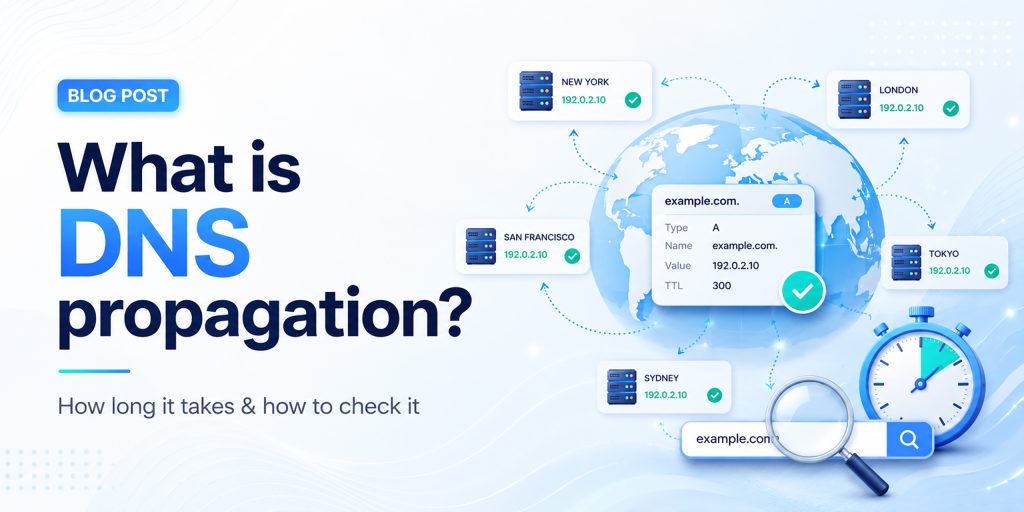
DNS propagation is the process by which updates to your domain’s DNS records spread across all DNS servers worldwide after you make a change. When you update your DNS settings, such as changing your nameservers, modifying an A record, or updating your MX records, those changes do not appear instantly for everyone on the internet. Instead, they travel gradually from server to server across the global DNS network. This global DNS propagation time can range from a few minutes to 72 hours.
Think of the internet as a massive phone book system. Your domain name (like example.com) is the name in the book, and the DNS record is the phone number. When you “change your number,” every phone operator (DNS server) around the world needs to update their local copy of the book. Until they do, some people will still be calling the old number.
DNS Propagation Flow
| Your Domain (DNS Updated) |
→ | Root DNS Server |
→ | TLD Server (.com/.net) |
→ | ISP Resolver (Cache) |
→ | End User (Sees New IP) |
How DNS Works (and Why Propagation Happens)
To understand DNS propagation, you first need to understand how the Domain Name System works. DNS translates human-readable domain names into machine-readable IP addresses that servers use to communicate. Here’s the step-by-step DNS lookup process:
- Step 1 – Browser checks its local cache: Your browser stores recently visited DNS records. If it has the record cached (and it hasn’t expired), it uses that directly without any external request.
- Step 2 – OS checks its DNS cache: If the browser has no cached entry, it asks your operating system, which maintains its own DNS cache.
- Step 3 – Query sent to ISP’s recursive resolver: Your Internet Service Provider operates DNS resolver servers. These receive your DNS query and check their cache. This is where most propagation delays occur. ISP resolvers cache records aggressively.
- Step 4 – Resolver contacts root and authoritative servers: If the resolver doesn’t have a cached answer, it queries the root DNS servers, then TLD servers, then the authoritative nameserver for your domain, which has the latest record.
- Step 5 – Answer is cached and returned: The resolver stores the answer based on the TTL value and sends it back to your browser. The next request within the TTL window is answered from cache, which is why DNS propagation takes time.
How Long Does DNS Propagation Take?
How long does DNS propagation take? It varies, but here’s a practical breakdown of global DNS propagation time:
| Scenario | Typical Propagation Time | Speed |
| Low TTL records (300s / 5 min) | 5 – 30 minutes | Fast |
| Standard TTL records (3600s) | 1 – 4 hours | Moderate |
| A record / CNAME changes | 1 – 24 hours | Variable |
| MX record (email) changes | 4 – 24 hours | Variable |
| Nameserver changes | 12 – 48 hours | Slow |
| Domain transfer | 24 – 72 hours | Slowest |
| Full global propagation | Up to 72 hours | Maximum |
Key Factors That Affect DNS Propagation Time
TTL (Time to Live) Value
The TTL is the most important factor in DNS propagation time. It tells resolvers how long they should cache a record before checking for a fresh copy. A TTL of 86400 means 24 hours; a TTL of 300 means 5 minutes. If your TTL was 24 hours before your change, resolvers will serve the old record for up to 24 hours after your update.
ISP DNS Cache Behavior
Different ISPs refresh their DNS caches at different rates. Some respect the TTL exactly; others refresh less frequently. This means users on different ISPs may see your new DNS records at different times, creating inconsistent propagation across the globe.
Type of DNS Record Changed
Not all DNS records propagate at the same speed. A and CNAME changes propagate faster, while MX and nameserver updates take longer because they involve more layers of the DNS hierarchy.
Domain Registrar and Hosting Provider
Some registrars push nameserver updates to root servers faster than others. DNS hosting providers like Cloudflare or AWS Route 53 have infrastructure optimized for faster propagation.
Geographic Location
DNS propagation speed varies by location. Major internet hubs in North America and Western Europe typically see changes faster, while some regions in Asia and Africa may experience longer delays.
How to Check DNS Propagation Status
Knowing how to check DNS propagation is essential after making any DNS change. The goal is to verify that your new DNS records are being returned by resolvers around the world, not just on your local network.
Method 1: Use an Online DNS Propagation Checker
The easiest method is to use a dedicated DNS propagation checker tool that queries multiple DNS servers from locations worldwide and shows you the current record values from each. HasheTools offers a free online DNS propagation checker at hashetools.com that checks your domain against dozens of global resolvers simultaneously.
Method 2: Use Command Line Tools
For developers and sysadmins, command-line tools offer precise DNS lookup results:
• Windows (nslookup): nslookup example.com 8.8.8.8
• Mac/Linux (dig): dig @8.8.8.8 example.com A
Query different resolvers (8.8.8.8 = Google, 1.1.1.1 = Cloudflare, 9.9.9.9 = Quad9) to check propagation across multiple providers.
Method 3: Use Multiple Devices and Networks
Try accessing your website from different devices, your phone on mobile data, a friend’s computer, or a VPN, to see if different networks are serving the new or old DNS records.
Method 4: Clear Your Local DNS Cache
Before checking anything, clear your local DNS cache so you’re not seeing an outdated cached result:
- Windows: ipconfig /flushdns
- Mac: sudo dscacheutil -flushcache; sudo killall -HUP mDNSResponder
- Linux: sudo systemd-resolve –flush-caches
- Chrome: Visit chrome://net-internals/#dns and click ‘Clear host cache.’
DNS Propagation Troubleshooting
If your DNS changes are not reflecting, here are the most common causes and solutions:
| Problem | Likely Cause | Fix |
| The website shows old content | Local DNS or browser cache | Flush DNS cache; clear browser cache |
| Some users see new, others don’t | Propagation is still in progress | Wait for the full TTL to expire |
| DNS is correct, but the site won’t load | Firewall, SSL, or server config | Check server logs and SSL certificate |
| Email not working after MX change | MX propagation is still in progress | Wait 24 hrs; verify MX with dig |
| Nameserver change not taking effect | Registrar delay or wrong NS records | Confirm NS at registrar; wait 48 hrs |
| DNS propagated, but SSL error | SSL cert not yet on new host | Provision SSL cert on new server |
COMMON MISTAKE
Many users assume that because their DNS change is correct in the registrar panel, it has already propagated. This is wrong. The registrar is only the authoritative source; all caching resolvers in between need to expire their old cache before picking up the new record. Always check propagation with an external tool like HasheTools DNS Checker.
How to Speed Up DNS Propagation
While you cannot force instant global propagation, these proven strategies minimize DNS propagation delay and help your changes go live as quickly as possible:
- Lower your TTL before making changes: 48 hours before your planned DNS change, reduce your TTL to 300 seconds (5 minutes). Resolvers worldwide will cache the old record for only 5 minutes, drastically reducing propagation wait time when you make the actual change.
- Use a premium DNS provider with global anycast: Providers like Cloudflare, AWS Route 53, and Google Cloud DNS use anycast networks with nodes in hundreds of cities. Their DNS infrastructure propagates changes much faster than traditional shared hosting DNS.
- Clear your local DNS cache immediately: Flush the DNS cache on your machine and browser right after making changes. This lets you verify the new records are live without waiting for your local cache to expire.
- Switch to Google or Cloudflare DNS resolvers: Change your network’s DNS servers to 8.8.8.8 (Google) or 1.1.1.1 (Cloudflare). These resolvers typically refresh their caches faster than ISP resolvers.
- Plan migrations during low-traffic periods: Schedule DNS changes during off-peak hours (nights or weekends) so fewer users are affected during the transition period when some see the old site and others see the new one.
DNS Record Types and Their Propagation Times
Different DNS records (A, CNAME, MX, and others) have different propagation characteristics. Understanding these helps you set realistic expectations for each type of change:
| Record Type | Purpose | Typical Propagation | Impact |
| A Record | Maps the domain to an IPv4 address | 1 – 24 hours | Website accessibility |
| AAAA Record | Maps the domain to an IPv6 address | 1 – 24 hours | IPv6 accessibility |
| CNAME | Alias from one domain to another | 1 – 8 hours | Subdomains, CDN pointing |
| MX Record | Email server routing | 4 – 24 hours | Email delivery |
| TXT Record | SPF, DKIM, domain verification | 1 – 12 hours | Email authentication |
| NS Record | Defines authoritative nameservers | 12 – 48 hours | Entire DNS authority |
| SOA Record | Zone authority information | 24 – 72 hours | Zone administration |
| PTR Record | Reverse DNS lookup | 24 – 48 hours | Email reputation, security |
Frequently Asked Questions
What is DNS propagation and why does it happen?
DNS propagation is the time it takes for updated DNS records to spread across the Internet. It happens because DNS servers cache old records and only update them after the TTL (time to live) expires.
How long does DNS propagation take?
DNS propagation usually takes 24–72 hours worldwide, but many users see updates within a few hours. Timing depends on TTL, ISP caching, and location.
How can I check DNS propagation?
You can use tools like HasheTools DNS Checker or commands like nslookup and dig to see how your domain resolves in different locations.
Can DNS propagation be instant?
No, it cannot be fully instant worldwide. However, lowering your TTL before making changes can make updates much faster.
Why is my website not updating after DNS changes?
Your ISP or browser may still be using cached DNS data. Try clearing your cache, switching networks, or waiting for propagation to complete.
Does DNS propagation affect email?
Yes. Changes to MX records can temporarily affect email delivery. Keep your old mail server active for 48-72 hours to avoid issues.
Does clearing the DNS cache speed up propagation?
No, it only updates DNS on your device. It does not affect global propagation.
How can I verify DNS changes are correct?
Check your domain’s authoritative nameserver using tools like dig. If it shows the updated record, the change is correct and propagating.
Conclusion
DNS propagation is one of those technical realities of the internet that affects everyone who manages a website, email system, or online service. It’s not a bug or a failure; it’s simply how the distributed, cached DNS system keeps billions of lookups fast and efficient worldwide.
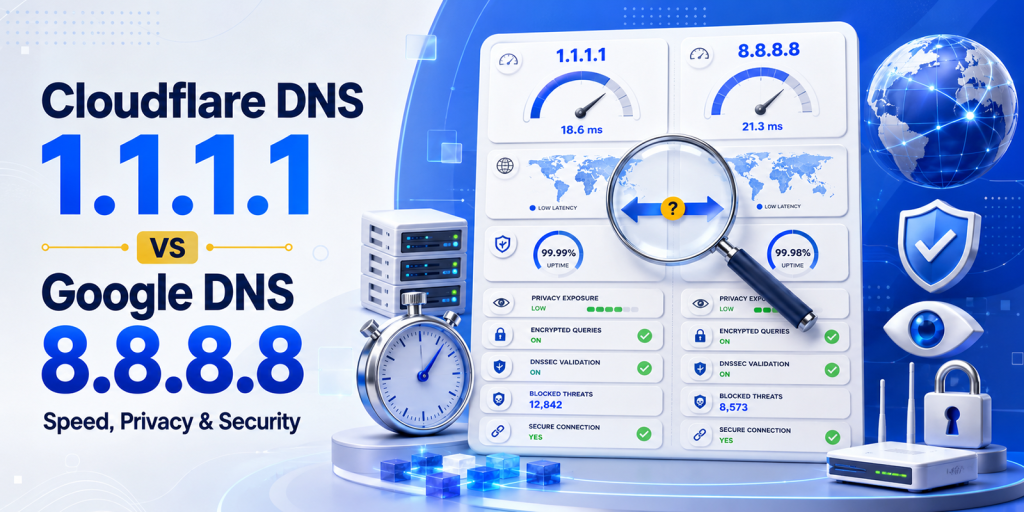
Cloudflare 1.1.1.1 vs Google DNS 8.8.8.8: Speed, Privacy & Security
Choosing the right public DNS server can improve your browsing experience by making websites load faster, enhancing your online privacy, and adding an extra layer of security. Two of the most popular options are Cloudflare DNS (1.1.1.1) and Google Public DNS (8.8.8.8), but which one is the better choice in 2026?
While both are free, reliable, and support modern security standards like DNS-over-HTTPS (DoH), DNS-over-TLS (DoT), and DNSSEC, they differ in areas such as speed, privacy policies, malware protection, and overall performance. The best option depends on whether your priority is faster browsing, stronger privacy, family-safe filtering, or long-term reliability.
In this comprehensive comparison, we’ll break down Cloudflare 1.1.1.1 vs Google DNS 8.8.8.8 across performance, security, privacy, features, setup, and real-world use cases. You’ll also learn how to switch your DNS settings, test which resolver is fastest from your location, and use free HasheTools utilities to verify and troubleshoot your DNS configuration.
What is a DNS Resolver and Why Does Your Choice Matter?
Every time you type a web address, hashetools.com, google.com, youtube.com, your device needs to convert that human-readable name into a numerical IP address. This translation is handled by a DNS resolver: a server that processes your DNS query and returns the answer.
By default, you use your ISP’s resolver, and this is almost always the wrong choice. ISP DNS resolvers are typically slower than major public alternatives, may inject ads into error pages, log every domain you visit, and in some countries sell this browsing data to third parties.
Switching to a public DNS resolver like Cloudflare’s 1.1.1.1 or Google’s 8.8.8.8 gives you three immediate improvements: faster browsing (faster DNS lookups reduce page load time for first-time visits), better privacy (fewer parties logging your browsing history), and better security (support for DNSSEC, DoH, and malware blocking).
Cloudflare 1.1.1.1 Complete Overview
Cloudflare launched its public DNS resolver on April 1, 2018, a date that led many to initially dismiss it as an April Fools’ joke. It was not. Within days, it became the world’s fastest public DNS resolver, a position it has maintained continuously.
Cloudflare is the world’s largest CDN and network security company, operating in over 300 cities globally. Its DNS resolver runs on the same global Anycast network as its CDN, meaning DNS queries are answered from the nearest data centre to you, minimising round-trip latency.
| Attribute | Cloudflare 1.1.1.1 |
|---|---|
| Primary IPv4 | 1.1.1.1 |
| Secondary IPv4 | 1.0.0.1 |
| Primary IPv6 | 2606:4700:4700::1111 |
| Secondary IPv6 | 2606:4700:4700::1001 |
| Launched | April 1, 2018 |
| Operated by | Cloudflare, Inc. (San Francisco, CA) |
| Global PoPs | 300+ cities worldwide |
| DNSSEC validation | Yes |
| DNS-over-HTTPS (DoH) | Yes, https://cloudflare-dns.com/dns-query |
| DNS-over-TLS (DoT) | Yes, tls://1dot1dot1dot1.cloudflare-dns.com |
| IP logging | No persistent IP logging; transient logs are wiped within 24 hours |
| Independent audit | Yes, annual KPMG audit of privacy practices, results published |
| Malware blocking | Yes, via 1.1.1.2 / 1.0.0.2 |
| Adult content filter | Yes, via 1.1.1.3 / 1.0.0.3 |
| Average speed (global) | ~11ms (DNSPerf 2026) |
Cloudflare’s Privacy Commitment: What Makes It Unique
Cloudflare made a privacy commitment at launch that no other major DNS provider has matched: it pledged never to write querying IP addresses to persistent storage, to wipe all transient operational logs within 24 hours, and to submit its practices to an annual third-party audit by KPMG. The KPMG audit reports are published publicly, providing verifiable evidence that Cloudflare’s stated practices match its actual operations. Cloudflare’s core business is network infrastructure, not advertising; there is no financial incentive to monetise your DNS query data.
Google DNS 8.8.8.8 Complete Overview
Google Public DNS launched on December 3, 2009, with the memorable IP addresses 8.8.8.8 and 8.8.4.4. At the time, it was a revelation: the first major public alternative to ISP-provided DNS, immediately faster and more reliable than what most users had access to.
Fifteen years later, Google Public DNS remains the world’s most widely used public resolver by query volume. It runs on Google’s global infrastructure, the same network backbone that powers Gmail, YouTube, and Google Search, with resolver instances distributed across Google’s data centres worldwide.
| Attribute | Google DNS 8.8.8.8 |
|---|---|
| Primary IPv4 | 8.8.8.8 |
| Secondary IPv4 | 8.8.4.4 |
| Primary IPv6 | 2001:4860:4860::8888 |
| Secondary IPv6 | 2001:4860:4860::8844 |
| Launched | December 3, 2009 |
| Operated by | Google LLC (Mountain View, CA) |
| Global PoPs | Distributed across Google’s worldwide data center network |
| DNSSEC validation | Yes |
| DNS-over-HTTPS (DoH) | Yes https://dns.google/dns-query |
| DNS-over-TLS (DoT) | Yes tls://dns.google |
| IP logging | Transient logs are kept up to 48 hours; some aggregated data is kept longer |
| Independent audit | No public independent audit of DNS privacy practices |
| Malware blocking | No dedicated filtering endpoint |
| Adult content filter | No dedicated filtering endpoint |
| Average speed (global) | ~14ms (DNSPerf 2026) |
Google DNS and Privacy: A Nuanced Picture
Google states that Google Public DNS is not used for advertising and that temporary logs are deleted within 24–48 hours. However, Google does retain some aggregated, anonymised data for longer periods for performance analysis. The critical difference from Cloudflare is that Google’s core business is advertising built on data, creating a structural incentive that Cloudflare simply does not have. Google does not submit its DNS privacy practices to an independent public audit. For users already fully embedded in the Google ecosystem (Gmail, Chrome, Google Workspace), switching away from Google DNS for privacy reasons has diminishing returns; Google already has extensive data about your browsing via other channels.
Head-to-Head: Full Feature Comparison
Here is a complete side-by-side comparison across every dimension that matters. Highlighted cells indicate the winner in each category.
| 🟠 Cloudflare 1.1.1.1 | Category | 🔵 Google DNS 8.8.8.8 |
| 1.1.1.1 / 1.0.0.1 | Primary / Secondary IP | 8.8.8.8 / 8.8.4.4 |
| ~11ms global average | Speed (DNS query time) | ~14ms global average |
| 2–5ms faster in most regions | Speed Advantage | Slower in 90%+ of locations |
| 300+ cities, Anycast | Global Network | Google’s worldwide data centres |
| No persistent IP logging | IP Address Logging | Transient logs up to 48 hours |
| Yes, KPMG published | Independent Privacy Audit | No public audit |
| Core business: networking | Business Model / Data Incentive | Core business: advertising |
| Yes | DNSSEC Validation | Yes |
| Yes | DNS-over-HTTPS (DoH) | Yes |
| Yes | DNS-over-TLS (DoT) | Yes |
| 1.1.1.2 / 1.0.0.2 | Malware Blocking Endpoint | No dedicated endpoint |
| 1.1.1.3 / 1.0.0.3 | Family / Adult Content Filter | No dedicated endpoint |
| iOS, Android app + WARP | Mobile App / VPN | No dedicated DNS app |
| Since 2018 (7+ years) | Track Record | Since 2009 (15+ years) |
| Excellent, rare outages | Reliability / Uptime | Exceptional, near-perfect record |
| Google Workspace compatible | Ecosystem Integration | Deep Google ecosystem integration |
| Free | Cost | Free |
Score: Cloudflare wins 7 categories, Google wins 3 categories, Tie on 5 categories.
Speed Comparison: The Real Numbers
DNS speed is location-dependent; the closest resolver to you physically is usually the fastest for you. That said, Cloudflare consistently leads Google in global independent benchmarks due to its denser network footprint.
Independent Benchmark Results (DNSPerf, 2026)
| Region | Cloudflare 1.1.1.1 | Google 8.8.8.8 | Cloudflare Advantage |
|---|---|---|---|
| Global average | ~11ms | ~14ms | ~3ms faster |
| North America | ~5ms | ~7ms | ~2ms faster |
| Europe | ~6ms | ~19ms | ~13ms faster |
| Asia Pacific | ~12ms | ~15ms | ~3ms faster |
| Latin America | ~25ms | ~28ms | ~3ms faster |
| Middle East | ~30ms | ~35ms | ~5ms faster |
What These Numbers Mean in Practice
For cached queries (popular domains like google.com, youtube.com, amazon.com that are already in the resolver’s cache): both return results in under 5ms, and the difference is imperceptible.
For uncached queries (first-time lookups of less-visited domains), Cloudflare’s advantage is most meaningful, 10–15% faster globally, with much larger differences in regions like Europe where Cloudflare’s network density gives it a geographic advantage.
For complex pages (20+ resource domains loaded per page), the advantage compounds, saving 3ms per lookup across 20 lookups saves 60ms of total page load time, which is measurable and noticeable.
Does DNS Speed Affect Gaming Ping?
DNS only affects the initial connection lookup, not ongoing game latency. Once your game client connects to the server IP, DNS is no longer involved. DNS speed will not reduce your in-game ping or solve routing lag. It will, however, reduce the time it takes to find and connect to a server initially and may reduce connection timeouts when servers change IPs. For gaming, Cloudflare 1.1.1.1 is generally recommended as primary, but if you’re experiencing high ping in-game, DNS is not the cause.
Why Cloudflare Is Faster
- Denser network footprint: Cloudflare operates in 300+ cities, more than any other DNS provider. More PoPs means a resolver is statistically closer to you, reducing round-trip latency.
- Purpose-built DNS hardware: Cloudflare’s DNS resolvers run on hardware purpose-built and optimised specifically for DNS workloads. Google’s infrastructure is more general-purpose.
- Aggressive response compression: Cloudflare uses packet compression techniques that reduce DNS response sizes by 10–15% compared to Google, reducing transmission time
- Anycast routing: Both use Anycast, but Cloudflare’s more granular PoP distribution means queries reach a resolver with fewer network hops
Privacy Comparison: Who Knows What You Browse?
This is where the two resolvers differ most meaningfully, and where the choice matters beyond raw performance.
When you make a DNS query, you reveal your IP address and the domain you’re looking up to the DNS resolver. Over a day of browsing, this builds a complete picture of every website you visit. The question is: what does each provider do with that information?
| 🟠 Cloudflare: Privacy Policy | 🔵 Google: Privacy Policy |
| Never write querying IPs to persistent disk storage | Transient logs kept up to 48 hours |
| Transient operational logs are wiped within 24 hours | Some aggregated data is retained for longer periods |
| No DNS query data used for advertising (ever) | States’ DNS is not used for ad targeting, but not audited |
| Annual KPMG audit, results published publicly | No public independent audit of DNS privacy practices |
| Core business: network infrastructure (not advertising) | Core business: advertising built on user data |
| No financial incentive to monetise query data | Structural incentives exist to aggregate user data |
| APNIC research partnership (anonymised aggregate data only) | Deep integration with Google’s broader data ecosystem |
The bottom line: If privacy is a priority, Cloudflare’s commitment is structurally stronger, verified by an independent audit with published results. Google’s assurances are self-reported and unaudited. That said, if you are already signed into Chrome, Gmail, and YouTube, Google already has extensive data about your browsing via those channels; switching DNS resolvers has diminishing privacy returns for deep Google ecosystem users.
How Encrypted DNS (DoH/DoT) Affects Privacy
Both Cloudflare and Google support DNS-over-HTTPS (DoH) and DNS-over-TLS (DoT), which encrypt your DNS queries in transit. This prevents:
- Your ISP from seeing what domains you visit
- Man-in-the-middle attackers on public Wi-Fi intercept DNS queries
- Network observers are building browsing profiles from your DNS traffic
Important: Encrypted DNS (DoH/DoT) prevents your ISP from seeing your queries, but it doesn’t prevent the DNS resolver (Cloudflare or Google) from seeing them. Your queries are encrypted from your device to the resolver, but the resolver must decrypt them to process them. This is why the resolver’s privacy policy matters even when using DoH/DoT.
Security Comparison: DNSSEC, DoH, DoT & Filtering
DNSSEC Cache Poisoning Protection
Both Cloudflare and Google validate DNSSEC signatures. When a domain has DNSSEC enabled, both resolvers will cryptographically verify that DNS records are authentic and reject forged responses, protecting against cache poisoning attacks.
The adoption caveat: DNSSEC validation by the resolver only helps if the domain itself has DNSSEC enabled. Fewer than 25% of domains have DNSSEC configured. Check your domain’s DNSSEC status with HasheTools DNS Lookup.
Encrypted DNS Protocols
| Protocol | Cloudflare 1.1.1.1 | Google DNS 8.8.8.8 |
|---|---|---|
| DNS-over-HTTPS (DoH) | https://cloudflare-dns.com/dns-query | https://dns.google/dns-query |
| DNS-over-TLS (DoT) | tls://1dot1dot1dot1.cloudflare-dns.com | tls://dns.google |
| Port | DoH: 443 (HTTPS) | DoT: 853 | DoH: 443 (HTTPS) | DoT: 853 |
| Browser DoH | Built into Firefox, Chrome, Edge, and Brave | Built into Chrome and others |
Malware Blocking & Content Filtering
This is a significant differentiator. Cloudflare offers dedicated DNS endpoints that block categories of harmful content at the DNS level, no software required:
| Endpoint | Cloudflare | |
|---|---|---|
| Standard DNS | 1.1.1.1 / 1.0.0.1 | 8.8.8.8 / 8.8.4.4 |
| Malware blocking | 1.1.1.2 / 1.0.0.2 | No dedicated endpoint |
| Family filtering | 1.1.1.3 / 1.0.0.3 | No dedicated endpoint |
| Enterprise features | Cloudflare Gateway (paid) | Google Cloud DNS / Safe Browsing API |
For families and businesses: Cloudflare’s filtering endpoints are a significant advantage. Switching a home router to 1.1.1.2 (malware) or 1.1.1.3 (malware + adult content) provides free network-level content filtering for every device on the network, including smartphones, smart TVs, and game consoles, with no per-device software required.
DDoS Protection
Both Cloudflare and Google operate at the scale required to absorb DNS-targeted DDoS attacks without service interruption. Cloudflare specifically is the world’s largest DDoS mitigation provider; its DNS infrastructure is hardened against the largest volumetric attacks ever recorded. For enterprise users, Cloudflare Gateway provides additional threat intelligence, DNS firewall capabilities, and logging suitable for compliance requirements.
Reliability & Uptime Comparison
Both resolvers offer exceptional reliability that far exceeds typical ISP DNS servers. The question is which has the stronger track record.
| 🟠 Cloudflare 1.1.1.1 Reliability | 🔵 Google 8.8.8.8 Reliability |
| Launched in 2018, with 7 years of production operation | Launched in 2009, 15+ years of operation |
| Generally excellent uptime across all regions | Exceptional uptime track record over a longer timeframe |
| Notable outage: June 2022 configuration error (~1 hour) | Fewer notable outages than Cloudflare historically |
| Fully recovered and improved monitoring post-incident | Backed by Google’s multi-redundant global infrastructure |
| Some regional variability in uptime consistency | Very consistent across all regions globally |
| Real-time status: cloudflarestatus.com | Real-time status: google.com/appsstatus |
Recommendation: Use Cloudflare 1.1.1.1 as your PRIMARY and Google 8.8.8.8 as your SECONDARY DNS. Your device automatically falls back to the secondary if the primary is unreachable. This gives you Cloudflare’s speed and privacy advantages in normal operation, with Google’s battle-tested infrastructure as a failsafe.
The ‘More DNS Servers = Faster’ Myth
A common misconception is that adding more DNS servers speeds things up. In reality, your device queries the primary server and only falls back to the secondary if the primary doesn’t respond within a timeout period (typically 2–5 seconds). Using your secondary adds latency, not speed. Set both primary and secondary to Cloudflare addresses (1.1.1.1 and 1.0.0.1) for the fastest experience, or use Cloudflare primary and Google secondary for speed + maximum failover reliability.
Additional DNS Options: Cloudflare Variants & Competitors
Cloudflare’s Full DNS Family
| Service | IP Addresses | What It Does |
|---|---|---|
| Standard DNS | 1.1.1.1 / 1.0.0.1 | Fast, private DNS with no filtering |
| Malware Blocking | 1.1.1.2 / 1.0.0.2 | Blocks known malware and phishing domains at the DNS level |
| Family Filtering | 1.1.1.3 / 1.0.0.3 | Blocks malware + adult/explicit content. Ideal for families and schools |
| Cloudflare WARP | App-based | DNS + VPN layer via the 1.1.1.1 mobile/desktop app |
| Cloudflare Gateway | Enterprise (paid) | Full DNS firewall, threat intelligence, analytics, and compliance logging |
Other Worthy Competitors
| Provider | IP Address | Best For |
|---|---|---|
| Quad9 | 9.9.9.9 | Security-first users: blocks known malicious domains by default, strong privacy policy, non-profit operated |
| OpenDNS | 208.67.222.222 | Families and businesses: highly customisable filtering categories, long track record |
| NextDNS | Personalised | Power users: per-device filtering rules, detailed analytics, ad blocking, full privacy controls |
| Mullvad DNS | 194.242.2.2 | Maximum privacy: no logging, no filtering, minimal infrastructure footprint |
| AdGuard DNS | 94.140.14.14 | Ad blocking at DNS level: blocks ads and trackers network-wide without browser extensions |
| ISP DNS | Auto-assigned | Not recommended: typically slow, may log data and inject ads into error pages |
Which DNS Should You Use?
Standard users: Cloudflare 1.1.1.1 primary, Google 8.8.8.8 secondary.
Privacy priority: Cloudflare 1.1.1.1 or Mullvad DNS.
Family / parental controls: Cloudflare 1.1.1.3 or OpenDNS.
Security priority (malware blocking): Cloudflare 1.1.1.2 or Quad9 9.9.9.9.
Power users (custom filtering + analytics): NextDNS.
Enterprise: Cloudflare Gateway or NextDNS Business.
How to Switch Your DNS Step-by-Step for Every Device
Recommended Settings
| Cloudflare 1.1.1.1 Setup | Google DNS 8.8.8.8 Setup |
| Primary: 1.1.1.1 | Primary: 8.8.8.8 |
| Secondary: 1.0.0.1 | Secondary: 8.8.4.4 |
| IPv6 Primary: 2606:4700:4700::1111 | IPv6 Primary: 2001:4860:4860::8888 |
| IPv6 Secondary: 2606:4700:4700::1001 | IPv6 Secondary: 2001:4860:4860::8844 |
Windows 11 / 10
- Open Settings → Network & Internet → click your active connection (Wi-Fi or Ethernet)
- Scroll down to DNS server assignment → click Edit
- Change from Automatic (DHCP) to Manual
- Enable IPv4, enter Primary DNS: 1.1.1.1, Secondary DNS: 1.0.0.1
- Click Save, changes take effect immediately
| Windows alternative via Command Prompt (run as Administrator) |
| # Set DNS via netsh (replace ‘Wi-Fi’ with your interface name)
netsh interface ip set dns “Wi-Fi” static 1.1.1.1 netsh interface ip add dns “Wi-Fi” 1.0.0.1 index=2 # Flush DNS cache to clear old entries ipconfig /flushdns # Verify new DNS settings nslookup hashetools.com |
macOS (Monterey, Ventura, Sonoma, Sequoia)
- Open System Settings (or System Preferences) → Network
- Click your active connection → Details (or Advanced)
- Click the DNS tab
- Click + to add DNS servers: 1.1.1.1, then 1.0.0.1
- Remove your ISP’s DNS servers from the list
- Click OK → Apply
| macOS, via Terminal |
| # Set DNS on Wi-Fi interface
networksetup -setdnsservers Wi-Fi 1.1.1.1 1.0.0.1 # Flush DNS cache (macOS Monterey+) sudo dscacheutil -flushcache; sudo killall -HUP mDNSResponder # Verify nslookup hashetools.com 1.1.1.1 |
Linux (Ubuntu / Debian)
| Ubuntu, using systemd-resolved (recommended) |
| # Edit resolved.conf
sudo nano /etc/systemd/resolved.conf # Add or update these lines: [Resolve] DNS=1.1.1.1 1.0.0.1 FallbackDNS=8.8.8.8 8.8.4.4 DNSOverTLS=yes # Restart the service sudo systemctl restart systemd-resolved # Verify resolvectl status | grep ‘DNS Servers’ |
Android
- Open Settings → Network & Internet (or Connections)
- Tap Private DNS
- Select the Private DNS provider hostname
- Enter: 1dot1dot1dot1.cloudflare-dns.com (for Cloudflare) or dns.google (for Google)
-
Tap Save; this enables DNS-over-TLS automatically on Android 9+
iOS / iPadOS
- Open Settings → Wi-Fi → tap the (i) next to your network
- Scroll to DNS → tap Configure DNS → Manual
- Delete existing DNS servers → tap Add Server
- Add 1.1.1.1 and 1.0.0.1
- Tap Save
For system-wide DoH on iOS: Download the 1.1.1.1 app from Cloudflare (free); it installs a profile that enables encrypted DNS across all apps, not just Safari.
Router (affects all devices on your network)
- Log in to your router admin panel (usually 192.168.1.1 or 192.168.0.1)
- Navigate to WAN settings, DHCP settings, or DNS settings (varies by router brand)
- Replace the DNS server fields with 1.1.1.1 and 1.0.0.1
- Save and reboot the router
- All devices on your network will use the new DNS automatically
Router-level change is the most powerful option: It protects every device on your network, smartphones, smart TVs, IoT devices, and game consoles, without changing individual device settings. This is especially valuable for the Cloudflare 1.1.1.3 family filtering option.
How to Test Which DNS is Fastest From Your Location
Because DNS speed is location-dependent, the only way to know for certain which resolver is fastest for you is to test from your actual location. Here are the most reliable methods:
Method 1: Command Line (dig / nslookup)
| Test DNS response time from your location |
| # Time a query to Cloudflare DNS
dig @1.1.1.1 hashetools.com A +stats | grep “Query time” # Example output: ;; Query time: 8 msec # Time a query to Google DNS dig @8.8.8.8 hashetools.com A +stats | grep “Query time” # Example output: ;; Query time: 14 msec # Run multiple times and average for accuracy for i in {1..5}; do dig @1.1.1.1 google.com A +stats 2>&1 | grep “Query time”; done |
Method 2: HasheTools Ping Test
Use HasheTools’ Ping Test tool to measure round-trip latency to Cloudflare and Google DNS servers from different global locations. This gives you a proxy measure of DNS query time based on network distance.
Method 3: Online Benchmark Tools
| Tool | What It Does |
|---|---|
| DNSPerf (dnsperf.com) | Continuous global monitoring across 200+ locations. Shows historical and real-time performance rankings for all major public DNS providers. |
| DNS Speed Test (1.1.1.1/help) | Cloudflare’s own tool tests 1.1.1.1 performance from your browser and network location. |
| Namebench (open source) | Local tool that queries your ISP DNS, Google, Cloudflare, and others from your exact location and recommends the fastest for you. |
| GRC DNS Benchmark (Windows) | Detailed graphical benchmark of all DNS servers from your location. Shows minimum, mean, and maximum response times. |
| nslookup.io | An online tool that tests DNS propagation from global locations, useful for comparing resolver consistency. |
Location Matters More Than Global Rankings
DNSPerf’s global average shows Cloudflare faster than Google, but your individual result depends on your ISP’s network topology, your country’s peering agreements, and which Cloudflare and Google PoPs you’re geographically closest to. In a small number of regions, Google’s infrastructure may be physically closer to you and therefore faster. Always benchmark from your actual location before committing to a DNS server.
How HasheTools Can Help You Understand Your DNS
HasheTools provides free DNS lookup and diagnostic tools that help you understand, verify, and troubleshoot your DNS configuration, whether you’ve just switched resolvers or are investigating a performance issue.
| HasheTools Tool | How It Helps After Switching DNS |
|---|---|
| DNS Lookup: All Records | Verify that domain records are resolving correctly after switching resolvers. Check that A, MX, TXT, and CNAME records return expected values from global vantage points. |
| DNS Servers Lookup | Check which authoritative nameservers a domain uses, useful for understanding why a domain resolves differently across resolvers. |
| Ping Test | Measure round-trip latency to any IP address. Use this to compare real-world network distance to Cloudflare (1.1.1.1) vs Google (8.8.8.8) from your location. |
| Traceroute | Trace the full network path to 1.1.1.1 and 8.8.8.8. Shows how many hops each resolver is from your network; fewer hops generally means lower latency. |
| Reverse DNS Lookup | Verify that IP addresses reverse-resolve correctly. Useful for confirming that your mail server’s PTR record is intact after DNS changes. |
| DNS Lookup DNSKEY | Check if a domain has DNSSEC configured, which both Cloudflare and Google 8.8.8.8 will validate if present. |
| CNAME Lookup | Trace CNAME chains to confirm DNS resolution paths are correct after switching resolvers. CDN configurations sometimes behave differently across resolvers. |
| SMTP Test | Full email delivery test confirms that DNS-dependent email authentication (SPF, DKIM, PTR) works correctly with your new DNS configuration. |
Frequently Asked Questions
Will switching DNS make my internet faster overall?
DNS switching affects the time it takes to look up domain names, not your download speeds, upload speeds, or streaming bandwidth. The improvement is most noticeable when visiting websites for the first time (uncached lookups) or on pages that load resources from many different domains. For most users, switching from ISP DNS to Cloudflare or Google DNS saves between 50–150ms on initial page loads. This is meaningful for browsing responsiveness but won’t change video streaming quality or download speeds.
Can I use 1.1.1.1 and 8.8.8.8 together?
Yes, this is actually the recommended setup for most users. Set Cloudflare 1.1.1.1 as your primary DNS and Google 8.8.8.8 as your secondary. Your device will use Cloudflare for all queries in normal operation and automatically fall back to Google only if Cloudflare is unreachable. This gives you Cloudflare’s speed and privacy advantages 99.9%+ of the time, with Google’s proven reliability as a failsafe.
Does changing DNS affect my VPN?
Most VPNs override your DNS settings when connected, routing all DNS queries through their own servers to prevent DNS leaks. Changing your system DNS to 1.1.1.1 will have no effect while your VPN is active. When the VPN is disconnected, your system will use whichever DNS you configured. Some VPNs allow you to specify a custom DNS server; check your VPN client settings if you want to use Cloudflare DNS even when connected.
Is 1.1.1.1 safe to use?
Yes. Cloudflare’s 1.1.1.1 is one of the most widely used and independently verified public DNS services in the world. It supports DNSSEC validation (protecting against cache poisoning attacks), DNS-over-HTTPS and DNS-over-TLS (protecting queries in transit), and has annual KPMG privacy audits confirming its data handling practices. It is operated by Cloudflare, one of the world’s largest internet infrastructure companies.
Will 1.1.1.1 block any websites?
The standard 1.1.1.1 resolver does not block any websites; it resolves all valid domain names without filtering. If you want filtering, use 1.1.1.2 (blocks known malware and phishing domains) or 1.1.1.3 (blocks malware plus adult/explicit content). These filtering variants use Cloudflare’s threat intelligence to block DNS queries for known harmful domains at the network level.
What is the difference between 1.1.1.1 and 1.0.0.1?
Both 1.1.1.1 and 1.0.0.1 are Cloudflare DNS resolvers with identical functionality and privacy policies. They are provided as primary and secondary addresses for redundancy; if one is unreachable, your system tries the other. In practice, the performance difference between them is negligible as they route to the same Cloudflare infrastructure globally.
Does Google DNS work with Google Workspace?
Google DNS is technically compatible with Google Workspace, but there is no direct integration advantage. Google DNS resolves DNS queries the same way as any other public resolver. Google Workspace mail routing and DNS settings depend on MX records and SPF/DKIM/DMARC configuration on your domain, not on which DNS resolver your devices use. You can use Cloudflare DNS on devices while using Google Workspace email with no issues.
How do I know my DNS change worked?
After changing DNS settings, verify by: (1) flushing your DNS cache (ipconfig /flushdns on Windows, sudo dscacheutil -flushcache on Mac); (2) visiting 1.1.1.1/help in your browser; it shows which DNS resolver you’re using; (3) running nslookup hashetools.com in a terminal; the ‘Server’ field in the response should show your new resolver’s address. HasheTools DNS Lookup also lets you verify that domains resolve correctly from multiple global locations.
Conclusion:
Both Cloudflare 1.1.1.1 and Google Public DNS (8.8.8.8) are excellent alternatives to your ISP’s default DNS, offering faster performance, better security, and support for modern standards like DNSSEC, DNS-over-HTTPS (DoH), and DNS-over-TLS (DoT).
If your priorities are speed, privacy, and built-in malware or family filtering, Cloudflare 1.1.1.1 is the better choice for most users. Its extensive global network, strong privacy commitment, and free filtering options make it an ideal DNS resolver for home users, businesses, and families alike.
On the other hand, if you value a long-established reliability record or already rely heavily on the Google ecosystem, Google Public DNS (8.8.8.8) remains a dependable and high-performing option.
For the best balance of performance and redundancy, many users choose Cloudflare 1.1.1.1 as their primary DNS and Google 8.8.8.8 as their secondary DNS.
After changing your DNS settings, use HasheTools to verify that everything is working correctly. Our free DNS Lookup, Ping Test, Traceroute, Reverse DNS Lookup, and DNSSEC Checker tools can help you confirm your DNS configuration, troubleshoot issues, and monitor performance with confidence.
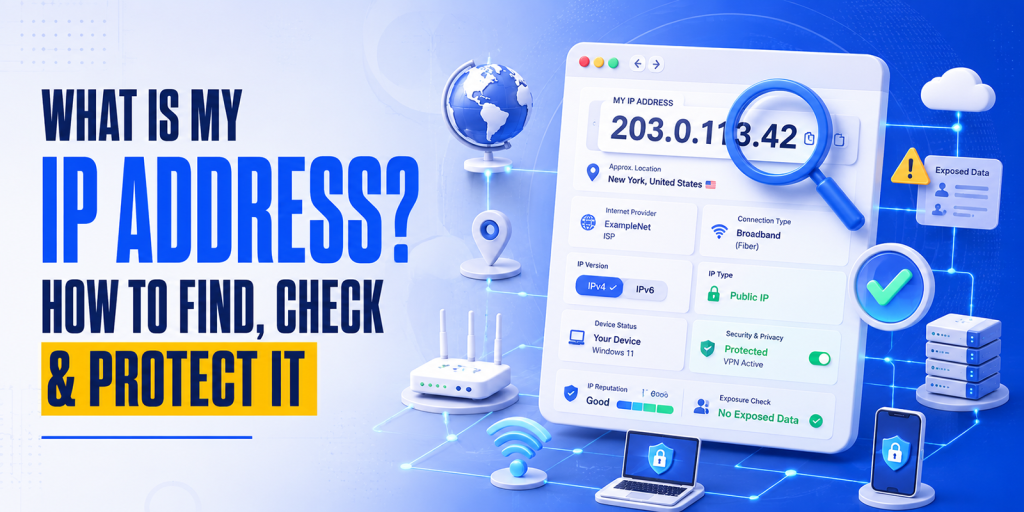
What Is My IP Address? How to Find, Check & Protect It
An IP address, short for Internet Protocol address, is a unique number used to identify a device or network on the internet. Every time you open a website, send an email, use an app, or connect to an online service, your device uses an IP address to communicate.
Think of an IP address like a digital return address. It tells websites and online services where to send information back after you request it.
For example, when you visit a website, your browser sends a request from your network’s IP address. The website then sends the page data back to that address so it can load on your screen.
According to ICANN, IPv4 addresses are usually written as four numbers separated by dots, while IPv6 addresses use a longer format designed to support the continued growth of the internet.
What Is My IP Address?
When people search for “what is my IP address?”, they usually want to see their public IP address.
Your public IP address is the address visible to websites, apps, servers, and online tools when you connect to the internet. It is usually assigned by your internet service provider, mobile network, office network, or VPN provider.
The easiest way to check it is to use the HasheTools My IP Address Lookup Tool. It automatically detects your public IP address and can show details such as IPv4 or IPv6 address, ISP, location, and VPN or proxy detection where available.
How to Check Your IP Address
You can check your IP address in just a few seconds.
Open the HasheTools My IP Address Lookup Tool, and the tool will automatically show your current public IP address. You do not need to log in, install software, or manually enter anything.
A good IP checker may show:
Your public IPv4 address
Your public IPv6 address, if available
Internet service provider
Approximate location
Browser or device-related connection details
VPN or proxy status, if detected
This is useful when troubleshooting websites, checking VPN connections, verifying server access rules, or confirming which IP address is visible to the internet.
Public IP Address vs Private IP Address
There are two common types of IP addresses: public IP addresses and private IP addresses.
Public IP Address
A public IP address is the address visible on the internet. Websites, apps, and online services can usually see this address when you connect to them.
Your public IP may belong to:
Your home internet connection
Your mobile data provider
Your office network
A VPN server
A proxy service
A cloud server
This is the IP address most online tools display when you search “what is my IP?”
Private IP Address
A private IP address is used inside a local network, such as your home Wi-Fi or office network. Your phone, laptop, printer, smart TV, and router may all have private IP addresses.
Common private IP ranges include:
10.0.0.0 to 10.255.255.255
172.16.0.0 to 172.31.255.255
192.168.0.0 to 192.168.255.255
These private ranges are reserved for internal networks under RFC 1918.
In simple terms, your private IP identifies your device inside your local network, while your public IP identifies your network on the internet.
IPv4 vs IPv6: What Is the Difference?
There are two main versions of IP addresses: IPv4 and IPv6.
IPv4 Address
An IPv4 address uses four sets of numbers separated by dots.
Example:
192.0.2.53
IPv4 is still widely used, but it has a limited number of possible addresses.
IPv6 Address
An IPv6 address is longer and uses letters and numbers separated by colons.
Example:
2001:db8:85a3::8a2e:370:7334
IPv6 was created to support far more devices and networks than IPv4. ICANN describes IPv6 as the successor to IPv4, designed to support the next generation of internet growth.
Which One Should You Care About?
Most users do not need to choose between IPv4 and IPv6 manually. Your internet provider, router, operating system, and websites usually handle this automatically.
However, checking whether your connection shows IPv4, IPv6, or both can help with:
Website access issues
Server firewall rules
VPN testing
Hosting configuration
Network diagnostics
What Can Someone Learn From Your IP Address?
Your IP address can reveal some basic information about your internet connection, but it does not usually reveal your exact home address.
An IP lookup may show:
Approximate city or region
Country
Internet service provider
Network type
Time zone estimate
Whether the IP belongs to a data center, VPN, proxy, or residential ISP
However, IP location data is not always exact. It may show the location of your ISP, mobile carrier, VPN server, or nearby network hub instead of your real physical location.
Still, your IP address is important because it can be used for tracking, security filtering, fraud detection, analytics, access control, and troubleshooting.
Why Should You Check Your IP Address?
Checking your IP address can help in many everyday and technical situations.
1. To Confirm Your VPN Is Working
If you are using a VPN, your visible public IP should usually change. An IP checker helps confirm whether websites are seeing your real ISP IP or your VPN IP.
2. To Troubleshoot Website Access
Some websites, servers, firewalls, or hosting platforms block or allow traffic based on IP addresses. Knowing your current IP makes it easier to debug access problems.
3. To Set Up Server Whitelisting
Developers, website owners, and agencies often whitelist IP addresses for:
Admin dashboards
Hosting panels
Staging websites
Databases
APIs
Security plugins
SSH or SFTP access
Before whitelisting, you need to know your current public IP address.
4. To Check Your Internet Provider
An IP lookup can show which ISP or network your connection is using. This is useful if you are switching between home Wi-Fi, mobile data, office internet, or VPN.
5. To Improve Online Privacy
Checking your IP helps you understand what basic network information is visible when you browse online.
Is It Dangerous If Someone Knows My IP Address?
In most cases, simply knowing your IP address is not enough for someone to hack you. Websites, apps, email services, and servers see IP addresses all the time.
However, your IP address can still be misused in some situations.
Potential risks include:
Tracking your approximate location
Restricting or targeting access based on your network
Attempting port scans against exposed devices
Launching denial-of-service attacks against a network
Associating online activity with the same connection
Identifying your ISP or organization
The risk is higher if your router, server, camera, remote desktop, or other internet-facing service is poorly secured.
That is why IP privacy and network security both matter.
How to Protect Your IP Address
You cannot use the internet without some kind of IP address, but you can reduce unnecessary exposure and improve your privacy.
1. Use a Trusted VPN When Needed
A VPN can mask your real public IP address by routing your traffic through a VPN server. This means websites may see the VPN server’s IP instead of your ISP-assigned IP.
A VPN is especially useful when using public Wi-Fi, traveling, or accessing sensitive work systems. Washington Technology Solutions notes that a VPN encrypts data between your device and the network and acts as a protective tunnel on public Wi-Fi.
Choose a reputable VPN provider. Avoid unknown free VPNs that may log or sell browsing data.
2. Use HTTPS Websites
When visiting websites, look for secure HTTPS connections. The FTC recommends entering personal information only on secure sites that use encryption, especially when using public Wi-Fi.
HTTPS does not hide your IP address, but it helps protect the information sent between your browser and the website.
3. Secure Your Router
Your router is one of the most important devices in your network. To protect it:
Change the default admin password
Keep router firmware updated
Disable remote admin access unless required
Use WPA2 or WPA3 Wi-Fi encryption
Use a strong Wi-Fi password
Turn off WPS if you do not need it
Restart or replace outdated routers when necessary
A poorly secured router can expose your entire network.
4. Avoid Exposing Devices Directly to the Internet
Do not expose cameras, printers, NAS devices, smart home devices, or remote desktop services directly to the internet unless you fully understand the security risks.
If remote access is required, use:
VPN access
Strong authentication
Firewall rules
Updated firmware
Non-default passwords
Limited user permissions
5. Be Careful on Public Wi-Fi
Public Wi-Fi networks at airports, hotels, restaurants, and cafés can be convenient, but they should be used carefully.
When using public Wi-Fi:
Avoid entering sensitive information on non-HTTPS websites
Use a VPN when possible
Disable automatic Wi-Fi connections
Avoid file sharing
Log out of accounts after use
Keep your device updated
6. Keep Your System Updated
Operating system, browser, router, and app updates often include important security patches. Keeping devices updated reduces the chance that attackers can exploit known vulnerabilities.
7. Use a Firewall
A firewall helps block unwanted incoming traffic. Most operating systems include built-in firewall features. Make sure they are enabled, especially on laptops used outside your home or office network.
8. Check for IP Leaks
If you use a VPN, periodically check your IP address to confirm that your real IP is not exposed.
You should check:
Public IPv4 address
Public IPv6 address
DNS leak status
WebRTC leak behavior
VPN connection status
If your real IP still appears while connected to a VPN, your VPN or browser settings may need adjustment.
Static IP vs Dynamic IP
Your public IP address may be static or dynamic.
Static IP Address
A static IP usually stays the same over time. Businesses often use static IPs for servers, remote access, VPNs, email systems, and firewall rules.
Static IPs are useful for reliability, but they may also make tracking easier because the same IP remains associated with the same network.
Dynamic IP Address
A dynamic IP can change periodically. Many home internet connections use dynamic IP addresses assigned by the ISP.
Dynamic IPs are common and usually fine for everyday browsing, streaming, gaming, and general internet use.
Shared IP vs Dedicated IP
Some users have a shared IP, while others use a dedicated IP.
Shared IP
A shared IP is used by multiple users, websites, or customers. This is common with residential ISPs, mobile networks, shared hosting, and VPN services.
Dedicated IP
A dedicated IP is assigned to one user, server, or service. Businesses may use dedicated IPs for hosting, email reputation, secure access, or firewall control.
For most users, a shared IP is normal. For business systems, a dedicated or static IP may be useful.
Can You Change Your IP Address?
Yes, in many cases, you can change your visible IP address.
Common ways include:
Restarting your router
Switching from Wi-Fi to mobile data
Using a VPN
Connecting from a different network
Asking your ISP for a new IP
Using a proxy service
Upgrading to a static or dedicated IP plan
However, changing your IP does not automatically make you anonymous. Websites can still use cookies, browser fingerprints, account logins, device identifiers, and other tracking methods.
What Is an IP Address Used For?
IP addresses are used for many internet and security functions, including:
Routing internet traffic
Loading websites
Sending and receiving data
Email delivery
Server access control
Fraud detection
Website analytics
Network troubleshooting
Firewall rules
CDN routing
Geolocation-based content
VPN and proxy detection
For website owners, IP addresses also help with log analysis, spam prevention, rate limiting, and cybersecurity investigations.
Common IP Address Problems
“My IP Address Is Blocked”
Your IP may be blocked by a website, firewall, email server, or security system. This can happen because of suspicious activity, failed login attempts, spam history, shared VPN abuse, or incorrect firewall rules.
“My Location Is Wrong”
IP location is approximate. It may show your ISP’s location, VPN server location, mobile network gateway, or regional routing point instead of your real location.
“My IP Keeps Changing”
This usually means your ISP uses dynamic IP assignment. It is normal for many residential connections.
“My VPN Is Not Hiding My IP”
Your VPN may be disconnected, misconfigured, leaking IPv6, or affected by browser WebRTC leaks. Use an IP checker after connecting to confirm what IP is visible.
“I Need to Whitelist My IP”
Use an IP address checker to find your current public IP, then add that IP to your firewall, hosting panel, security plugin, or server access list.
Quick IP Address Safety Checklist
Use this checklist to protect your IP address and network:
| Task | Why It Matters |
| Check your public IP regularly | Helps confirm what websites can see |
| Use a VPN on public Wi-Fi | Reduces exposure on untrusted networks |
| Keep your router updated | Protects your home or office network |
| Use strong Wi-Fi security | Prevents unauthorized network access |
| Avoid exposing devices online | Reduces attack surface |
| Use HTTPS websites | Protects data in transit |
| Enable firewall protection | Blocks unwanted incoming traffic |
| Check for VPN leaks | Confirms your real IP is hidden |
| Use strong passwords | Protects accounts and devices |
| Monitor suspicious activity | Helps detect security issues early |
How HasheTools Helps You Check Your IP
HasheTools makes it simple to check your public IP address instantly. The My IP Address Lookup Tool can automatically detect your IP from your browser and show useful connection details such as IPv4, IPv6, ISP, location, and VPN or proxy status where available.
You can use it when:
Checking your current public IP
Testing a VPN
Troubleshooting website access
Setting up firewall rules
Verifying server whitelist access
Checking IPv4 or IPv6 connectivity
Reviewing basic network information
It is a fast, browser-based way to understand what your internet connection is showing to the outside world.
FAQs
How do I check my IP address?
The easiest way is to use an online IP address checker such as the HasheTools My IP Address Lookup Tool. It automatically detects your public IP address from your browser.
Can my IP address show my exact location?
Usually, no. Your IP address may reveal an approximate city, region, country, or ISP, but it normally does not reveal your exact home address.
Is my IP address private?
Your public IP address is visible to websites and online services you connect to. Your private IP address is used inside your local network and is not normally visible on the public internet.
Can someone hack me with my IP address?
Knowing your IP address alone is usually not enough to hack you. However, if your network or devices are poorly secured, attackers may try to scan or target exposed services.
How can I hide my IP address?
You can hide or mask your real public IP by using a trusted VPN, proxy, or privacy-focused network. A VPN is one of the most common options for everyday users.
Why does my IP address change?
Many internet service providers assign dynamic IP addresses, which can change when your router reconnects or after a certain period.
What is the difference between IPv4 and IPv6?
IPv4 is the older format that uses four numbers separated by dots. IPv6 is a newer, longer format designed to provide many more available addresses for modern internet growth.
Should I use a VPN to protect my IP address?
A VPN can help mask your real IP address and protect traffic on untrusted networks. It is especially useful on public Wi-Fi, while traveling, or when you want more privacy from websites and networks.
Why does my IP checker show a different city?
IP location databases are not always exact. They may show your ISP’s location, VPN server, mobile network gateway, or regional routing location instead of your actual location.
Can two devices have the same public IP address?
Yes. Devices on the same home or office network often share a single public IP address through Network Address Translation (NAT), while each device has its own private IP address.
Final Thoughts
Your IP address is a basic but important part of how the internet works. It helps websites, apps, and online services communicate with your device or network.
Knowing your IP address can help you troubleshoot connection issues, configure server access, check VPN protection, and better understand your online privacy.
The key is not to panic about your IP address being visible. Instead, use smart protections: secure your router, use HTTPS, avoid unsafe public Wi-Fi behavior, keep devices updated, and use a trusted VPN when privacy matters.
If you want to quickly check your current public IP address, use the HasheTools My IP Address Lookup Tool and review what your connection is showing online.

NIST SP 800-81r3 Explained: What the New DNS Security Guidelines Mean for Domain Owners in 2026
DNS is no longer just the invisible system that turns a domain name into an IP address. In 2026, DNS has become a core part of cybersecurity, brand protection, email authentication, and online trust.
That is exactly why NIST published SP 800-81 Revision 3, officially titled Secure Domain Name System (DNS) Deployment Guide, in March 2026. The updated guide explains how organizations should secure DNS infrastructure, protect DNS data, reduce misconfiguration, and use DNS as part of a broader zero trust and defense-in-depth security strategy.
For domain owners, this update matters because your DNS records control where your website loads, how your email is authenticated, how subdomains resolve, and how users reach your online services. A single weak DNS configuration can lead to phishing, domain hijacking, email spoofing, broken websites, or brand impersonation.
This guide explains what NIST SP 800-81r3 means in practical terms and what domain owners should focus on in 2026.
What Is NIST SP 800-81r3?
NIST SP 800-81r3 is the latest revision of NIST’s DNS security deployment guide. It provides recommendations for securing DNS protocols, DNS servers, authoritative DNS services, recursive DNS services, DNSSEC, encrypted DNS, and protective DNS. NIST describes DNS as an integral part of enterprise network architecture and warns that attacks against DNS infrastructure can threaten network operations.
The major shift in this revision is that DNS is treated as more than a background technical service. NIST now frames DNS as a foundational security control that can support zero trust, defense-in-depth, incident response, and policy enforcement.
In simple words: DNS is not only about “where does this domain point?” It is also about “Can this domain be trusted, monitored, protected, and verified?”
Why Domain Owners Should Care
Even if you are not running a large enterprise network, your domain depends on DNS for almost every important online function.
Your DNS controls:
- Website routing through A, AAAA, and CNAME records
- Email delivery through MX records
- Email authentication through SPF, DKIM, and DMARC records
- DNSSEC validation through DS, DNSKEY, and RRSIG records
- Subdomain behavior across hosting platforms, SaaS tools, landing pages, CDNs, and mail services
- Brand trust, because attackers often abuse DNS misconfigurations to impersonate legitimate organizations
NIST specifically warns that misconfigured or stale CNAME records and name server delegations can allow attackers to take control of external-facing domains. It also notes that attackers commonly register look-alike domains to trick users into believing they are interacting with a legitimate organization.
That means DNS security is not only an IT issue. It is also a business continuity, brand protection, email security, and customer trust issue.
The Biggest Change: DNS Is Now a Security Control
The most important message in NIST SP 800-81r3 is that DNS should be part of an organization’s active security strategy.
NIST explains that DNS can help prevent malicious communication before it starts because DNS queries usually happen before a browser, app, or device connects to a destination. This makes DNS useful for blocking dangerous domains, detecting suspicious activity, supporting digital forensics, and improving zero trust visibility.
For domain owners, this means your DNS setup should be reviewed with the same seriousness as SSL certificates, website security, email authentication, and hosting security.
A modern DNS security posture should answer these questions:
- Are our DNS records accurate and up to date?
- Is DNSSEC enabled and correctly configured?
- Are abandoned subdomains removed?
- Are old CNAME records still pointing to third-party services we no longer use?
- Are our authoritative name servers resilient?
- Are DNS changes monitored?
- Are SPF, DKIM, DMARC, and related TXT records valid?
- Are look-alike domains being monitored?
- Do we have a plan if DNS is hijacked or misconfigured?
1. Protective DNS: Blocking Threats Before Connections Begin
One of the strongest themes in NIST SP 800-81r3 is protective DNS.
Protective DNS is DNS with security capabilities added on top. It can analyze DNS queries and responses, block known malicious domains, prevent malware and phishing connections, enforce policy, and generate logs for security teams. NIST says protective DNS can be delivered by a vendor, deployed internally, or used in a hybrid model.
For domain owners, protective DNS is especially useful when managing company networks, employee devices, remote teams, or business systems. It can help stop users from reaching malicious domains before the actual web or app connection begins.
What should domain owners do?
Domain owners and website administrators should:
- Use a trusted DNS resolver with security filtering.
- Avoid allowing unmanaged devices to use random public DNS providers.
- Log malicious DNS blocks when possible.
- Review DNS queries for unusual patterns.
- Use protective DNS for office networks, remote endpoints, and sensitive systems.
- Combine DNS protection with email security, endpoint protection, and web security.
Protective DNS does not replace good website security, but it adds an early layer of defense.
2. DNSSEC: Protecting the Integrity of DNS Data
DNSSEC is one of the most important DNS security technologies discussed in NIST SP 800-81r3.
NIST explains that DNSSEC adds source authentication and integrity protection to DNS data. It helps DNS clients verify that DNS responses have not been tampered with. However, NIST also makes an important distinction: DNSSEC protects the integrity of DNS data, but it does not protect the confidentiality of DNS queries. For confidentiality, encrypted DNS protocols such as DoH, DoT, or DoQ are needed.
For domain owners, DNSSEC helps reduce the risk of DNS spoofing, cache poisoning, and unauthorized DNS response manipulation.
What should domain owners check?
A practical DNSSEC checklist includes:
- Confirm that your registrar supports DNSSEC.
- Confirm that your DNS hosting provider supports DNSSEC signing.
- Enable DNSSEC for your authoritative zone.
- Publish the correct DS record at the registrar.
- Verify DNSKEY, DS, and RRSIG records.
- Monitor DNSSEC validation after every DNS provider migration.
- Plan DNSSEC key rollovers carefully.
- Avoid misconfigured DNSSEC records because they can make a domain fail validation.
NIST also notes that DNSSEC signing and validation depend on accurate time. DNSSEC signers and validating recursive servers need reliable time sources to verify signatures correctly.
Before making DNSSEC changes, domain owners should test records carefully. HasheTools provides DNS lookup guidance for checking DNSKEY and RRSIG records, and its DS Lookup tool can help verify DS records used for DNSSEC validation.
3. Encrypted DNS: Improving DNS Privacy and Reducing Tampering
NIST SP 800-81r3 also highlights encrypted DNS protocols, including:
- DoH: DNS over HTTPS
- DoT: DNS over TLS
- DoQ: DNS over QUIC
These protocols encrypt DNS communication between clients and recursive DNS servers. NIST explains that encrypted DNS can help protect sensitive DNS information from exposure or manipulation and reduce risks such as spoofing and machine-in-the-middle attacks.
However, encrypted DNS must be managed carefully. If browsers or devices bypass approved resolvers and use their own encrypted DNS providers, organizations may lose DNS visibility, logging, and policy enforcement. NIST recommends restricting endpoints to authorized DNS services wherever possible and blocking unauthorized DNS paths where appropriate.
What this means for domain owners
For website owners, encrypted DNS is mostly relevant in two areas:
First, it affects how users and employees resolve domains. If you run a business network, you should define approved DNS resolvers instead of allowing unmanaged DNS behavior.
Second, it reinforces the idea that DNS privacy and DNS integrity are separate issues. DNSSEC proves that DNS data has not been tampered with. Encrypted DNS protects the DNS transaction from being easily observed or modified in transit. A mature DNS security strategy may need both.
4. Authoritative DNS Must Be Hardened
Your authoritative DNS is the source of truth for your domain. If attackers compromise it, they can redirect your website, intercept traffic, break email, or abuse your domain reputation.
NIST recommends a resilient authoritative DNS architecture, including multiple authoritative name servers, network and geographic diversity, and secure primary-secondary configurations. It also recommends using a hidden primary server when an organization hosts its own zone information, with only secondary servers visible publicly.
NIST also warns that zone transfers should be restricted. Zone transfers can be useful for replication, but if they are exposed or misconfigured, they may leak DNS data or create denial-of-service risks. NIST recommends access controls, secure authentication methods such as TSIG, and confidentiality protections such as TLS where appropriate.
What should domain owners do?
Domain owners should:
- Use reputable, authoritative DNS providers.
- Keep at least two authoritative name servers.
- Avoid hosting DNS on a single fragile server.
- Disable public zone transfers unless specifically required.
- Restrict zone transfers to trusted secondary servers.
- Use TSIG or equivalent controls for DNS server-to-server updates.
- Separate authoritative DNS from recursive DNS where possible.
- Protect registrar and DNS provider accounts with MFA.
- Limit who can edit DNS records.
- Keep a record of every DNS change.
Most small businesses use managed DNS providers rather than self-hosted authoritative DNS. Even then, the same principles apply: choose reliable providers, restrict access, monitor changes, and remove stale records.
5. Dangling CNAMEs and Lame Delegations Are Serious Risks
One of the most practical parts of NIST SP 800-81r3 for domain owners is its warning about stale DNS records.
A dangling CNAME happens when a subdomain points to a third-party service that is no longer active or controlled by the domain owner. If the third-party resource can be claimed by someone else, an attacker may be able to take over that subdomain.
NIST warns that CNAME records can be exploited when the target domain or IP address is no longer controlled by the rightful organization. It recommends regularly monitoring domain configurations and deleting CNAME records when they are no longer needed.
A lame delegation can also create risk. NIST explains that if a subdomain is delegated to a DNS hosting provider and that service relationship lapses, attackers may be able to hijack resolution for that subdomain.
What domain owners should audit?
Review your DNS zone for:
- Old CNAMEs pointing to unused SaaS platforms
- Landing page tools are no longer in use
- Unused staging or development subdomains
- Old CDN records
- Expired hosting platforms
- Forgotten client portals
- Abandoned helpdesk or documentation subdomains
- NS records delegating subdomains to inactive providers
- TXT records from old verification processes
- SPF includes services you no longer use
A clean DNS zone is easier to secure, easier to troubleshoot, and less attractive to attackers.
6. TTL Values Should Be Practical, Not Random
TTL, or time to live, controls how long DNS records stay cached. Very low TTL values can increase DNS query load, while very high TTL values can delay important changes.
NIST recommends that TTL values should generally be in the range of 1800 seconds to 86400 seconds, or roughly 30 minutes to 1 day, for most DNS data. It also warns that TTL values of zero should not be used, and that very low TTL values can cause problems, especially with DNSSEC-validating caches.
Practical TTL guidance for domain owners
Use lower TTLs before:
- Website migrations
- DNS provider changes
- Email provider migrations
- CDN changes
- DNSSEC key changes
- Emergency incident response
Use stable TTLs for:
- Long-term website records
- MX records
- Verification records
- Records that rarely change
A good rule is to lower TTLs before a planned change, complete the change, verify everything, and then raise TTLs back to a stable value.
7. DNS Logging and Monitoring Are Now Essential
NIST emphasizes that DNS data can support incident response, security monitoring, and zero trust decision-making. Protective DNS logs can reveal blocked domains, suspicious queries, unusual traffic patterns, and possible malware activity. NIST also recommends integrating protective DNS with the broader security ecosystem through SIEM/SOAR tools, APIs, and threat intelligence workflows.
For domain owners, this means DNS should not be a “set it and forget it” system.
You should monitor:
- DNS record changes
- Registrar account logins
- Name server changes
- DS record changes
- MX record changes
- SPF, DKIM, and DMARC changes
- New subdomains
- Suspicious CNAME targets
- Unexpected TXT records
- Failed DNSSEC validation
- Unauthorized zone transfer exposure
DNS monitoring is especially important for agencies, SaaS businesses, ecommerce sites, financial services, healthcare organizations, and any brand that depends heavily on email trust.
2026 DNS Security Checklist for Domain Owners
Use this checklist to align your domain security with the spirit of NIST SP 800-81r3.
| Area | What to Check | Why It Matters |
| DNSSEC | DS, DNSKEY, RRSIG, validation status | Helps protect DNS data integrity |
| Authoritative DNS | Name server redundancy and provider security | Reduces outage and hijacking risk |
| CNAME Records | Remove unused third-party targets | Prevents subdomain takeover |
| NS Delegations | Check delegated subdomains | Prevents lame delegation hijacking |
| TTLs | Use practical TTLs, avoid zero TTL | Improves stability and change control |
| Email DNS | SPF, DKIM, DMARC, MX records | Prevents spoofing and delivery issues |
| DNS Access | MFA, least privilege, change logs | Reduces unauthorized changes |
| Zone Transfers | Disable public AXFR | Prevents data leakage |
| Monitoring | Track DNS changes and suspicious records | Enables faster incident response |
| Look-Alike Domains | Monitor typosquats and homoglyphs | Protects brand reputation |
How HasheTools Can Help
HasheTools.com can be part of a practical DNS review workflow. Domain owners can use DNS lookup and related checks to review DNS records, inspect DNSSEC signals, verify DS records, and identify issues in email authentication records such as SPF, DKIM, and DMARC. HasheTools’ own DNS guidance notes that users can check full DNS record stacks, security-related records, and DNS propagation behavior.
A simple monthly workflow could look like this:
- Run a DNS lookup for your main domain.
- Check A, AAAA, CNAME, MX, TXT, NS, and SOA records.
- Verify SPF, DKIM, and DMARC records.
- Check DNSSEC-related records such as DS, DNSKEY, and RRSIG.
- Review old CNAMEs and subdomains.
- Confirm your name servers match your intended DNS provider.
- Document any changes made during the review.
This is not a replacement for a full security audit, but it is a strong starting point for reducing common DNS risks.
FAQs
What is NIST SP 800-81r3?
NIST SP 800-81r3 is the 2026 revision of NIST’s Secure Domain Name System Deployment Guide. It provides recommendations for securing DNS infrastructure, DNSSEC, encrypted DNS, protective DNS, authoritative DNS, and recursive DNS services.
Does NIST SP 800-81r3 apply to small domain owners?
Yes. While much of the document is written for enterprises and security teams, many recommendations are useful for any domain owner, including DNSSEC validation, removing stale DNS records, securing authoritative DNS, monitoring CNAMEs, and protecting email-related DNS records.
Is DNSSEC enough to secure a domain?
No. DNSSEC helps protect the integrity and authenticity of DNS data, but it does not encrypt DNS queries. NIST explains that DNSSEC and encrypted DNS solve different problems, so DNSSEC should be treated as one part of a broader DNS security strategy.
What is protective DNS?
Protective DNS is DNS enhanced with security features that analyze queries and responses, block malicious domains, enforce policy, and support security monitoring. NIST describes it as a way to block malware, phishing, ransomware, spyware, and other attacks at the DNS layer.
What DNS records should domain owners review in 2026?
Domain owners should regularly review A, AAAA, CNAME, MX, TXT, NS, SOA, DS, DNSKEY, and RRSIG records. They should also check SPF, DKIM, and DMARC records because these email security controls depend on DNS.
Final Thoughts
NIST SP 800-81r3 makes one thing clear: DNS security is no longer optional.
For domain owners, DNS is directly connected to website availability, email trust, brand protection, phishing prevention, and customer confidence. The new NIST guidance encourages a more mature approach: use DNSSEC for integrity, encrypted DNS for privacy, protective DNS for threat prevention, resilient authoritative DNS for availability, and regular DNS audits to prevent misconfiguration.
In 2026, the safest domains will not simply be the ones that resolve correctly. They will be the ones that are continuously verified, monitored, and protected.

AI Phishing in 2026: How Attackers Clone Brands & How to Stop Them
AI has transformed phishing into a far more convincing and dangerous cyber threat. Instead of sending poorly written scam emails, attackers now use artificial intelligence to create personalized emails, clone trusted brands, generate fake websites, and even imitate voices and video calls to steal sensitive information.
As these attacks become more sophisticated, traditional warning signs like spelling mistakes and generic greetings are no longer enough to identify phishing attempts. Businesses and domain owners need stronger defenses, including email authentication and DNS security.
In this guide, you’ll learn how AI phishing works, how attackers clone legitimate brands, and the best ways to protect your organization with technologies such as SPF, DKIM, DMARC, BIMI, and DNSSEC. You’ll also discover how HasheTools’ free DNS and email security tools can help you check and strengthen your domain’s security.
What is AI phishing?
AI phishing is the use of artificial intelligence to create highly personalized phishing emails, voice calls, text messages, and fake websites that imitate trusted brands and individuals to steal credentials or financial information.
How Phishing Evolved into AI Phishing
Phishing has evolved dramatically over the past two decades. Early attacks relied on mass emails filled with spelling mistakes, generic greetings, and unrealistic offers that were relatively easy to identify. As attackers became more sophisticated, they began impersonating trusted brands, creating convincing login pages, and targeting specific individuals with personalized messages.
Today, artificial intelligence has transformed phishing into a highly automated and personalized threat. Large language models (LLMs), voice cloning, and deepfake technology allow attackers to generate professional emails, realistic phone calls, and even convincing video meetings that closely mimic legitimate people and organizations. Instead of sending millions of generic emails, cybercriminals can now launch tailored campaigns against employees, customers, or business partners within minutes.
The biggest change is not just the quality of phishing messages but the speed and scale at which they can be created. AI enables attackers to automate research, personalize content, clone trusted brands, and simultaneously adapt their tactics across email, SMS, voice, and video. This shift makes modern phishing far more difficult to detect and reinforces the need for strong email authentication, DNS security, and verification processes.
2026 by the Numbers
AI-powered phishing has grown rapidly, making attacks more convincing and easier to launch at scale. Recent industry reports highlight the accelerating threat:
- AI-generated phishing increased dramatically during 2025–2026, with AI now playing a major role in creating highly personalized phishing campaigns.
- Voice phishing (vishing) incidents surged as attackers began using AI voice cloning to impersonate executives, financial institutions, and trusted contacts.
- Deepfake fraud reached record levels, with organizations reporting a sharp rise in AI-generated video and voice impersonation attacks.
- Credential theft continues to be the primary objective, as AI enables attackers to create realistic emails, fake login pages, and multi-channel social engineering campaigns with minimal effort.
Key takeaway: AI has transformed phishing from mass, generic scams into highly targeted attacks that combine email, voice, SMS, and deepfake technology. Organizations should prioritize strong email authentication (SPF, DKIM, and DMARC), phishing-resistant MFA, and continuous security awareness training to reduce their risk.
The 6 Types of AI Phishing Attacks in 2026
AI has not just improved one type of phishing; it has turbocharged the entire attack surface simultaneously. Here are the six primary attack types security teams face in 2026:
| AI-Generated Spear Phishing | LLMs scrape LinkedIn, company websites, social media, and data breaches to craft personalised emails referencing real names, job roles, reporting lines, ongoing projects, and communication styles. The resulting email is indistinguishable from genuine internal communication. 54% click-through rate vs 12% for traditional emails. |
| Vishing: AI Voice Cloning | Attackers clone an executive’s voice from as little as 3 seconds of publicly available audio (conference recordings, LinkedIn videos, earnings calls). They then call employees with a cloned voice requesting urgent wire transfers or credential resets. Human detection accuracy for high-quality voice clones drops to 24.5%. Vishing surged 442% in 2024. |
| Deepfake Video Meetings | Synthetic participants join video calls on Teams, Zoom, or Google Meet. In the $25 million Arup attack, an entire management team was deepfaked; the finance employee believed they were speaking with their actual CFO and colleagues in a live call. Real-time deepfake technology now runs on consumer hardware. |
| AI Smishing (SMS/WhatsApp) | AI generates personalised SMS and WhatsApp messages at scale, referencing real transaction details, delivery information, or account activity. SMS-based phishing accounts for 35% of all phishing attacks in 2026 and surged 40% year-over-year. SMS bypasses email security filters entirely. |
| Clone Phishing with AI Lookalike Sites | AI tools can clone a brand’s entire website, visual design, content, and login flow in minutes. Combined with typosquat domains that pass basic visual inspection, AI-cloned sites harvest credentials without triggering traditional URL reputation blocklists because the domains are freshly registered. |
| Autonomous AI Scam Agents | The cutting edge of 2026 attacks: fully autonomous AI agents that conduct entire social engineering campaigns end-to-end. The agent researches the target, crafts personalised messages, adapts dynamically to responses, conducts follow-up voice calls, and handles objections in real time, all without human attacker involvement. |
Multi-Channel Attacks Are the Norm, Not the Exception
The most damaging attacks in 2026 combine multiple vectors in a coordinated sequence: a convincing AI-written email is followed by a voice-cloned phone call for ‘confirmation’, then a deepfake video call to ‘close the deal’. Each channel reinforces the others. A recipient who is slightly suspicious of an email becomes convinced when the voice call matches perfectly, because it is their actual CEO’s cloned voice.
Step-by-Step: How Attackers Clone Your Brand
Modern attackers can use AI to create convincing brand impersonation campaigns in just a few hours. The process typically follows these six stages:
| Step | What Happens |
| 1. Intelligence Gathering | AI collects publicly available information such as executive names, company branding, employee profiles, email formats, and recent announcements. |
| 2. Infrastructure Setup | Attackers register a lookalike domain (e.g., yourbrand-secure.com), obtain an SSL certificate, and deploy a cloned version of your website. |
| 3. Content Generation | Large language models generate realistic emails, landing pages, and messages that match your company’s tone, branding, and current business activities. |
| 4. Voice & Video Cloning | Public audio and video recordings are used to create AI-generated voice clones or deepfake videos that impersonate executives or trusted employees. |
| 5. Multi-Channel Attack | Victims receive coordinated phishing emails, SMS messages, phone calls, or video meeting invitations designed to build trust and create urgency. |
| 6. Credential Theft or Fraud | Once the victim interacts with the fake website or approves a fraudulent request, attackers steal credentials, sensitive data, or financial assets. |
The AI Brand Cloning Workflow
Public Information
│
▼
AI Collects Brand & Employee Data
│
▼
Lookalike Domain + Cloned Website
│
▼
AI Generates Personalized Emails & Messages
│
▼
Voice Clone / Deepfake Verification
│
▼
Victim Clicks or Approves Request
│
▼
Credentials or Funds Stolen
Why This Matters
Unlike traditional phishing, AI-powered brand cloning combines multiple attack methods into a single campaign. A convincing email may be followed by a voice-cloned phone call or a deepfake video meeting, making the scam appear legitimate. Because these attacks use real company information and polished communication, employees should always verify sensitive requests through an independent, trusted channel before taking action.
Tip: Protect your brand by enabling SPF, DKIM, DMARC, and BIMI, and regularly verify your DNS and email authentication records using HasheTools’ free lookup tools.
Real-World Case Studies: Attacks That Worked
1. Arup Deepfake Attack (2024)
A finance employee at global engineering firm Arup joined what appeared to be a legitimate video meeting with the company’s CFO and senior executives. In reality, every participant except the employee was an AI-generated deepfake. Trusting the meeting, the employee approved a $25 million transfer. The incident highlights why financial requests should always be verified through an independent communication channel.
2. ByBit Cryptocurrency Heist (2025)
The ByBit cryptocurrency exchange suffered a $1.5 billion theft after attackers reportedly compromised a third-party provider through a sophisticated spear phishing campaign. The attack demonstrated how AI-assisted social engineering can be used to target trusted suppliers instead of the primary organization. Strong vendor security and phishing-resistant authentication are essential to reduce supply chain risk.
3. AI Voice Fraud (2024)
Several organizations have reported fraud involving AI-generated voice cloning, where attackers impersonated executives to authorize urgent payments or sensitive actions. With only a few seconds of publicly available audio, criminals can create convincing voice replicas. The safest defense is to verify unexpected financial or credential requests by calling the person back using a trusted, known phone number.
How to Spot AI Phishing: The New Red Flags
Traditional phishing red flags are obsolete against AI-generated attacks. The absence of typos, generic greetings, or suspicious formatting no longer means an email is safe. Here are the detection signals that actually work in 2026:
| Red Flag | Why AI Makes This Harder to Spot |
| Unexpected urgency with a financial or credential request | AI can generate urgency that sounds entirely natural. But the underlying pattern, urgent + financial/credential request, remains constant. Check the pattern, not the phrasing. |
| Request comes via an unexpected channel or new contact | AI enables attackers to approach via email, SMS, and voice simultaneously. If a contact reaches you through an unexpected channel claiming urgency, verify through a known channel. |
| The email domain is similar but not identical to the real brand | AI generates hundreds of convincing typosquat variants automatically. Check the exact sender domain character by character, not just visually. |
| Request bypasses normal process (‘just this once’) | AI social engineering specifically includes language that normalises process bypass. Any request to skip standard verification steps is a red flag regardless of how it’s phrased. |
| Slightly mismatched visual branding on linked pages | AI-cloned sites are close but not perfect; colour shades, font weights, or footer content may differ slightly. Check these against the real brand directly. |
| Executive contact is on holiday, travelling, or ‘unavailable’ | Attackers schedule requests when the impersonated executive is genuinely unavailable (using public travel or OOO information). This makes callback verification harder. |
| Voice caller knows personal details, but something feels subtly ‘off’ | AI voices are extremely convincing but may have slight response delays, unnatural phrasing at sentence boundaries, or limited ability to respond to very specific follow-up questions. |
| Video call participant’s mouth movements slightly lag behind the audio | Real-time deepfakes can exhibit minor sync issues, especially on lower-bandwidth connections or when the participant is responding to unexpected questions. |
The One Detection Heuristic That Still Works
Regardless of how convincing a communication appears, perfect grammar, real names, authentic voice, and genuine context, ask yourself one question: Is this person asking me to take an action that bypasses a normal verification step? Wire transfers, credential resets, software installations, and data shares should always follow your standard verification process, no matter how authentic the requester appears. AI can clone everything except your organisation’s verification protocols.
The DNS Connection: How Email Authentication Stops Brand Cloning
One of the most effective and overlooked defences against AI brand cloning is proper email authentication via DNS. When attackers clone your brand, they almost always need to send emails that appear to come from your domain. DNS-based authentication protocols make this technically impossible, or at least detectable.
The Email Authentication Stack That Blocks Brand Cloning
| Protocol | How It Stops Brand Cloning |
|---|---|
| SPF | Publishes which mail servers are authorised to send email as your domain. An attacker sending from a lookalike domain or their own server fails SPF; the receiving mail server can reject or flag the message. |
| DKIM | Cryptographically signs every outgoing email. Even if an attacker intercepts and modifies a legitimate email, the DKIM signature breaks. Cloned emails sent from attacker infrastructure cannot produce a valid DKIM signature for your domain. |
| DMARC | Ties SPF and DKIM together and enforces a policy. At p=reject, any email claiming to be from your domain that fails authentication is rejected at SMTP level before it reaches the recipient’s inbox. This is the core protection against domain spoofing. |
| BIMI | Displays your verified brand logo in Gmail, Yahoo, and Apple Mail. Recipients see your authenticated logo next to legitimate emails and notice its absence on spoofed ones. Makes AI-cloned emails visually distinguishable. |
| DNSSEC | Cryptographically authenticates your DNS records. Prevents attackers from poisoning resolver caches to forge your SPF, DKIM, or DMARC records against invalidating resolvers. |
Verify Your Email Authentication Records
Strong email authentication is one of the most effective ways to reduce the risk of domain spoofing and brand impersonation. Instead of manually reviewing DNS records, use HasheTools’ free lookup tools to verify that your email authentication is configured correctly.
- SPF Lookup: Confirm which mail servers are authorized to send email on behalf of your domain.
- DKIM Lookup: Verify that your DKIM public keys are published and correctly configured.
- DMARC Lookup: Check whether your domain has a DMARC policy and whether it is enforcing protection against spoofed emails.
- BIMI Lookup: Validate your BIMI record and ensure your verified brand logo is configured correctly for supported email providers.
You can also use the DNS Lookup tool to review all published DNS records in one place and identify potential configuration issues.
Quick Security Check: Run your domain through the SPF Lookup, DKIM Lookup, DMARC Lookup, and DNS Lookup tools on HasheTools to identify misconfigurations before attackers can exploit them.
Technical Defences: What to Deploy
Defending against AI phishing requires a layered technical stack. No single control is sufficient; AI attacks probe for gaps in each layer and route around individual defences. Deploy all of the following:
Email Security Layer
- DMARC at p=reject: The most critical single control. Prevents your domain from being used in phishing emails sent to anyone. Verify current status with HasheTools DMARC Lookup.
- DKIM on all sending services: Configure DKIM signing on every platform that sends email as your domain (your mail server, CRM, marketing platform, support desk). Verify with HasheTools DKIM Lookup.
- SPF with -all qualifier: List all authorised sending IPs and use -all to reject unauthorised senders. Avoid ~all (softfail) in production; it doesn’t protect you.
- BIMI with Verified Mark Certificate: Display your authenticated logo in Gmail, Yahoo, and Apple Mail. Helps recipients visually identify real emails from your domain.
- Anti-phishing email gateway: Deploy an advanced email security solution (Microsoft Defender for Office 365, Proofpoint, Abnormal Security) that uses AI-based detection of AI-generated phishing, fighting fire with fire.
- Lookalike domain monitoring: Subscribe to a service that monitors newly registered domains similar to yours. Attackers register typosquat domains weeks before campaigns launch; early detection enables proactive takedown.
Authentication & Access Control
- Phishing-resistant MFA (FIDO2/WebAuthn): Hardware security keys (YubiKey, Google Titan) and passkeys are immune to credential phishing because they cryptographically bind authentication to the legitimate domain. Even if an employee enters credentials on a cloned site, the authentication won’t succeed.
- Zero Trust Network Access: Authenticate every access request regardless of network location. Compromised credentials stolen via phishing cannot be used to access internal systems without additional device and context verification.
- Privileged Access Management (PAM): High-value accounts (finance, HR, IT admin) require additional authentication steps for sensitive operations. Makes it harder for AI-cloned social engineering to result in unauthorised access even if credentials are obtained.
DNS and Domain Security
- DNSSEC on your domain: Cryptographically authenticates your DNS records. Prevents attackers from forging your SPF, DKIM, or DMARC records via cache poisoning. Verify with HasheTools DNS Lookup.
- Registrar lock on all domains: Prevents DNS hijacking at the registrar level even if your account is compromised. Critical for ensuring your authentication records remain genuine.
- Certificate Transparency monitoring: Receive alerts when new SSL certificates are issued for domains similar to yours. AI-cloned phishing sites obtain legitimate SSL certificates; CT logs give you early warning.
- DNS-based content filtering (RPZ): Configure your resolvers to block known phishing and malware domains using Response Policy Zones. Prevents employees from reaching AI-cloned phishing sites even if they click a link.
Human Defences: Training for the AI Era
Technical controls reduce exposure but cannot eliminate it; humans remain the final decision point in most attacks. AI phishing specifically targets the gap between technical defences and human judgment. Training programs must be completely rebuilt for the AI threat landscape.
What Old Training Taught vs. What You Need Now
| Traditional Phishing Advice | What Works Against AI Phishing in 2026 |
| Look for spelling mistakes and poor grammar. | AI-generated messages are usually error-free. Focus on what is being requested, not how well it is written. |
| Hover over links before clicking. | Verify the exact sender domain and confirm requests through a trusted communication channel. |
| Be cautious of urgent emails. | Treat any request for money, credentials, or sensitive data as suspicious, even if it appears genuine. |
| Report suspicious emails to IT. | Report suspicious emails, SMS messages, voice calls, and video meetings, as AI attacks now use multiple channels. |
The Verification Protocol That Stops AI Attacks
The most effective human control is a clear, consistently enforced verification protocol for any sensitive request:
- PAUSE: resist the urgency. AI specifically generates time pressure to prevent verification.
- VERIFY OUT-OF-BAND: call the requestor back on a number from your company directory, not a number they provided. Send an email to their standard address, not a reply to the suspicious one.
- CONFIRM THE REQUEST TYPE: Any request for wire transfer, credential reset, access grant, or sensitive data requires a second approver regardless of how credible the source appears.
- CHECK THE DOMAIN: Use HasheTools DNS Lookup to verify the sender’s domain resolves to your expected nameservers and has valid DMARC records.
- REPORT REGARDLESS: report all suspicious contacts to security even if you didn’t fall for it. AI campaigns test many targets simultaneously; your report protects colleagues.
Simulated AI Phishing Training Dramatically Reduces Risk
KnowBe4’s 2025 benchmark data shows that security awareness training reduces the global phish-prone percentage by 40% within three months and by 86% after 12 months. However, these results are based on simulations that include AI-generated lures. Training programs using only template-based email simulations no longer capture the risk. Organisations need simulated vishing calls and deepfake video scenarios alongside email simulations to build the right response instincts.
If You’re Targeted: Incident Response Checklist
If you suspect an AI phishing attack or discover that your brand is being impersonated, take these steps immediately:
- Preserve Evidence: Save suspicious emails, SMS messages, call recordings, screenshots, URLs, and timestamps. Avoid deleting anything until the investigation is complete.
- Secure Accounts: Reset any compromised passwords, revoke active sessions, and enable phishing-resistant MFA (passkeys or security keys) wherever possible.
- Verify Your Domain Security: Check your SPF, DKIM, DMARC, DNS, and MX records using HasheTools to ensure your email authentication and DNS settings haven’t been altered.
- Report and Contain the Threat: Report the phishing campaign to your IT/security team, email provider, hosting company, and domain registrar. If a lookalike domain is involved, request an immediate takedown.
- Notify Affected Parties: Inform employees, customers, or business partners if they may have received fraudulent messages or shared sensitive information.
- Review and Strengthen Security: After the incident, enforce DMARC (p=reject), enable DNSSEC, monitor lookalike domains, and update employee training to include AI-generated phishing, voice cloning, and deepfake attacks.
Is version mein original section ki key actions cover ho jati hain, lekin length kaafi kam ho jati hai aur HasheTools ke DNS/email security tools ka CTA bhi naturally include rehta hai.
How HasheTools Helps You Monitor Your Brand’s DNS Exposure
HasheTools provides free, real-time DNS and email security tools that let you instantly assess whether your domain is properly protected against AI brand-clone phishing. No account required.
| HasheTools Tool | How It Protects Against AI Brand Cloning |
|---|---|
| DMARC Lookup | Check your DMARC record policy instantly. If it shows p=none or is missing entirely, attackers can send an email claiming to be you. Escalate to p=reject to prevent this. Your first check after reading this guide. |
| DKIM Lookup | Verify your DKIM public keys are correctly published for every domain selector. Missing or incorrect DKIM means email forgery can bypass authentication. |
| DNS Lookup TXT | View your full SPF record and verify all authorised sending sources are listed. Unauthorised senders not in your SPF record and not caught by DMARC can impersonate you. |
| BIMI Lookup | Check whether your BIMI logo record is correctly configured. BIMI gives recipients visual confirmation that emails are authenticated and reveals to you if not set up. |
| CNAME Lookup | Check for dangling CNAME records pointing to deprovisioned services. Dangling CNAMEs are a subdomain takeover vector that attackers use to send authenticated-looking emails from your subdomains. |
| Blacklist Check | If your domain has been used in phishing campaigns, it may appear on spam blocklists. Check immediately after any suspected brand abuse incident. |
| DNS Servers Lookup | Verify your authoritative nameservers haven’t been changed by a registrar hijacking attack. If NS records point to unknown nameservers, your entire DNS is under attacker control. |
| Reverse DNS Lookup | Verify your mail server IPs have correct PTR records. Missing or mismatched PTR records reduce email deliverability and can cause legitimate emails to be treated as spam while phishing emails from dedicated IPs sail through. |
| SMTP Test | End-to-end email delivery test confirms SPF pass, DKIM signing, PTR match, and DMARC alignment in a single check. Run this after any authentication configuration change. |
11. Frequently Asked Questions
Can I detect AI-generated phishing emails?
Not reliably from content alone. AI-generated emails are grammatically perfect and contextually accurate. The most reliable detection is not based on email quality but on: (1) the type of action being requested; any financial, credential, or access request should trigger verification; (2) the sender domain check character by character for typosquatting; (3) DMARC authentication status check if the email passed authentication.
Does DMARC at p=reject completely stop phishing attacks against my organisation?
DMARC p=reject prevents attackers from sending emails that appear to come FROM your domain. It does not prevent phishing emails sent from lookalike domains (hashetools-secure.com instead of hashetools.com), vishing calls, deepfake video, or SMS attacks. DMARC is essential for protecting your outbound reputation and blocking exact-domain spoofing, but it must be combined with the full technical stack and human training described in this guide.
How can I tell if a voice call is AI-cloned?
Reliably detecting a high-quality voice clone in real time is extremely difficult; human detection accuracy drops to 24.5% for high-quality clones. Rather than trying to detect the fake, use out-of-band verification: end the call and call the person back on a known, verified number. Ask a personalised question whose answer the attacker would not know. Establish a safe word or code phrase with executives in advance for use in urgent situations.
What should I do if my company’s brand is being cloned in a phishing campaign?
Act immediately: (1) document and report the phishing infrastructure to hosting providers and domain registrars; (2) submit abuse reports to Google Safe Browsing and Microsoft SmartScreen to get the site flagged in browsers; (3) escalate your DMARC to p=reject if not already there; (4) alert your customers through official channels that a phishing campaign is active; (5) file a report with FBI IC3; (6) consider engaging a brand protection service for rapid domain takedown.
Is SMS phishing (smishing) as dangerous as email phishing in 2026?
Increasingly, yes. SMS-based phishing accounts for 35% of all phishing attacks in 2026. SMS bypasses email security gateways entirely, and recipients tend to trust SMS messages more than email. AI generates personalised SMS messages that reference real transaction details, delivery information, or account activity. Deploy mobile threat defence solutions and train employees to treat SMS requests for credentials or financial action with the same scepticism as email requests.
How do attackers get the voice samples they need to clone a CEO’s voice?
They rarely need to obtain samples covertly; the samples are publicly available. LinkedIn video posts, conference presentation recordings, podcast appearances, earnings call recordings, YouTube interviews, and company promotional videos all provide the audio attackers need. Just 3 seconds of audio is sufficient for commercial voice cloning tools. Executives should be aware that every public audio or video recording they produce is a potential voice cloning resource.
Do I need a VMC (Verified Mark Certificate) for BIMI to stop phishing?
DMARC at p=reject stops phishing from your exact domain regardless of BIMI. BIMI adds a visible trust signal, your authenticated logo, that helps recipients distinguish genuine emails visually. A VMC is required for Gmail and Apple Mail BIMI logo display. Yahoo Mail and Fastmail support BIMI without a VMC. Even without a VMC, DMARC enforcement is the critical protection. BIMI is the visible trust layer that rewards you for doing it.
Your AI Phishing Defence Checklist
- Secure Your Email Authentication: Configure SPF, DKIM, and DMARC (p=reject) to prevent email spoofing, and implement BIMI to display your verified brand logo.
- Protect Your Domain & DNS: Enable DNSSEC, registrar lock, and monitor lookalike domains to reduce the risk of domain hijacking and brand impersonation.
- Strengthen Account Security: Use phishing-resistant MFA (FIDO2/passkeys) for all users, especially administrators, finance teams, and executives.
- Monitor Your Domain Regularly: Verify your domain’s DMARC, DKIM, SPF, DNS, SMTP, and blacklist status using HasheTools to identify security gaps before attackers do.
- Train Employees for AI-Era Phishing: Teach staff to verify sensitive requests through a trusted secondary channel instead of relying on grammar, branding, or familiar voices.
- Prepare an Incident Response Plan: Create a documented process for reporting phishing attempts, preserving evidence, resetting compromised accounts, notifying affected parties, and responding quickly to security incidents.
Check Your Domain’s Phishing Protection Right Now
Is your DMARC enforced? Are your DKIM keys published? Is your domain on a blacklist? Find out in seconds with HasheTools, completely free, no login required.
How to Find Every Domain Hosted on the Same Server
Have you ever wondered how many websites are hosted on the same server as your domain? Whether you are managing a website, auditing hosting performance, checking security risks, or researching competitors, finding every domain hosted on the same server can reveal valuable technical insights.
Many websites, especially those using shared hosting, run on the same IP address as dozens, hundreds, or even thousands of other domains. By identifying these domains, you can better understand your hosting environment, detect suspicious neighbors, troubleshoot server-related issues, and make smarter decisions about website security and performance.
With HasheTools, you can run fast DNS, IP, email, network, and web checks from one platform. HasheTools provides free online utilities for DNS, IP, email, network, and web analysis, helping developers, IT teams, domain owners, and website administrators diagnose technical issues quickly.
What Does “Domains Hosted on the Same Server” Mean?
Every website is connected to an IP address that directs visitors to the server where the site’s files are stored.
When multiple domains share the same IP address, they are often hosted on the same server or hosting environment.
For example:
example1.com → 192.0.2.10
example2.com → 192.0.2.10
example3.com → 192.0.2.10
In this example, all three domains use the same IP address. However, this does not necessarily mean they have the same owner. They may simply be using the same shared hosting provider, cloud platform, CDN, proxy service, or server infrastructure.
Why Would You Want to Find Domains on the Same Server?
Finding domains hosted on the same server can help with security audits, SEO analysis, competitor research, and hosting troubleshooting. By identifying websites that share an IP address, you can gain valuable insights into your hosting environment and server infrastructure.
1. Website Security Audits
If your website shares a server with spammy, compromised, or poorly maintained websites, there may be indirect risks to server reputation, performance, and security.
This is especially important for:
- WordPress websites
- Shared hosting accounts
- Small business websites
- Agency-managed client sites
- E-commerce stores
- SaaS websites
A same-server domain check can help determine whether your website is hosted in a trustworthy environment.
2. SEO and Server Reputation
Although search engines evaluate websites individually, poor hosting quality can negatively affect SEO through slow page speeds, downtime, malware warnings, or a poor IP reputation.
If many suspicious or low-quality websites share the same IP address, it may be worth reviewing your hosting setup.
3. Competitor and Market Research
A reverse IP lookup can reveal websites using the same infrastructure, helping you identify:
- Sister websites
- Regional domain variations
- Campaign landing pages
- White-label platforms
- Staging or test environments
- Related business websites
This information can support competitor analysis, digital marketing research, and domain intelligence.
4. Troubleshooting Hosting Issues
If multiple domains on the same IP address are experiencing downtime or performance problems, the issue may be server-wide rather than limited to a single website.
Common causes include:
- DNS configuration issues
- Hosting server outages
- Shared IP misconfigurations
- SSL certificate problems
- Firewall restrictions
- CDN or proxy issues
- Server overload
5. Detecting Unauthorized Domains
For VPS and dedicated server owners, checking domains hosted on the same IP can help identify unknown or unauthorized websites connected to your infrastructure.
This can help system administrators maintain better visibility, security, and server control.
How Domains Are Connected to a Server
To understand how to find domains on the same server, you need to understand a few basic DNS concepts.
A Record
An A record connects a domain name to an IPv4 address.
Example:
example.com → 192.0.2.10
AAAA Record
An AAAA record connects a domain name to an IPv6 address.
Example:
example.com → 2001:db8::1
CNAME Record
A CNAME record points one domain or subdomain to another hostname.
Example:
www.example.com → example.com
PTR Record
A PTR record is used for reverse DNS. It maps an IP address back to a hostname.
HasheTools’ All DNS Records Lookup can retrieve multiple DNS records, including A, AAAA, CNAME, MX, TXT, NS, SOA, and PTR records, which helps users review a domain’s full DNS configuration in one place.
The Best Ways to Find Every Domain Hosted on the Same Server
There are several ways to identify domains hosted on the same server. The most common methods include IP lookup, DNS record lookup, reverse IP lookup, and hosting analysis.
Method 1: Find the Domain’s IP Address
The first step is to find the IP address of the domain you want to investigate.
You can do this using a DNS lookup tool.
Steps:
- Go to HasheTools.
- Open a DNS lookup or all DNS records tool.
- Enter the domain name.
- Check the A record or AAAA record.
- Copy the IP address shown in the result.
Example:
yourdomain.com → 203.0.113.25
Once you have the IP address, you can use it to search for other domains connected to the same server.
Method 2: Use a Reverse IP Lookup
A reverse IP lookup checks which domains are associated with a specific IP address.
Instead of asking:
What IP does this domain use?
Reverse IP asks:
What domains use this IP?
This is the most direct method to find websites hosted on the same server.
Example:
IP Address: 203.0.113.25
Possible hosted domains:
– example.com
– example.net
– samplebusiness.com
– clientsite.org
Reverse IP lookup is especially useful for checking shared hosting environments.
Method 3: Check All DNS Records
Sometimes, a domain may not directly point to a simple hosting IP. It may use:
- CDN services
- Cloud hosting
- Load balancers
- Proxy services
- Multiple A records
- IPv6 records
- CNAME chains
That is why checking all DNS records is important.
Using HasheTools’ All DNS Records Lookup, you can retrieve a complete overview of a domain’s DNS records instead of checking A, MX, TXT, CNAME, or NS records separately. The tool is designed for domain administrators, network engineers, and security specialists who need to audit or troubleshoot DNS configurations. (HasheTools)
Look for:
- A records
- AAAA records
- CNAME records
- NS records
- PTR records
- MX records
- TXT records
This gives you a better understanding of how the domain is configured and where it may be hosted.
Method 4: Use Command Line Tools
If you are comfortable using a terminal, you can also find the IP address of a domain manually.
Using nslookup
nslookup example.com
Using dig
dig example.com A
Using host
host example.com
These commands help you identify the IP address behind a domain. After that, you can use a reverse IP lookup tool to discover other domains connected to the same IP.
Method 5: Check the Hosting Provider
Once you have the IP address, you can also check which hosting provider owns it.
This can help you understand whether the domain is hosted on:
- Shared hosting
- VPS hosting
- Dedicated server
- Cloud infrastructure
- CDN network
- Managed WordPress hosting
- Enterprise hosting
For example, if the IP belongs to a common shared hosting provider, you may find many unrelated websites on the same server. If it belongs to a private server or dedicated infrastructure, there may be fewer domains.
Method 6: Analyze Nameservers
Nameservers can also reveal hosting or DNS provider information.
Example:
ns1.hostingprovider.com
ns2.hostingprovider.com
If many domains use the same nameservers and IP address, they may be connected through the same hosting environment.
However, nameservers alone do not always prove that websites are hosted on the same server. They only show where DNS is managed.
Method 7: Check SSL Certificate Data
Some domains hosted together may appear in SSL certificate records, especially when multiple domains are included in the same certificate.
This can reveal:
- Alternative domain names
- Subdomains
- Related websites
- Brand-owned domains
- Development or staging domains
However, SSL certificate data should be used carefully. It may not show every domain on the server, and many modern websites use separate certificates.
Step-by-Step: How to Find Domains Hosted on the Same Server
Here is a simple workflow you can follow.
Step 1: Enter the Domain
Start with the domain you want to investigate.
Example:
example.com
Step 2: Find Its IP Address
Use HasheTools to check DNS records and identify the domain’s A record or AAAA record.
Step 3: Copy the IP Address
Copy the IP address returned in the DNS result.
Example:
203.0.113.25
Step 4: Run a Reverse IP Lookup
Use a reverse IP lookup method to find other domains connected to the same IP address.
Step 5: Review the Domain List
Check the returned domains carefully. Look for:
- Suspicious websites
- Unrelated websites
- Competitor domains
- Client websites
- Staging domains
- Old or abandoned websites
Step 6: Verify the Results
Not every result will always be current. DNS changes over time, and some reverse IP databases may contain outdated records.
Verify important domains by checking their current DNS records.
Step 7: Take Action
Depending on your findings, you may decide to:
- Move to better hosting
- Upgrade to VPS or dedicated hosting
- Improve website security
- Review DNS configuration
- Remove unknown domain mappings
- Contact your hosting provider
- Audit neighboring domains
What to Look for in Same-Server Domain Results
When you find domains hosted on the same IP, do not just count them. Review their quality and relevance.
Check for Spammy Domains
If the server hosts many spam, adult, phishing, gambling, or malware-related websites, it may be a warning sign.
Check for Too Many Websites
A very high number of domains may indicate overcrowded shared hosting, which can affect performance.
Check for Similar Ownership
If several domains appear to belong to the same company, it may indicate a network of related websites.
Check for Old or Abandoned Sites
Outdated sites on the same server may create security risks if they are not maintained.
Check for Blacklist Issues
If the shared IP address is blacklisted, email deliverability and server reputation may suffer.
Shared Hosting vs Dedicated Hosting
Shared Hosting vs VPS vs Dedicated vs Cloud Hosting
Understanding your hosting type is important when evaluating domains hosted on the same server. Different hosting environments affect performance, security, resource allocation, and the number of websites sharing an IP address.
| Hosting Type | Description | Advantages | Disadvantages |
| Shared Hosting | Multiple websites share the same server and IP address. | Low cost, easy setup, provider-managed maintenance. | Shared resources, less control, potential performance issues. |
| VPS Hosting | Virtualized server resources provide greater isolation than shared hosting. | Better performance, more control, improved security. | Higher cost and more technical management. |
| Dedicated Hosting | A single organization uses an entire server. | Maximum control, strong performance, better isolation. | Expensive and requires server administration expertise. |
| Cloud Hosting | Resources are distributed across scalable cloud infrastructure. | Scalable, reliable, flexible, and highly available. | Can be more complex, and pricing may vary based on usage. |
Which Hosting Type Is Best?
- Shared Hosting is suitable for personal websites, blogs, and small businesses.
- VPS Hosting is ideal for growing websites that need more control and resources.
- Dedicated Hosting is best for high-traffic websites, e-commerce stores, and business-critical applications.
- Cloud Hosting is a popular choice for modern applications that require scalability and reliability.
When analyzing domains hosted on the same server, remember that shared hosting environments often contain many unrelated websites, while dedicated and VPS hosting typically provide greater isolation and control.
Does Sharing a Server Affect SEO?
Sharing a server does not automatically hurt SEO. Many websites use shared hosting without any problem.
However, SEO can be affected indirectly if the shared server causes:
- Slow loading speed
- Frequent downtime
- Poor uptime
- Malware infections
- Bad IP reputation
- Email deliverability issues
- Security warnings
- Crawl errors
Search engines care about user experience, reliability, and website quality. If your hosting environment creates technical problems, your SEO performance may suffer.
Common Misconceptions About Domains Hosted on the Same Server
When analyzing domains that share the same IP address, it’s important to avoid some common misconceptions.
Same IP Address Means the Same Owner
Not necessarily. Many hosting providers place hundreds or even thousands of unrelated websites on the same IP address through shared hosting services.
Domains on the Same IP Are Part of the Same Website Network
Sharing an IP address does not automatically mean websites are connected. They may simply use the same hosting provider, cloud platform, CDN, or server infrastructure.
Reverse IP Lookup Results Are Always Complete
Reverse IP lookup tools rely on publicly available DNS data and third-party databases. As a result, some domains may be missing, outdated, or hidden behind CDN and proxy services.
Shared Hosting Is Always a Bad Choice
Shared hosting is a cost-effective option for blogs, personal websites, and small businesses. Problems typically arise only when servers are overcrowded, poorly maintained, or hosting suspicious websites.
Key Takeaway
Finding domains hosted on the same server can provide valuable insights, but the results should always be interpreted carefully. Shared IP addresses do not prove common ownership, and reverse IP data may not always reflect the complete hosting environment.
Limitations of Finding Domains on the Same Server
Reverse IP lookup is a useful way to identify domains that share an IP address, but the results are not always complete or perfectly accurate. Several factors can limit visibility into a website’s actual hosting environment.
CDN and Proxy Services Can Hide the Origin Server
Websites that use Cloudflare, Akamai, or other CDN and proxy services often display the CDN’s IP address rather than the origin server’s real IP. As a result, reverse IP lookups may show domains sharing the CDN infrastructure instead of the actual hosting server.
Load Balancers and Multiple IP Addresses
Large websites frequently use load balancers and multiple IP addresses to distribute traffic. This can make it difficult to determine all domains associated with a specific server.
DNS Records Change Over Time
Domains can move between hosting providers or servers. Some reverse IP databases may contain outdated information, resulting in domains that are no longer hosted on the same infrastructure.
Shared IP Pools
Many hosting providers assign websites to shared IP pools. In these environments, a single IP address may represent hundreds or even thousands of websites rather than a single physical server.
Private and Internal Domains May Not Be Visible
Staging sites, development environments, internal systems, and private domains are often not publicly indexed, which means they may not appear in reverse IP lookup results.
Best Practices Before Making Decisions
Reverse IP lookup results should not be the only factor when evaluating a hosting environment. Before making any hosting, SEO, or security decisions, follow these best practices:
- Verify DNS Records: Check the current A and AAAA records for important domains.
- Test Server Performance: Review page speed, uptime, and server response times.
- Review Website Security: Scan for malware, outdated software, and security vulnerabilities.
- Check IP Reputation: Verify whether the shared IP address appears on spam or blacklist databases.
- Consult Your Hosting Provider: Ask about server isolation, resource allocation, and security measures.
- Evaluate Hosting Needs: Consider upgrading to VPS, cloud, or dedicated hosting if your website requires greater performance, security, or control.
How HasheTools Helps with Domain and Server Analysis
Investigating domains hosted on the same server often requires checking DNS records, IP addresses, and other network-related data. HasheTools simplifies this process by providing a collection of free online tools for DNS, IP, email, network, and website analysis.
With HasheTools, you can:
- Check DNS records for any domain
- Find A and AAAA records
- Review complete DNS configurations
- Validate domain settings
- Investigate IP and network information
- Troubleshoot DNS-related issues
- Support hosting, migration, and security audits
For this use case, the All DNS Records Lookup tool is particularly useful because it retrieves multiple DNS record types in a single search, including A, AAAA, CNAME, MX, TXT, NS, SOA, and PTR records. This provides a comprehensive view of a domain’s DNS configuration, helping website owners, developers, and IT teams diagnose hosting and connectivity issues more efficiently.
Practical Use Cases
Domain hosting on the same server analysis can be valuable for different professionals and organizations:
- Website Owners: Evaluate hosting quality and identify whether a crowded shared server may be affecting performance.
- SEO Professionals: Investigate IP reputation, hosting-related SEO issues, and server reliability.
- Developers: Troubleshoot DNS, hosting, staging, and deployment problems.
- Agencies: Audit client websites and assess hosting performance and security risks.
- Security Teams: Identify suspicious neighboring domains and potential infrastructure exposure.
- Domain Investors: Research related websites, domain networks, and parked domains.
When Should You Move Away from Shared Hosting?
Shared hosting is suitable for many websites, but there are situations where upgrading may be beneficial.
Consider moving to VPS, cloud, or dedicated hosting if:
- Your website experiences slow loading times.
- Server downtime is affecting reliability.
- Your IP address is associated with suspicious or spammy domains.
- You run an e-commerce or business-critical website.
- You handle sensitive customer or business data.
- Your traffic and resource requirements are growing.
- You need greater control over security and server configuration.
- Email deliverability issues are linked to a shared IP reputation.
For personal websites and low-traffic blogs, shared hosting is often sufficient. However, growing businesses, SaaS platforms, and online stores may benefit from more isolated and scalable hosting environments.
FAQs
1. What is a reverse IP lookup?
A reverse IP lookup identifies domains associated with a specific IP address. It is commonly used to discover websites that may share the same server or hosting infrastructure.
2. Can I find every domain hosted on the same server?
Not always. Reverse IP lookup can identify many domains sharing an IP address, but CDN services, private networks, load balancers, and outdated DNS records can limit visibility.
3. How do I find a website’s IP address?
You can use a DNS lookup tool to view a domain’s A record (IPv4) or AAAA record (IPv6), which reveals the IP address associated with the website.
4. Why do multiple domains share the same IP address?
Multiple domains often share the same IP because they use shared hosting, cloud infrastructure, CDN services, or the same hosting provider.
5. Can domains on the same server affect SEO?
Sharing a server does not directly affect SEO. However, poor server performance, downtime, malware issues, or a bad IP reputation can indirectly impact search rankings and user experience.
6. Can Cloudflare hide a website’s real server IP?
Yes. Cloudflare and other CDN providers can mask the origin server’s IP address by displaying their own network IPs instead.
Conclusion
Finding domains hosted on the same server can provide valuable insights for website audits, SEO analysis, security assessments, and hosting evaluations. By identifying a domain’s IP address and using reverse IP lookup techniques, you can discover other websites sharing the same infrastructure and gain a better understanding of your hosting environment.
However, it’s important to interpret the results carefully. Shared IP addresses do not necessarily indicate common ownership, and factors such as CDN services, proxy networks, load balancers, and outdated DNS data can affect the accuracy of reverse IP results. For the most reliable analysis, combine reverse IP lookups with DNS records, hosting research, security checks, and performance testing.
With HasheTools, you can quickly analyze DNS records, IP addresses, and domain configurations from a single platform. Whether you’re a website owner, developer, SEO professional, or IT administrator, these tools can help you make more informed decisions about your hosting, security, and online infrastructure.

IPv4 vs IPv6 in 2026: Which One Is Taking Over?
Every website visit, email, video stream, and DNS lookup relies on an IP address. For more than four decades, IPv4 has been the foundation of internet communication, connecting billions of devices worldwide. However, as the number of internet-connected devices grew, the limited supply of IPv4 addresses became exhausted.
To address this challenge, IPv6 was introduced with a vastly larger address space and several networking improvements. Although IPv6 was standardized in 1998, adoption has been gradual, and both protocols continue to coexist in 2026. Today, IPv6 usage has surpassed 45% globally, while IPv4 still powers a significant portion of internet traffic.
Understanding the differences between IPv4 and IPv6 is important for website owners, developers, network administrators, and businesses. In this guide, we’ll compare IPv4 vs IPv6, explain how they work, examine their advantages and limitations, and explore what the ongoing transition means for websites, DNS, email deliverability, security, and network infrastructure.
What Are IP Addresses? A Quick Primer
An IP (Internet Protocol) address is a unique numerical identifier assigned to a device connected to a network. Its primary purpose is to identify devices and ensure data is routed to the correct destination across the internet.
You can think of an IP address as a postal address for your device. When you visit a website, send an email, or perform a DNS lookup, routers use IP addresses to deliver data between devices accurately.
Today, two versions of the Internet Protocol are in use: IPv4, the original protocol introduced in the 1980s, and IPv6, its successor designed to address IPv4’s address limitations. The differences between them affect address availability, network architecture, security, performance, and DNS resolution.
IPv4 Explained: The Original Internet Address
IPv4 (Internet Protocol version 4) was defined in RFC 791 in 1981 and has served as the foundation of internet communication for more than four decades. Every device connected to the internet uses an IP address, and historically, those addresses have been IPv4.
IPv4 Address Format
An IPv4 address is a 32-bit number written as four decimal numbers separated by dots, a format known as dotted-decimal notation.
| IPv4 address examples |
| 192.168.1.1 # Private network (your home router)
8.8.8.8 # Google’s public DNS server 104.21.45.67 # A web server’s public IP 203.0.113.0/24 # A subnet (network block of 256 addresses) # Structure: four 8-bit octets, each 0-255 # Total address space: 2^32 = 4,294,967,296 addresses (~4.3 billion) |
While 4.3 billion addresses seemed enormous when IPv4 was designed, the growth of smartphones, cloud computing, IoT devices, and internet-connected services eventually exhausted the available supply. As a result, IPv4 address scarcity became one of the primary reasons for the development of IPv6.
Common IPv4 Special Ranges
Some IPv4 ranges serve specific purposes:
| Range | Class / Type |
| 10.0.0.0/8 | Private networks |
| 172.16.0.0/12 | Private networks |
| 192.168.0.0/16 | Private networks |
| 127.0.0.0/8 | Loopback (localhost) |
| 169.254.0.0/16 | Link-local addressing |
| 224.0.0.0/4 | Multicast traffic |
The IPv4 Exhaustion Crisis
IPv4 address exhaustion is no longer a future concern; it has already happened. With only about 4.3 billion available addresses, IPv4 could not keep pace with the rapid growth of internet users, mobile devices, cloud services, and IoT technologies. As a result, the global supply of new IPv4 addresses has been exhausted, driving the adoption of IPv6.
Timeline of IPv4 Exhaustion
| Year | Event |
| 1981 | IPv4 defined in RFC 791. |
| 1992 | IETF recognizes IPv4 exhaustion as a future challenge. |
| 1996 | Private IP addressing and NAT introduced. |
| 1998 | IPv6 standardized as the long-term replacement. |
| 2011 | IANA exhausts its global IPv4 address pool. |
| 2012–2020 | Regional Internet Registries gradually exhaust available IPv4 allocations. |
| 2026 | IPv4 addresses remain scarce and are actively traded on the secondary market. |
NAT: The IPv4 Life-Extension Hack
Network Address Translation (NAT) is the primary reason IPv4 remains usable despite address exhaustion. NAT allows multiple devices on a private network to share a single public IPv4 address.
For example, your home router receives one public IP address from your ISP while assigning private addresses to devices inside your network. The router translates traffic between private and public addresses, allowing multiple devices to access the internet simultaneously.
While NAT helped delay IPv4 exhaustion, it was never intended as a permanent solution. It adds complexity, can interfere with peer-to-peer applications, online gaming, VoIP services, and video conferencing, and reduces the end-to-end connectivity that the internet was originally designed to provide.
Many ISPs now use Carrier-Grade NAT (CGNAT), where thousands of customers share a limited pool of public IPv4 addresses. Although effective as a temporary workaround, CGNAT further increases network complexity and highlights the need for widespread IPv6 adoption.
IPv6 Explained: The Next-Generation Protocol
IPv6 (Internet Protocol version 6) is the successor to IPv4. It was developed to solve IPv4 address exhaustion while also improving network scalability, routing efficiency, and device autoconfiguration.
IPv6 Address Format
An IPv6 address is a 128-bit number written as eight groups of hexadecimal characters separated by colons.
Examples of IPv6 addresses:
2001:db8:85a3::8a2e:370:7334 # Example public IPv6 address
::1 # Loopback address (similar to 127.0.0.1)
fe80::1 # Link-local address
2001:db8::/32 # Documentation prefix
# Total address space: 2^128
# Approximately 340 undecillion unique addresses
Unlike IPv4’s 32-bit address space, IPv6 provides an enormous number of unique addresses, ensuring that the internet can continue to grow without running out of available IP addresses. This larger address space also reduces the need for Network Address Translation (NAT) and supports more efficient network scalability.
What IPv6 Improves Beyond Just Addresses
Virtually Unlimited Addresses: IPv6 provides a massive address space, eliminating the address shortage that affects IPv4.
Reduced Reliance on NAT: With abundant public addresses available, IPv6 restores end-to-end connectivity without depending heavily on Network Address Translation (NAT).
Modern Network Design: IPv6 supports features such as automatic address configuration, improved routing efficiency, and enhanced support for modern internet infrastructure.
IPv4 vs IPv6: Side-by-Side Comparison
| Attribute | IPv4 | IPv6 |
| Address size | 32-bit | 128-bit |
| Address format | Dotted decimal (192.168.1.1) | Colon-hexadecimal (2001:db8::1) |
| Total addresses | ~4.3 billion | 340 undecillion |
| Address exhaustion | Global pool exhausted | Practically inexhaustible |
| Header size | Variable (20–60 bytes) | Fixed (40 bytes) |
| NAT required? | Commonly used due to address scarcity | Generally not required |
| IPsec support | Optional | Supported natively (not mandatory in practice) |
| Auto-configuration | Manual or DHCP | SLAAC and/or DHCPv6 |
| Broadcast | Supported | Not supported (uses multicast) |
| Fragmentation | Routers and hosts | Source host only |
| DNS record type | A record | AAAA record |
| Header checksum | Present | Removed |
| Year defined | 1981 (RFC 791) | 1998 (RFC 2460) |
How IPv6 Adoption Looks in 2026
IPv6 adoption has reached a major milestone in 2026. According to Google’s IPv6 statistics, global IPv6 usage has surpassed 45%, up from roughly 30% in 2021 and just 5% in 2015. While IPv4 remains widely used, IPv6 now carries a substantial share of internet traffic and is expected to become the dominant protocol within the next decade.
IPv6 Adoption by Country (2026)
| Country / Region | IPv6 % |
|---|---|
| India | 70%+ |
| Belgium | 65%+ |
| United States | 55%+ |
| Germany | 50%+ |
| Japan | 50%+ |
| Brazil | 45%+ |
| United Kingdom | 40%+ |
| Global Average | 45%+ |
Who Is Driving Adoption
Mobile Networks: Mobile carriers are the largest driver of IPv6 growth. Operators such as Reliance Jio, T-Mobile, and other major providers have deployed IPv6 at scale because supporting hundreds of millions of devices with IPv4 alone is increasingly impractical.
Cloud Platforms: AWS, Google Cloud, Microsoft Azure, and Cloudflare all provide native IPv6 support, making deployment easier for businesses and developers.
Major Websites and Services: Companies including Google, Netflix, Apple, Amazon, Meta, and Microsoft serve content over IPv6 whenever a user’s network supports it.
Government Initiatives: Governments and public-sector organizations worldwide continue to encourage IPv6 adoption as part of long-term internet infrastructure modernization efforts.
Why IPv4 Is Still Dominant Despite Running Out
IPv4 address exhaustion does not mean IPv4 suddenly stopped working. Although the global pool of new IPv4 addresses has been depleted, the protocol remains deeply embedded in the internet’s infrastructure. As a result, IPv4 continues to carry a large share of internet traffic even as IPv6 adoption grows. Several factors explain why the transition has taken far longer than many experts originally expected.
Legacy Infrastructure
Billions of devices, routers, firewalls, servers, and software applications were originally designed around IPv4. Replacing or upgrading this infrastructure can take years or even decades, particularly in enterprise environments, industrial networks, and embedded systems where equipment often remains in service for long periods.
NAT Reduces the Pressure to Migrate
Network Address Translation (NAT) allows multiple devices to share a single public IPv4 address. This technology has helped extend the life of IPv4 by enabling homes, businesses, and internet service providers to support large numbers of devices without requiring a unique public IP address for each one. For many users, NAT effectively masks the address shortage.
Cost and Complexity
Moving to IPv6 involves more than simply enabling a new protocol. Organisations often need to update network hardware, review software compatibility, retrain staff, revise security policies, and thoroughly test systems before deployment. For businesses with stable IPv4 networks, the migration cost can appear difficult to justify.
The IPv4 Address Market
Although new IPv4 allocations are no longer available from regional internet registries, existing address blocks can still be bought and sold. The secondary IPv4 market allows organisations to acquire additional addresses when needed, reducing the immediate pressure to transition entirely to IPv6.
Application and Software Compatibility
Many applications, monitoring platforms, security tools, and legacy systems were developed with IPv4 assumptions built into their design. Supporting IPv6 may require code changes, configuration updates, and extensive testing. In large organisations, addressing these compatibility issues can be a significant undertaking.
Dual-Stack Networks Delay Full Migration
Many internet service providers and organisations operate dual-stack environments where IPv4 and IPv6 run simultaneously. This approach improves compatibility and eases the transition, but it also reduces the urgency to retire IPv4 completely. As long as both protocols can coexist, IPv4 remains an important part of internet operations.
IPv6 and DNS: What Changes for Domain Owners
DNS is the bridge between domain names and IP addresses. When your visitors use IPv6, their DNS resolver needs to find an IPv6 address for your domain, not just an IPv4 address. This requires a different DNS record type and some important configuration considerations.
A Records vs AAAA Records
| Record Type | IP Version | Example |
|---|---|---|
| A record | IPv4 only | hashetools.com. 300 IN A 104.21.45.67 |
| AAAA record | IPv6 only | hashetools.com. 300 IN AAAA 2606:4700:3037::6815:2d43 |
Publishing both an A record and an AAAA record for your domain is called dual-stack DNS. When a client performs a DNS lookup:
- If the client supports IPv6 (most modern devices do), it uses the AAAA record and connects over IPv6
- If the client only supports IPv4, it uses the A record and connects over IPv4
- If both records exist and IPv6 fails, modern clients fall back to IPv4 using Happy Eyeballs (RFC 8305), a technique that races IPv4 and IPv6 connections and uses whichever responds first
| Check IPv6 DNS records for a domain |
| # Check IPv4 A record
dig hashetools.com A +short # Check IPv6 AAAA record dig hashetools.com AAAA +short # Check both A and AAAA simultaneously dig hashetools.com ANY +short # Test if a domain is reachable over IPv6 specifically ping6 hashetools.com # macOS / Linux ping -6 hashetools.com # Windows |
IPv6 and Reverse DNS (PTR Records)
Reverse DNS for IPv6 uses ip6.arpa instead of IPv4’s in-addr.arpa. The format reverses all 32 hex digits of the full IPv6 address:
| IPv6 reverse DNS (PTR) record format |
| # IPv6 address: 2001:db8::1
# For PTR lookup, expand fully and reverse each nibble: # 2001:0db8:0000:0000:0000:0000:0000:0001 # Reversed nibble-by-nibble: # 1.0.0.0.0.0.0.0.0.0.0.0.0.0.0.0.0.0.0.0.0.0.0.0.8.b.d.0.1.0.0.2.ip6.arpa dig -x 2001:db8::1 # Reverse lookup for an IPv6 address |
IPv6 and Email Security
IPv6 adoption introduces several considerations for email administrators and DNS managers. While email authentication standards remain the same, proper IPv6 configuration is important to maintain deliverability and sender reputation.
SPF and IPv6
SPF records must explicitly authorize IPv6 sending addresses using the ip6: mechanism. If your SPF record only includes IPv4 addresses, emails sent over IPv6 may fail SPF validation.
Example:
# IPv4-only SPF
v=spf1 ip4:203.0.113.10 include:_spf.google.com -all
# Dual-stack SPF (recommended)
v=spf1 ip4:203.0.113.10 ip6:2001:db8::1/64 include:_spf.google.com -all
If you use a third-party email provider, verify that its SPF configuration also supports IPv6 sending ranges.
DKIM and DMARC
DKIM and DMARC work the same way over IPv6 as they do over IPv4. DKIM validates message authenticity through cryptographic signatures, while DMARC relies on SPF and DKIM alignment to protect domains from spoofing. No special IPv6-specific configuration is typically required beyond ensuring your existing authentication records are correctly configured.
IPv6 Reputation Considerations
Email reputation in IPv6 environments is still less mature than in IPv4. New IPv6 ranges often have little or no sending history, which can cause some providers to treat messages more cautiously until reputation is established.
Unlike IPv4, reputation is frequently evaluated at the IPv6 prefix level (such as /48 or /64) rather than a single IP address. For this reason, organizations often introduce new IPv6 sending ranges gradually and monitor deliverability closely while building reputation.
IPv6 Security: New Protocol, New Risks
IPv6 introduces several security considerations that differ from traditional IPv4 networks. While it improves scalability and modernizes internet addressing, organizations must ensure their security controls are updated to support IPv6 alongside IPv4.
One major difference is network reconnaissance. In IPv4, attackers can quickly scan small address ranges to identify active devices. In IPv6, a standard /64 subnet contains an enormous number of addresses, making large-scale brute-force scanning far less practical. However, targeted attacks and misconfigurations can still expose systems.
IPv6 also introduces privacy features such as temporary addresses (RFC 4941), which help reduce user tracking by periodically changing device identifiers. While beneficial for privacy, these changing addresses can complicate logging, monitoring, and forensic investigations.
Another important change is the replacement of ARP with the Neighbor Discovery Protocol (NDP). Although NDP performs similar functions, it introduces new risks such as neighbor spoofing and rogue router advertisements. Proper network security controls and router advertisement filtering are important for mitigating these threats.
Unlike IPv4 environments where ICMP is often heavily restricted, ICMPv6 is essential for core IPv6 functionality, including Neighbor Discovery, Path MTU Discovery, and address autoconfiguration. Blocking ICMPv6 can disrupt network operations, so firewall rules should be configured carefully rather than disabling it entirely.
Finally, dual-stack deployments increase the attack surface. When IPv4 and IPv6 run simultaneously, attackers may attempt to exploit the less-monitored protocol. Organizations should ensure that monitoring, logging, firewall policies, and intrusion detection systems provide equal visibility and protection for both IPv4 and IPv6 traffic.
How to Check Your IPv4 and IPv6 Addresses
Check Your Public IP Address
| Find your current public IPv4 and IPv6 addresses |
| # macOS / Linux, show all network interfaces
ifconfig # Shows all interfaces including IPv4 and IPv6 ip addr show # Linux alternative # Windows ipconfig # Shows IPv4 and IPv6 for all adapters # Check your PUBLIC IPv4 (as seen by the internet) curl -4 https://api.ipify.org # Check your PUBLIC IPv6 (as seen by the internet) curl -6 https://api6.ipify.org # Check BOTH at once curl https://api64.ipify.org # Returns IPv6 if available, IPv4 otherwise # Using HasheTools: visit hashetools.com and use the “My IP” tool # Shows your current public IP, whether IPv4 or IPv6 |
Check If a Server Has IPv6
| Verify IPv6 connectivity and AAAA records |
| # Check if a domain has an IPv6 address (AAAA record)
dig google.com AAAA +short # Returns: 2607:f8b0:4004:c07::65 (IPv6 address) # Test IPv6 connectivity to a server ping6 google.com # macOS / Linux ping -6 google.com # Windows # Full IPv6 traceroute traceroute6 google.com # macOS / Linux tracert -6 google.com # Windows # Check if your ISP gives you an IPv6 address curl -6 https://api64.ipify.org # If this fails or returns an IPv4 address, your ISP may not support IPv6 |
Using HasheTools for IP lookups: HasheTools provides free IP Lookup, Reverse DNS Lookup, and DNS Lookup tools that work for both IPv4 and IPv6 addresses. You can look up AAAA records for any domain, perform reverse DNS on any IPv6 address, and check your own current IP address, with no login or installation required.
Dual-Stack, Tunnelling, and Transition Mechanisms
Because the internet cannot flip from IPv4 to IPv6 overnight, several transition mechanisms allow the two protocols to coexist and interoperate:
| Mechanism | How It Works | Use Case / Status |
|---|---|---|
| Dual Stack | Device and network support both IPv4 and IPv6 simultaneously. Most widely deployed transition method. | Current standard. All modern OSes, routers, and cloud infrastructure support this. Recommended for all new deployments. |
| 6to4 | Encapsulates IPv6 packets inside IPv4 packets (protocol 41). Uses 2002::/16 prefix. | Deprecated. Security issues and performance problems led to its abandonment. Still found in legacy equipment. |
| Teredo | Tunnels IPv6 over IPv4 UDP for NAT traversal. Microsoft developed. | Deprecated. Replaced by native IPv6 from ISPs and cloud providers. |
| DS-Lite | Carrier-Grade NAT (CGN) for IPv4 with native IPv6. ISPs give customers IPv6 natively, IPv4 via CGN. | Common in European ISP deployments (Deutsche Telekom, BT). Good for new residential broadband. |
| MAP-T / MAP-E | Stateless IPv4-over-IPv6 mapping. Scales better than DS-Lite for large ISPs. | Growing ISP adoption for large-scale deployments, particularly mobile networks. |
| Happy Eyeballs v2 | Client-side algorithm that races IPv4 and IPv6 connections, uses whichever connects first. | RFC 8305. Built into all major OSes and browsers. Makes dual-stack transparent to users. |
| NAT64 + DNS64 | Translates between IPv4 and IPv6 at the network level. Allows IPv6-only clients to reach IPv4 servers. | Used in IPv6-only mobile networks. iOS and Android support it natively. |
How to Add IPv6 to Your Website
- Check your hosting provider: Confirm IPv6 support with your provider. Most major platforms support it, including Cloudflare (automatic), AWS (per resource), Google Cloud (via load balancers), DigitalOcean, and Linode.
- Get an IPv6 address: Once enabled, your hosting provider will assign an IPv6 address or prefix for your server or load balancer.
- Add an AAAA DNS record: In your DNS settings, add an AAAA record pointing your domain to the assigned IPv6 address. A TTL of 3600 seconds is typically sufficient.
- Verify the setup: Use tools like:
- dig yourdomain.com AAAA +short
- ping6 yourdomain.com
You can also use tools like HasheTools DNS Lookup to confirm global propagation.
- Monitor performance: Check that both IPv4 and IPv6 connections are working correctly and serving consistent responses.
When You Might Not Need IPv6 Immediately
Legacy internal systems: Closed enterprise environments that do not serve public traffic may defer IPv6 migration until a planned infrastructure upgrade.
Limited or embedded IoT systems: Some older or constrained devices may not support IPv6 without hardware or firmware updates.
Small websites behind CDNs: If you’re using Cloudflare or a similar CDN, your site is already IPv6-enabled at the edge, even if your origin server is not.
Frequently Asked Questions
Is IPv6 replacing IPv4?
Yes, but gradually. IPv6 was created to address IPv4 address exhaustion and is steadily gaining adoption worldwide. However, IPv4 remains widely used, and most networks currently operate in dual-stack mode, supporting both protocols simultaneously.
Is IPv4 being turned off?
No. There is no planned date to retire IPv4. While IPv6 adoption continues to grow, IPv4 remains an essential part of internet infrastructure and will likely coexist with IPv6 for many years.
How do I know if I’m using IPv4 or IPv6?
You can use the HasheTools My IP tool to check your current public IP address. IPv4 addresses appear in dotted-decimal format (for example, 192.168.1.1), while IPv6 addresses use hexadecimal notation separated by colons (for example, 2001:db8::1).
Does IPv6 make the internet faster?
Not necessarily. IPv6 can improve efficiency in some scenarios by reducing dependence on NAT and simplifying routing, but most users will not notice a significant speed difference. Its primary benefits are scalability, address availability, and long-term internet growth.
Do I need an AAAA record for IPv6?
Yes. An AAAA record maps a domain name to an IPv6 address, just as an A record maps a domain to an IPv4 address. If your server supports IPv6, publishing an AAAA record allows IPv6-enabled visitors and search engine crawlers to connect over IPv6.
Do I need to update my firewall rules for IPv6?
Yes. Enabling IPv6 without applying equivalent security controls is a common mistake. Your IPv6 firewall rules, access control lists (ACLs), and monitoring systems should provide the same level of protection as your IPv4 configuration.
Can I still get an IPv4 address for my server?
Yes. Most hosting providers still offer IPv4 addresses, although they may charge additional fees because IPv4 addresses are limited. Many providers also support IPv6, allowing websites to run in dual-stack mode.
Does IPv6 affect my domain’s email deliverability?
Potentially. Mail servers sending over IPv6 should have proper reverse DNS (PTR) records, SPF records that include IPv6 ranges, and correctly configured DKIM and DMARC policies. Proper configuration helps maintain email deliverability and sender reputation.
Conclusion
IPv4 built the modern internet, but its limited address space means it can no longer support long-term growth on its own. IPv6 solves this challenge with an almost unlimited address pool, improved routing efficiency, and native support for modern networking requirements.
While IPv4 remains widely used in 2026, IPv6 adoption continues to accelerate across mobile networks, cloud platforms, and major websites. For domain owners, developers, and businesses, the best approach today is dual-stack deployment, supporting both IPv4 and IPv6 while preparing for a future where IPv6 becomes the dominant protocol.
Whether you’re migrating a website, configuring DNS records, troubleshooting email deliverability, or checking IPv6 connectivity, HasheTools provides free DNS Lookup, IP Lookup, Reverse DNS Lookup, SPF Lookup, and DMARC Lookup tools to help verify your configuration quickly.

What Is LLMS.TXT and Does Your Website Need It in 2026?
Search is changing. People are no longer relying only on Google to find information, products, and services. AI tools like ChatGPT, Claude, Perplexity, and Gemini are increasingly being used to answer questions and recommend resources.
As AI-powered search grows, many website owners are asking a new question: How do AI systems understand and prioritize website content?
One proposed solution is LLMS.TXT, a file designed to help large language models identify a website’s most important pages, resources, and documentation.
But does your website actually need LLMS.TXT in 2026? Does it improve SEO? Does Google use it? And how is it different from robots.txt?
In this guide, we’ll explain what LLMS.TXT is, how it works, its potential benefits and limitations, and whether it’s worth implementing on your website.
What Is LLMS.TXT?
LLMS.TXT is a plain text or Markdown file placed at the root of a website, typically:
https://yourdomain.com/llms.txt
Its purpose is to provide AI systems with a clear overview of a website’s most important content, resources, and pages.
According to the original LLMS.TXT proposal, the file helps large language models quickly identify relevant information when processing website content.
In simple terms, LLMS.TXT tells AI systems:
“This is what our website is about, and these are the key resources you should focus on.”
A typical LLMS.TXT file may include:
- A brief website description
- Important pages and resources
- Product or service information
- Documentation and help center links
- Blog categories or cornerstone content
- API documentation
- Notes about priority content
Unlike a sitemap, which focuses on URL discovery, LLMS.TXT is designed to provide context and highlight the most valuable content on a website.
Why Is LLMS.TXT Being Discussed in 2026?
LLMS.TXT has gained attention because AI-powered search is changing how people discover information online. Instead of browsing multiple search results, users increasingly ask tools like ChatGPT, Claude, Perplexity, and Gemini for direct answers.
For example, rather than searching for “best CRM tools for small businesses,” a user might ask:
“What are the best CRM tools for a small real estate agency with a limited budget?”
AI systems can then summarize options, compare features, and recommend resources.
This shift has created a new challenge for website owners. Traditional SEO focuses on search engine rankings, while AI visibility focuses on making content easy for AI systems to understand, summarize, and reference.
However, Google has stated that websites do not need LLMS.TXT or other special AI-specific files to appear in its AI-powered search experiences. As a result, LLMS.TXT should be viewed as an optional AI-readability layer rather than a replacement for SEO.
How Does LLMS.TXT Work?
LLMS.TXT provides AI systems with a structured overview of a website’s most important content.
When an AI crawler, assistant, or retrieval system accesses your website, it may check for an LLMS.TXT file to quickly identify key pages, documentation, services, and resources. Rather than analyzing hundreds of URLs, the file highlights the content you consider most important.
A simplified example might look like this:
# Website Name
Short description of the website.
## Important Pages
– Home
– Services
– Blog
– Contact
## Key Resources
– SEO Guide
– Documentation
– Help Center
This structure helps AI systems understand your website’s purpose and prioritize important content. The proposed LLMS.TXT specification uses Markdown formatting and organized links to make information easier to interpret.
LLMS.TXT vs Robots.txt: What Is the Difference?
Many people confuse LLMS.TXT with robots.txt, but they serve different purposes.
Robots.txt
Robots.txt tells crawlers which parts of a website they can or cannot access.
Example:
User-agent: GPTBot
Disallow: /private/
LLMS.TXT
LLMS.TXT does not control crawler access. Instead, it provides AI systems with a structured overview of a website’s most important content.
Example:
## Best Resources
– Pricing Guide
– Product Documentation
– Case Studies
Key Difference
| Robots.txt | LLMS.TXT |
| Controls crawler access | Provides content context |
| Helps manage crawling | Helps AI understand content |
| Can restrict bots | Cannot block bots |
If you want to limit AI crawler access, use robots.txt or other crawler-control tools. If you want to help AI systems understand your website’s key resources, LLMS.TXT may be useful.
LLMS.TXT vs Sitemap.xml
A sitemap.xml file helps search engines discover URLs on your website.
An LLMS.TXT file helps AI systems understand which pages are most important and what your website is about.
Sitemap.xml is for discovery
It tells search engines:
“Here are the URLs on my website.”
LLMS.TXT is for understanding
It tells AI systems:
“Here are the most meaningful resources on my website.”
For SEO, sitemap.xml is still more important. LLMS.TXT is an additional layer, not a substitute.
Does Google Use LLMS.TXT?
As of Google’s 2026 documentation, website owners do not need an LLMS.TXT file to appear in Google’s AI-powered search experiences. Google has stated that special AI-specific files like LLMS.TXT are not required for visibility in Google Search. (Google for Developers)
This is important because LLMS.TXT is sometimes presented as a new SEO ranking factor. It is not.
Google continues to emphasize the same fundamentals that have long supported search visibility:
- High-quality, helpful content
- Fast website performance
- Crawlable pages
- Strong internal linking
- Mobile-friendly design
- Schema markup where appropriate
- Clear author and brand signals
If your primary goal is improving Google SEO, focus on these foundations first. LLMS.TXT should be viewed as an optional AI-readability enhancement rather than a replacement for traditional SEO.
Do AI Companies Use LLMS.TXT?
Adoption of LLMS.TXT is still evolving. Some organizations and documentation-heavy platforms have started implementing LLMS.TXT or similar files. For example, Cloudflare provides LLMS.TXT-style documentation resources, and Yoast SEO offers a feature that can automatically generate and update an LLMS.TXT file for WordPress websites.
However, support across major AI platforms is not yet universal. As a result, LLMS.TXT should be viewed as a future-focused optimization that may improve AI readability, rather than a proven method for increasing traffic or search visibility.
Does LLMS.TXT Improve SEO Rankings?
No direct evidence shows that LLMS.TXT improves traditional Google rankings.
Google has stated that LLMS.TXT is not required for appearing in its AI-powered search experiences and is not a confirmed ranking factor.
However, LLMS.TXT may support a broader AI visibility strategy by helping AI systems identify and understand your most important content more efficiently.
Think of it as an organizational layer rather than an SEO ranking signal. While it is unlikely to improve rankings directly, it can make your website’s key resources easier for AI systems to discover, interpret, and reference.
Does Your Website Need LLMS.TXT in 2026?
Not every website needs LLMS.TXT in 2026, but it can be useful for websites that want to improve how AI systems understand and interpret their content. It works best as an additional layer for AI visibility rather than a core SEO requirement.
LLMS.TXT is most useful for websites that have structured or content-heavy platforms such as SaaS products, blogs, documentation sites, or service-based businesses.
Should Blogs Use LLMS.TXT?
Yes, blogs can benefit from LLMS.TXT, especially if they have a large number of articles. It helps highlight cornerstone and evergreen content so AI systems can better identify the most important guides instead of scanning every post equally.
For blogs, focus on including:
- Pillar or cornerstone posts
- In-depth guides
- Category pages
- High-performing evergreen content
Avoid listing every blog post, as it reduces clarity and effectiveness.
Should Small Business Websites Use LLMS.TXT?
Small business websites can use LLMS.TXT, but it should not be a priority over core SEO practices.
For small businesses, it is better to first focus on:
- Service pages
- Local SEO
- Google Business Profile
- Reviews and trust signals
- Fast and mobile-friendly design
Once these foundations are strong, LLMS.TXT can be added as a simple enhancement to improve AI readability by including key pages like services, contact, and core information.
The Main Benefits of LLMS.TXT
1. Helps AI Systems Understand Your Website
AI systems do not always need every page on your website. LLMS.TXT provides a curated overview of your most important content, making it easier to identify key resources and understand your site’s structure.
2. Improves Content Prioritization and AI Visibility
Websites often contain service pages, blog posts, documentation, case studies, and support resources. LLMS.TXT helps highlight the content that matters most, making it easier for AI systems to identify, understand, and reference valuable information. While it is not a ranking factor, it can support broader AI visibility and GEO efforts when combined with strong content and website structure.
3. Easy to Implement
Creating an LLMS.TXT file is relatively simple. Most websites can create a Markdown file, add links to important resources, and place it in the website root directory. Some WordPress tools are also beginning to support automated generation.
4. Future-Proofs Your Website
LLMS.TXT is still an emerging standard, but adopting it now can help prepare your website for future AI search and content discovery developments.
The Limitations of LLMS.TXT
LLMS.TXT can be useful, but it is not a complete solution.
1. It Does Not Control AI Crawlers
LLMS.TXT does not block or restrict bots. If you want to manage crawler access, use robots.txt, server-side controls, or AI crawler management tools.
2. It Does Not Replace SEO
LLMS.TXT cannot fix poor content, slow pages, weak technical SEO, or a poor user experience. Strong SEO fundamentals remain essential.
3. Adoption Is Still Limited
LLMS.TXT is a proposed standard, and support across AI platforms is not yet universal. Its long-term role is still evolving.
4. It Requires Maintenance
An outdated LLMS.TXT file can point AI systems to old or less relevant content. Review and update it whenever you publish major content or change your site structure.
What Should Be Included in an LLMS.TXT File?
A good LLMS.TXT file should be simple, focused, and easy to understand. Rather than listing every page on your website, include only the resources that best represent your business, products, services, and expertise.
Recommended Structure
# Website Name
Short description of your website and its purpose.
## Core Pages
– Home
– About
– Services
– Contact
## Key Resources
– Important service pages
– Product pages
– Documentation
– Help center articles
## Best Guides
– Cornerstone blog posts
– Tutorials
– Research-based content
## Optional
– Case studies
– Pricing page
– FAQs
Best Practices
When creating an LLMS.TXT file:
- Include only important pages
- Keep the file concise and organized
- Use clear Markdown formatting
- Link to evergreen resources when possible
- Avoid keyword stuffing
- Review and update the file regularly
How to Create an LLMS.TXT File
Creating an LLMS.TXT file is straightforward and only requires a few steps:
1. Identify Your Most Important Pages
Start by selecting the pages that best represent your website and expertise. These may include your homepage, service or product pages, documentation, key blog guides, FAQs, case studies, and contact page. Focus on the content you want AI systems to understand and prioritize.
2. Organize and Describe Your Resources
Group related pages under clear headings such as Services, Products, Documentation, Resources, or Blog Guides. Where helpful, add short descriptions to explain the purpose of important pages and resources. Keep the structure simple, organized, and easy to understand.
3. Publish and Maintain the File
Save the file as llms.txt and upload it to your website’s root directory so it is accessible at yourdomain.com/llms.txt. Review and update the file regularly whenever you publish important content, launch new services, update documentation, or make significant changes to your website structure.
LLMS.TXT and AI Crawlers: What Website Owners Should Know
As AI-powered search continues to grow, many website owners want more control over how AI systems interact with their content. It is important to understand that LLMS.TXT is not a crawler control tool.
If you want to allow, block, or manage AI crawlers such as GPTBot, you should use robots.txt or other bot management solutions. Robots.txt controls crawler access, while LLMS.TXT provides context by highlighting your website’s most important pages and resources.
In simple terms:
- robots.txt = Controls crawler access
- sitemap.xml = Helps discover URLs
- LLMS.TXT = Helps AI understand your content
For most websites, these tools work best together. Robots.txt manages access, sitemap.xml supports content discovery, and LLMS.TXT provides additional context about your website’s key information.
Common LLMS.TXT Mistakes to Avoid
Treating It as a Ranking Hack: LLMS.TXT is not a shortcut to better Google rankings. It should not be expected to deliver direct SEO gains.
Adding Too Many Links: A bloated file reduces clarity and usefulness. Keep only the most important and relevant pages.
Keyword Stuffing: Avoid turning LLMS.TXT into a keyword-heavy or spammy file. It should be simple and natural.
Not Updating It Regularly: An outdated LLMS.TXT can mislead AI systems by pointing to old or irrelevant content.
Replacing Sitemap.xml: LLMS.TXT is not a replacement for sitemap.xml. Both serve different purposes and should be used together.
Using It for Bot Blocking: LLMS.TXT does not control or block crawlers. Use robots.txt or server-side tools for access control.
Is LLMS.TXT Part of GEO?
LLMS.TXT can be considered a small part of Generative Engine Optimization (GEO), but it is not the core of it.
GEO focuses on making content easier for AI systems to understand, trust, summarize, and cite. It is about improving overall content quality and structure, so AI models can use it effectively.
A strong GEO strategy includes:
- Expert, experience-driven content
- Clear and direct answers to user questions
- Entity optimization (brands, topics, and relationships)
- Schema markup for structured data
- Original insights and data
- Strong author credibility
- Regularly updated information
- Internal linking and topical clusters
- Consistent brand signals
- Crawlable and well-structured pages
LLMS.TXT fits into this ecosystem as a supporting layer, helping AI systems quickly identify important pages, but it does not replace high-quality content, SEO fundamentals, or structured data.
FAQs About LLMS.TXT
1. Is LLMS.TXT the same as robots.txt?
No. Robots.txt controls crawler access. LLMS.TXT provides context and guidance for AI systems.
2. Does LLMS.TXT improve Google rankings?
No direct evidence shows that LLMS.TXT improves Google rankings. Google says LLMS.TXT is not needed for appearing in its generative AI search features.
3. Should every website have LLMS.TXT?
Not every website needs it. It is most useful for websites with important content, documentation, guides, product information, or service pages.
4. Can LLMS.TXT block AI crawlers?
No. LLMS.TXT does not block crawlers. Use robots.txt, server controls, or AI crawler management tools for that.
5. What should I include in LLMS.TXT?
Include your most important pages, service pages, documentation, guides, resources, and short descriptions of your website’s key content.
Conclusion
LLMS.TXT is not essential for every website in 2026, but it can help AI systems better understand your most important content and resources. While it supports AI visibility and GEO efforts, it should be used alongside—not instead of—strong SEO fundamentals such as high-quality content, technical optimization, and structured data.
If you’re planning to implement LLMS.TXT, use the HasheTools LLMS.TXT Checker to quickly analyze your file, identify issues, and ensure it follows current best practices. As AI-powered search continues to grow, small optimizations like LLMS.TXT can help keep your website future-ready.
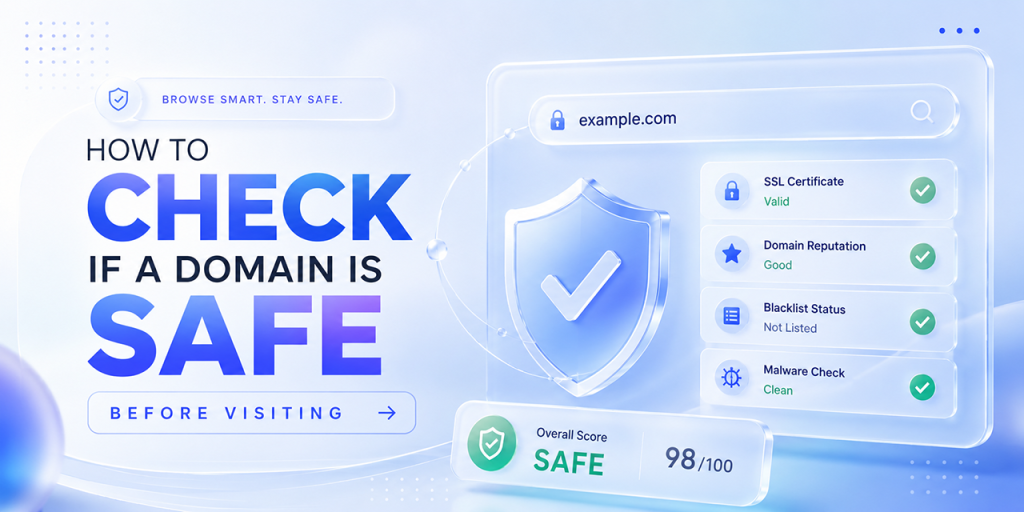
How to Check if a Domain is Safe Before Visiting: Complete 2026 Guide
A website can look completely legitimate and still be dangerous. In 2026, phishing sites use valid HTTPS certificates, AI-generated designs, cloned login pages, and lookalike domains that are often impossible to spot at first glance.
That’s why checking whether a domain is safe before visiting is more important than ever. A quick safety check can help you avoid phishing attacks, malware downloads, fake online stores, and credential theft.
In this guide, you’ll learn how to verify a domain using practical checks like:
- URL and domain inspection
- WHOIS and domain age lookup
- SSL certificate verification
- DNS and DMARC analysis
- Blacklist and reputation checks
You’ll also discover how to use free tools from HasheTools.com to investigate suspicious domains, detect phishing websites, and verify website legitimacy before clicking any link.
Why Checking a Domain’s Safety Matters in 2026
Every link you click, every URL you type, and every domain you visit involves a trust decision. In 2026, that trust decision is more consequential than ever. Cybercriminals have access to AI-powered phishing tools that generate convincing lookalike websites at scale, buy aged domains with established reputations, and obtain valid SSL certificates for malicious sites within minutes of registering them.
The old indicators of safety no longer work in isolation. A website can have a padlock (HTTPS), look exactly like your bank, use a domain name that’s only one character different from the real one, and still be a sophisticated phishing site designed to steal your credentials, install malware, or hijack your session.
The solution: a systematic, multi-layer domain safety check that goes beyond the padlock icon and looks at DNS records, registration details, blacklist status, certificate details, and behavioural signals together. This guide walks you through every layer.
How Attackers Use Malicious Domains in 2026
Understanding the attack types helps you know what to look for during a safety check:
Typosquatting
Registering domains with common misspellings of legitimate brands: paypa1.com, arnazon.com, micros0ft.com. Victims type or click slightly wrong and land on a fake site that looks identical to the real one.
Lookalike Domains
Domains that use different TLDs or subdomains to appear legitimate: paypal.com.verify-account.net (the real domain here is verify-account.net, not paypal.com), or support.apple.com.phish.xyz.
Homoglyph Attacks
Using characters that look visually identical to legitimate letters, Cyrillic ‘a’ instead of Latin ‘a’, or Unicode lookalikes. The domain appears correct even on close inspection, but it is a completely different domain.
Aged Domain Abuse
Buying domains with years of legitimate history, then repurposing them for malware or phishing. These domains pass age-based reputation checks because they were genuinely used for something benign previously.
HTTPS Abuse
Obtaining a valid SSL certificate for a phishing domain. The padlock is real, the site is encrypted, but the certificate only proves identity to that domain name, not that the site is legitimate.
AI-Generated Phishing Sites
In 2026, AI tools can clone a website’s appearance in seconds. Attackers scrape a legitimate site’s HTML, CSS, and images, then serve a perfect copy from a malicious domain to harvest credentials.
Step 1: Check the URL Carefully
The domain name itself is the first and most important thing to inspect. This sounds obvious, but it is surprisingly easy to get wrong, especially on mobile devices where the full URL is often hidden or truncated.
Anatomy of a URL
| URL structure: know what each part means |
| https://secure.paypal.com/signin/confirm?token=abc123
^ ^ ^ ^ | | | | Protocol | Domain Path/Query Subdomain | TLD (.com) # The REAL domain is always the part immediately before the first single / # after the protocol in this case: paypal.com # # DANGER EXAMPLES: # paypal.com.login.verify-now.net <- real domain is verify-now.net # http://192.168.1.1/paypal/login <- IP address, not a domain # paypa1.com <- digit 1 replacing letter l # pаypal.com <- Cyrillic ‘a’ (looks identical) |
What to Check in the URL
- Identify the real domain: Find the part just before the first lone slash (/) that is the actual domain you’re visiting. Everything before it (subdomains) does not change who owns the domain.
- Check the TLD: Legitimate businesses use .com, .org, .net, .gov, .edu, and country TLDs. Be wary of unusual TLDs (.xyz, .click, .loan, .top, .gq) on sites claiming to be major brands, though note many legitimate sites also use modern TLDs.
- Look for character substitution: Check for 0 (zero) instead of O, 1 (one) instead of l or I, rn instead of m, vv instead of w.
- Copy to a text editor: Paste the URL into Notepad or a similar text editor to see it in a plain font where homoglyphs are easier to spot.
- Check for extra subdomains: apple.com.account.verify.ru is NOT apple.com. The domain is verify.ru.
- Hover before clicking: On desktop, hover over a link to see the real URL in the browser status bar before clicking.
Step 2: Check HTTPS and the SSL Certificate
HTTPS and a padlock icon are necessary but not sufficient for safety. A padlock only means the connection between your browser and the server is encrypted; it says nothing about whether the server belongs to a legitimate organisation or is run by an attacker.
Let’s Encrypt and other free SSL providers issue certificates automatically to any domain, including phishing sites. In 2026, over 80% of phishing sites have valid HTTPS certificates. The padlock is not a safety badge.
What to Check in the SSL Certificate
- Click the padlock icon (or the information icon on Chrome) in your browser’s address bar.
- View the certificate details (look for ‘Certificate’ or ‘More information’)
- Check the ‘Issued to’ or ‘Common Name’ field; it should match the exact domain you’re visiting.
- Check the Certificate Authority (CA): recognised CAs: DigiCert, Sectigo, GlobalSign, Let’s Encrypt, Amazon, Microsoft. Unknown or self-signed CAs are red flags.
- Check the certificate type: DV (Domain Validated) only proves domain control. OV (Organisation Validated) and EV (Extended Validation) verify the organisation’s legal identity and provide higher trust for banking and financial sites.
| Certificate Type | What It Proves | When to Expect It |
|---|---|---|
| DV: Domain Validated | Domain owner controls the domain | Free; any site, including phishing sites, can get this |
| OV: Organisation Validated | Legal organisation identity verified | Small to mid-size businesses, SaaS companies |
| EV: Extended Validation | Rigorous legal entity verification | Banks, financial institutions, e-commerce leaders |
| Self-Signed | Nothing anyone can create these | Internal tools only, never on a public website; you should trust it |
Step 3: Look Up the Domain Age and WHOIS Data
Domain registration data is publicly available through WHOIS, a database that records when a domain was registered, who registered it, through which registrar, and when it expires. This information is one of the most reliable indicators of domain legitimacy.
How to Run a WHOIS Lookup
Use HasheTools WHOIS Lookup at hashetools.com, enter the domain, and instantly see registration details, registrar, creation date, expiry date, and nameservers.
| WHOIS lookup via command line |
| # macOS / Linux
whois yourdomain.com # Look for these key fields: # Creation Date: 2024-03-15T08:00:00Z <- when domain was registered # Expiry Date: 2025-03-15T08:00:00Z <- when domain expires # Registrar: NameCheap, Inc. <- who it was registered through # Registrant: [REDACTED] <- owner (often privacy-protected) # Name Server: ns1.example.com <- where DNS is hosted |
What to Look for in WHOIS Data
- Registration date: A domain registered within the last 30 days claiming to be a major brand or financial institution is an immediate red flag. Legitimate brands register domains years or decades before you encounter them.
- Expiry date: A domain set to expire very soon (days or weeks away) may be a throwaway attack domain. Legitimate businesses renew for years in advance.
- Registrar: Phishing domains frequently use budget registrars (Namecheap, GoDaddy, Porkbun, all legitimate registrars but also popular with attackers due to low cost and easy registration). Note: Using these registrars doesn’t make a domain malicious, but combined with other signals, it contributes to a risk profile.
- Registrant details: Most legitimate businesses have organisation details in WHOIS (or use registrar privacy protection). Be wary of domains with obviously fake registrant information (gibberish names, fake addresses).
- Nameservers: Check if the nameservers are consistent with what you’d expect from the claimed organisation’s hosting infrastructure.
| WHOIS Signal | Suspicious | Legitimate |
|---|---|---|
| Domain age | Registered < 30 days ago | Registered years ago, matching brand history |
| Expiry date | Expiring soon or < 1 year registration | Renewed for multiple years |
| Registrant name | Privacy-protected + brand claim | Organisation name matches brand |
| Registrar | Offshore/unknown registrar | Well-known registrar |
| Name servers | Free DNS provider or unknown NS | NS matching claimed organisation’s infrastructure |
Step 4: Run a Blacklist Check
DNS-based blacklists (DNSBLs) and web reputation databases maintain constantly updated lists of domains and IP addresses known to be involved in spam, malware distribution, phishing, and other malicious activity. Checking a domain against these lists is one of the fastest safety signals you can get.
How Blacklists Work
Security researchers, ISPs, and automated honeypot systems continuously report malicious domains and IPs to blacklist operators. When a domain is reported for phishing, it is added to the blacklist, and email servers, DNS resolvers, and security tools worldwide query these lists to block or flag traffic from blacklisted sources.
How to Check a Blacklist with HasheTools
- Go to hashetools.com and open the Blacklist Check tool
- Enter the domain name or IP address you want to check
- HasheTools queries dozens of major blacklists simultaneously and shows which ones flag the domain
- A domain listed on any spam/malware blacklist should be treated as dangerous until investigated further
| Blacklist Type | What It Flags | Examples |
|---|---|---|
| Email spam blacklists | IPs/domains that send spam | Spamhaus SBL, SURBL, Barracuda |
| Malware/phishing | Sites distributing malware or harvesting credentials | Google Safe Browsing, PhishTank, OpenPhish |
| DNS-based blocklists | Domains/IPs flagged by DNS resolvers | Quad9, Cloudflare RADAR, Comodo |
| Botnet/C2 lists | Command-and-control infrastructure for malware | Feodo Tracker, Abuse.ch URLHaus |
| Reputation scores | Composite trust score across multiple signals | Cisco Talos, Fortinet FortiGuard |
Step 5: Inspect DNS Records
DNS records reveal a significant amount of information about a domain’s infrastructure, purpose, and configuration. Inspecting them is a layer of safety analysis that most users skip, but it’s one of the most revealing steps for technical users.
What DNS Records to Check
- A record: The IP address the domain resolves to. Check it against known cloud/hosting providers. A domain claiming to be a UK bank but resolving to an IP in a country with no connection to that bank is suspicious.
- MX records: Mail server records. Legitimate organisations have MX records matching their email provider (Google, Microsoft, etc.). A domain with no MX records but claiming to be a business that would send email is odd.
- TXT records: Check for SPF, DKIM, and DMARC records. Legitimate organisations sending emails have these configured. A domain with no SPF or DMARC claiming to be a major brand is likely a spoofing domain.
- NS records: Nameservers. Check whether the nameservers match what you’d expect from the organisation’s hosting. A ‘bank’ using free DNS hosting is a red flag.
- WHOIS nameservers vs. DNS NS records: These should match. A mismatch can indicate a hijacking attempt or misconfiguration.
| Inspect DNS records using dig key safety checks |
| # Check what IP the domain resolves to
dig suspicious-domain.com A +short # Then search the IP: is it in a country consistent with the claimed org? # Check MX records: Does a ‘business’ have professional mail setup? dig suspicious-domain.com MX +short # Check TXT records legitimate senders have SPF/DMARC dig suspicious-domain.com TXT +short # Red flag: no SPF record for a domain claiming to be a major brand # Red flag: no DMARC for a domain that sends email to customers # Check nameservers dig suspicious-domain.com NS +short # Red flag: free DNS provider (freedns.afraid.org, etc.) for a ‘bank’ |
Step 6: Check Website Reputation
Multiple free tools and databases aggregate reputation signals for domains, combining blacklist data, user reports, scan results, and historical behaviour into a reputation score. Use these as an additional layer of verification:
| Tool / Service | What It Checks | How to Use |
|---|---|---|
| Google Safe Browsing | Malware and phishing detection (Google’s database) | transparencyreport.google.com/safe-browsing/search |
| VirusTotal | 70+ antivirus and URL scanners simultaneously | virustotal.com paste URL, instant multi-scanner result |
| URLScan.io | Full page screenshot, DNS, network, and behaviour scan | urlscan.io scans any URL without visiting it |
| Cisco Talos | Email and web reputation based on threat intelligence | talosintelligence.com/reputation_center |
| Sucuri SiteCheck | Malware, blacklist status, and security config | sitecheck.sucuri.net |
| MXToolbox | Blacklist check, DNS health, and MX analysis | mxtoolbox.com/blacklists.aspx |
| Whois.domaintools.com | Domain age, registrant, and reputation scoring | whois.domaintools.com |
| HasheTools | DNS Lookup, WHOIS, Blacklist Check, DMARC, CNAME | hashetools.com all DNS-based checks in one place |
URLScan.io is particularly useful because it visits the suspicious URL in a sandboxed environment and returns a screenshot, letting you see what the site looks like without exposing your own browser or device. If you’re unsure about a link, scan it with URLScan.io before clicking it yourself.
Step 7: Analyse the Page Content and Behaviour
If you’ve decided to visit the domain (ideally in a sandboxed browser or after completing all prior checks), the page itself provides additional safety signals:
Content Red Flags
- Immediate login prompt: A page that shows nothing but a login form before providing any context is a common phishing pattern, especially if it pre-populates your email address (scraped from the link)
- Urgency language: “Your account has been suspended”, “Verify within 24 hours or lose access”, “Unusual activity detected,” high-pressure language designed to bypass critical thinking
- Broken links and images: Cloned phishing sites often have broken internal links, missing images, or non-functional navigation. The attacker only built the login page.
- Mismatched branding: Slightly wrong fonts, colours, logos, or layout compared to the real brand’s website
- Unusual form fields: Asking for information a legitimate site would never request at login, Social Security Number, full credit card details on a non-payment page, mother’s maiden name
- Immediate download prompts: Being asked to download a file immediately upon visiting is a major malware distribution signal
Browser Behaviour Red Flags
- Browser warning: If Chrome, Firefox, Safari, or Edge displays a red ‘Dangerous Site’ or ‘Deceptive Site Ahead’ warning, leave immediately. These warnings are based on Google Safe Browsing and are accurate the vast majority of the time
- Redirect chains: Being redirected through multiple domains before landing on a page can indicate a malicious redirect chain designed to obscure the final malicious destination
- Pop-ups demanding action: Fake virus warnings, fake browser update prompts, fake captchas that ask you to download something
- Console errors: Opening browser dev tools (F12) and seeing JavaScript errors or requests to suspicious third-party domains can reveal malicious infrastructure
Red Flags: Signs a Domain Is Almost Certainly Dangerous
If you observe any combination of the following signals, treat the domain as malicious until proven otherwise:
| Registered < 30 days ago | Claiming to be an established brand or financial institution. Legitimate companies don’t appear overnight. |
| The domain appears on any blacklist. | Security researchers have specifically flagged this domain for phishing, malware, or spam. Treat as confirmed dangerous. |
| The browser shows a security warning. | Google Safe Browsing or equivalent has already flagged the site. Leave immediately; the warning is rarely wrong. |
| URL contains brand name as subdomain | paypal.com.verify.net ‘paypal.com’ is the subdomain, ‘verify.net’ is the real domain. Classic phishing structure. |
| No DMARC / no email auth records. | A domain claiming to be a major brand but with no SPF, DKIM, or DMARC configured is likely a spoofing domain, not the real brand. |
| SSL certificate issued the same day as registration | A domain registered today with a same-day SSL certificate is almost certainly a phishing site. Attackers automate this process. |
| Homoglyph characters in a domain name | Any Unicode or non-ASCII characters in a domain claiming to be a well-known brand, such as paypał.com, for example, is an impersonation attack. |
| Domain resolves to an IP in an unexpected country. | Your bank’s domain resolving to an IP in Eastern Europe or Southeast Asia, with no established presence there, is a hijacking indicator. |
| Asks for credentials not appropriate to the context | Requesting your bank password on a page reached via a text message link, or asking for full card details to ‘verify identity’. |
Green Flags: Signs a Domain Is Likely Safe
No single signal guarantees safety, but the following signals in combination provide strong evidence of legitimacy:
| Domain registered years ago | A domain with 5+ years of registration history matching the claimed brand’s founding date is a strong legitimacy signal. |
| Consistent WHOIS organisation details | Registrant organisation name matches the claimed brand, with a business address consistent with their known headquarters. |
| OV or EV SSL certificate | An organisation-validated or Extended Validation certificate confirms that the Certificate Authority verified a legal entity. |
| DMARC at p=reject | A strict DMARC policy indicates that the organisation actively manages its email authentication in a manner consistent with legitimate business operations. |
| Clean blacklist status | No appearance on any major spam, malware, or phishing blacklist across dozens of databases. |
| MX records matching the claimed email provider | A business using Google Workspace, Microsoft 365, or a professional email provider and MX records to match. |
| Nameservers from the enterprise DNS provider | DNS hosted on Cloudflare, AWS Route 53, Google Cloud DNS, or an enterprise provider, consistent with a properly managed organisation. |
| Domain matches official brand communications. | URL matches exactly what appears in the company’s official printed materials, social media profiles, and app store listings. |
| No security warnings from the browser | Google Safe Browsing, Mozilla, and Microsoft SmartScreen all have clean records for this domain. |
How to Check Specific Domain Types
Email Links
| 1
Check sender domain Does From: match the brand? |
2
DMARC Lookup Is email auth enforced? |
3
Hover link Does URL match claim? |
4
Blacklist Check Any malicious history? |
5
VirusTotal Scan the link before clicking |
Email is the primary delivery mechanism for malicious domains. Before clicking any link in an email: verify the sender’s domain matches the claimed brand exactly, run a DMARC lookup to confirm the brand has email authentication enforced (and therefore this email was authenticated), hover the link to inspect the URL, and scan it with VirusTotal if you’re still unsure.
Social Media Links
- URL shorteners: Links shared on Twitter/X, Instagram, and other platforms are often shortened (bit.ly, t.co, etc.). Use a URL expander to reveal the final destination before visiting.
- Verify official accounts: Check the blue verification badge and account age before trusting links shared by accounts claiming to be official brands.
- Cryptocurrency and giveaway scams: Any post promising cryptocurrency rewards, giveaways, or investment returns from a link is almost always a scam, regardless of how legitimate the account appears.
E-Commerce Domains
- Check for secure checkout: Payment pages must be on the same domain you browsed to, not redirected to a different domain.
- Verify with company registration: For unknown online stores, search the company name + ‘scam’ or check Companies House (UK), BBB (US), or ASIC (Australia)
- Unrealistic pricing: Products priced 80-90% below retail are almost always either counterfeit, non-existent, or a payment credential harvesting operation
File Download Links
- Domain must match the software vendor: Software downloads must come from the official vendor’s domain, not a ‘mirror’ site you’ve never heard of
- Scan with VirusTotal: For any downloadable file, scan the URL with VirusTotal before downloading, and scan the file itself after
- Check the file extension: A file named ‘document.pdf.exe’ or ‘invoice.zip’ contains an executable disguised as a document.
Frequently Asked Questions
Does HTTPS mean a website is safe?
No. HTTPS only encrypts the connection between your browser and the website. It does not guarantee the website itself is legitimate. Many phishing sites use valid HTTPS certificates, so always verify the domain name, WHOIS age, and blacklist status before trusting a site.
How can I check a link without clicking it?
On desktop, hover over the link to preview the real URL in your browser’s status bar. On mobile, press and hold the link to view the full destination. You can also paste the URL into tools like VirusTotal or URLScan.io to analyse it safely without visiting the site.
What should I do if I accidentally click a suspicious link?
Do not enter any information or download files. Close the tab immediately and run a malware scan on your device. If you entered credentials, change your password immediately from the official website and enable two-factor authentication where possible.
Can a domain that is 10 years old still be dangerous?
Yes. Attackers often purchase aged domains because they already have a reputation history and may bypass basic trust checks. Always combine domain age with blacklist checks, DNS analysis, and website behaviour before trusting a site.
How do I check if a shortened URL is safe?
Avoid clicking shortened URLs directly. Use a URL expander tool to reveal the final destination first, then check the full URL using blacklist, WHOIS, and reputation tools before visiting.
Is it safe to visit a site that fails one safety check?
Not always. A blacklist warning is a major red flag, even if other checks appear normal. If multiple checks raise concerns, such as a new domain, suspicious DNS setup, or a phishing-style URL, avoid visiting the site until verified.
How do I report a phishing or malicious domain?
You can report suspicious domains to Google Safe Browsing, Microsoft Defender SmartScreen, PhishTank, ICANN, or your national cybersecurity authority. Reporting helps security providers block malicious websites faster.
Is it safe to visit a website without HTTPS?
Generally, no. Websites without HTTPS do not encrypt data between your browser and the server. Never enter passwords, payment details, or sensitive information on a non-HTTPS website.
Can scammers create fake websites that look real?
Yes. Modern phishing websites can closely imitate legitimate brands using copied layouts, logos, and even valid SSL certificates. This is why checking the domain name, WHOIS data, and blacklist status is critical before trusting a site.
Conclusion
Checking whether a domain is safe before visiting is no longer optional in 2026. Modern phishing websites can look almost identical to legitimate brands, use valid HTTPS certificates, and even operate from aged domains with existing reputations. A glance at the padlock icon is not enough to determine whether a website can be trusted.
The safest approach is to combine multiple checks, inspect the URL carefully, verify WHOIS and domain age data, review SSL certificate details, check blacklist and reputation databases, and analyse DNS records such as SPF, DKIM, and DMARC. Even a few seconds of verification can help prevent credential theft, malware infections, financial fraud, and phishing attacks.
Whether you are checking an email link, verifying an online store, analysing a vendor website, or investigating a suspicious domain, following a structured safety-check process dramatically reduces your risk.
With free tools from HasheTools.com, you can quickly perform DNS lookups, blacklist checks, WHOIS analysis, DMARC verification, and other essential domain security checks, all from one place, without creating an account.
Before clicking any unfamiliar link, remember: if a domain feels suspicious, investigate first and trust later.

SPF Flattening: How to Fix the 10-Lookup Limit and Stop SPF Failures
If your business uses more than two email platforms, say, Google Workspace for internal mail and Mailchimp for campaigns, there is a strong chance your SPF record is silently failing authentication. The culprit is almost always the SPF 10-lookup limit: a hard ceiling built into the SPF specification that causes authentication errors the moment your record requires more than ten DNS queries to resolve.
This guide, written by the HasheTools team, explains exactly what SPF flattening is, why the lookup limit exists, how exceeding it breaks your email delivery, and most importantly, how to fix it permanently. We also cover the risks of naïve flattening and how dynamic flattening tools solve the maintenance problem that catches most teams off guard.
What is SPF, and why does it matter?
SPF (Sender Policy Framework) is an email authentication standard defined in RFC 7208. It allows a domain owner to publish a list of IP addresses and mail servers that are authorised to send email on behalf of that domain. When a receiving mail server gets a message claiming to be from your domain, it checks your SPF record in DNS to verify whether the sending IP is on your approved list.
Without a valid SPF record, your domain is an open target for email spoofing and phishing attacks. Worse, major email providers like Gmail and Outlook use SPF results as one of the primary signals for spam filtering; a failing SPF record sends your legitimate marketing emails straight to the junk folder.
A basic SPF record looks like this:
| v=spf1 include:_spf.google.com include:spf.protection.outlook.com -all |
The v=spf1 tag identifies this as an SPF record. The include: mechanisms tell receiving servers to also check the SPF records of the listed domains. The -all at the end means: reject any mail that doesn’t match the above.
The SPF 10-lookup limit: what it is and why it exists
The SPF specification imposes a hard limit of ten DNS lookups during SPF record evaluation. This limit exists for a practical reason: every DNS query adds latency to the email authentication process. If a single SPF check could trigger dozens of recursive lookups, it would slow down mail servers and open a potential vector for denial-of-service attacks against DNS infrastructure.
The following SPF mechanisms each count as one lookup toward the limit:
- include: fetches another domain’s SPF record
- a: resolves a domain’s A/AAAA records
- mx: resolves a domain’s MX records
- exists: checks whether a domain exists in DNS
- redirect= redirects evaluation to another SPF record (counts as one lookup)
Crucially, lookups are recursive: when you include _ spf.google.com, that record itself may include further domains, each adding to your count. There is also a void lookup limit of two DNS queries that return no results (NXDOMAIN or empty responses), which are capped at just two before authentication fails with a PermError.
Why modern SPF records exceed the lookup limit
A decade ago, most organisations sent all their email through a single provider. Today, the average mid-sized business uses five or more email platforms simultaneously. Each platform requires its own include statement, and most of those platforms have complex SPF records of their own with multiple nested lookups.
Consider a common setup:
| v=spf1
include:_spf.google.com; Google Workspace up to 4 lookups include:spf.protection.outlook.com; Microsoft 365 1-2 lookups include:sendgrid.net; SendGrid 2 lookups include:servers.mcsv.net; Mailchimp 2 lookups include:_spf.salesforce.com; Salesforce 2 lookups -all ; Total: ~11-13 lookups exceeds the limit |
None of the above services is an unusual choice. Yet together they breach the limit before you’ve added your transactional email provider, your CRM, or your customer support tool. The problem isn’t any one platform; it’s the compounding effect of a modern multi-vendor email stack.
What is SPF flattening?
SPF flattening is the process of resolving all include: mechanisms and nested SPF records down to their underlying IP addresses, then replacing the include: chains with direct ip4: and ip6: entries. Because IP address references require zero DNS lookups to validate, a fully flattened SPF record can stay well within the 10-lookup limit regardless of how many email providers you use.
Before flattening
| v=spf1
include:_spf.google.com include:spf.protection.outlook.com include:sendgrid.net -all ; Lookup count: ~8 (and growing as providers update their records) |
After flattening
| v=spf1
ip4:35.190.247.0/24 ip4:64.233.160.0/19 ip4:66.102.0.0/20 ip4:74.125.0.0/16 ip4:40.92.0.0/15 ip4:40.107.0.0/16 ip4:167.89.0.0/17 ip4:192.254.112.0/20 ip4:198.37.144.0/20 ip4:198.153.192.0/19 -all ; Lookup count: 1 (only the initial TXT lookup for your own record) |
The result is functionally identical; the same IP ranges are authorised, but the authentication process now completes in a single DNS query instead of eight or more.
How SPF flattening works step by step
Whether you use a tool or do it manually, the flattening process follows the same logic:
- Retrieve your current SPF record from your DNS zone (query your domain’s TXT records).
- Recursively resolve each include: mechanism. For example, resolving _ spf.google.com reveals further includes, which resolve to CIDR IP ranges.
- Collect all resulting IP addresses across every include chain, both IPv4 (ip4:) and IPv6 (ip6:) ranges.
- Deduplicate and consolidate overlapping or adjacent CIDR ranges where possible to reduce record length.
- Write the new TXT record using only ip4:/ip6: entries plus your termination qualifier (-all, ~all, etc.).
- Publish and test the new record using an SPF validator tool before removing the old one.
The risks of static SPF flattening and how to avoid them
Flattening sounds simple, but there is a critical problem with the naive approach: the IP addresses belonging to providers like Google, SendGrid, and Microsoft change regularly. When SendGrid adds a new sending range, your static flattened record won’t include it, and legitimate emails sent through that new IP will fail SPF authentication.
Static flattening risks
- IP drift: Providers rotate or expand their sending IP ranges without notifying customers.
- Record length: A fully flattened enterprise record can exceed 255 characters (the DNS TXT record string limit) or 512 bytes (the UDP DNS response limit). This requires careful CIDR aggregation or record splitting.
- Maintenance burden: Manual re-flattening every time a provider changes IPs is tedious and error-prone.
Dynamic SPF flattening: the better solution
Dynamic SPF flattening tools solve the maintenance problem by automating the entire process. Instead of publishing IP addresses directly in your TXT record, they give you a managed include statement that points to their DNS infrastructure. Their system continuously monitors your providers for IP changes and updates the underlying resolution automatically.
Your SPF record becomes something like:
| v=spf1 include:spf.hashetools.com -all
; One lookup. Their infrastructure handles all the IP resolution. When Google adds a new range, its system updates automatically. |
This gives you the deliverability benefits of flattening with none of the maintenance risk.
SPF flattening tools: a practical comparison
Choosing the right tool depends on whether you need a simple one-time fix or ongoing automated management. Here is how the leading options compare:
| Tool | Pricing | SPF flattening | Notable features |
|---|---|---|---|
| EasyDMARC | Free + paid | Dynamic auto-update | Full DMARC dashboard, alerting |
| dmarcian | Paid tiers | Manual + guided | Visualization, team features |
| Mimecast | Enterprise | Automatic | Integrated email security suite |
| HasheTools SPF Checker | Free | Manual only | Instant lookup count, syntax validation, error highlighting |
| PowerDMARC | Free + paid | Dynamic auto-update | AI-powered threat analysis |
For most organisations sending more than 10,000 emails per month, a dynamic flattening tool is worth the investment. The cost of a single deliverability incident, lost revenue, and damaged sender reputation typically exceeds a year of tool subscription fees.
Common SPF errors explained
SPF PermError: too many DNS lookups
The most common error. Exceeding ten lookups during SPF evaluation causes a permanent failure. It cannot be retried; the message is treated as definitively unauthenticated. Fix: flatten your record or reduce the number of include mechanisms.
SPF SoftFail (~all)
The sending IP is not listed as authorised, but the domain owner has not issued a hard rejection. Receiving servers may accept the message but mark it as suspicious. If your record ends in ~all instead of -all, a softfail will not block delivery but will hurt your sender’s reputation over time.
SPF HardFail (-all)
The sending IP is explicitly not authorised. Combined with a strict DMARC policy (p=reject), this causes outright rejection of the message. This is the correct configuration once your SPF record is fully validated.
SPF None
No SPF record was found for the domain. This is treated as authentication, not a missed opportunity, but rather a failure, which means the domain does not protect against spoofing.
Multiple SPF records
A domain must have exactly one SPF TXT record. If you have two (a common mistake when migrating providers), SPF validation returns PermError. Delete the old record when publishing a new one.
How to fix SPF failures: a step-by-step process
- Check your current record. Use the HasheTools SPF Checker (hashetools.com) or Google’s Admin Toolbox to retrieve your current record and count the actual number of DNS lookups it triggers.
- Identify which includes are driving the count. Most tools will show a recursive tree of lookups. Find the deepest chains; these are your main targets for flattening.
- Remove redundant or outdated includes. Do you still use every service in your SPF record? Old CRMs, discontinued email tools, and deprecated IP ranges are common culprits. Audit each include against your current email stack.
- Consolidate where possible. If you’re using both Outlook and Microsoft 365, you may only need one include. Check for overlapping ranges.
- Choose a flattening approach. Manual one-time flattening for simple setups; a dynamic flattening tool for any organisation with three or more active email providers.
- Publish the new record and test. Use an SPF validator to confirm the lookup count is below 10 and that all expected IPs are covered. Send test emails through each of your email platforms.
- Monitor. Set a reminder to re-audit your SPF record quarterly, or use a dynamic tool with automated alerting.
SPF vs DKIM vs DMARC: how they work together
SPF alone is not sufficient for complete email security. It is one layer of a three-part authentication stack. Understanding how each protocol contributes helps you configure them correctly and interpret failures accurately.
| Feature | SPF | DKIM | DMARC |
|---|---|---|---|
| Purpose | Authorizes sending IPs | Verifies message integrity | Enforces auth policy |
| DNS record type | TXT | TXT (DKIM key) | TXT |
| Protects against | IP spoofing | Content tampering | Both (policy layer) |
| Lookup limit | 10 lookups max | None | Depends on SPF/DKIM |
| Required for DMARC | Yes | Yes | N/A is the policy |
DMARC is the enforcement layer that ties SPF and DKIM together. Even if your SPF record is perfectly flattened, a p=none DMARC policy means failures have no consequence. Work toward quarantine and eventually reject once you are confident your SPF and DKIM configurations are solid.
SPF record best practices
- One record per domain. Never publish two SPF TXT records. Merge everything into a single record.
- End with -all, not ~all. SoftFail provides false security. Once your configuration is verified, use a hard fail qualifier.
- Monitor for provider IP changes. At a minimum, check your main providers’ SPF records every quarter. Better yet, use a dynamic flattening tool.
- Test after every DNS change. Any DNS update, even unrelated to SPF, warrants a re-check of your SPF lookup count.
- Document your email stack. Keep a record of every service authorised to send email on your domain, with the corresponding include: mechanism and the person responsible for it.
- Don’t include providers you no longer use. Every legacy includes a security risk and a wasted lookup.
- Align SPF with DMARC. Ensure the domain in your SPF record’s envelope sender aligns with your From: header domain, or DMARC will still fail even if SPF passes.
How SPF flattening improves email deliverability
Email deliverability is ultimately about sender reputation. Gmail, Outlook, Yahoo Mail, and other major providers evaluate every inbound message against a set of signals, and authentication results sit near the top of that list.
A correctly configured, flattened SPF record contributes to deliverability in several concrete ways:
- Eliminates authentication errors that trigger spam filters regardless of content quality.
- Strengthens your DMARC pass rate, which feeds directly into sender reputation scoring at major inbox providers.
- Reduces soft bounces caused by SPF failures on messages that should have been delivered.
- Protects your domain reputation by preventing spoofed emails (which would fail your strict SPF) from damaging how providers perceive your domain.
For transactional emails, especially password resets, order confirmations, and account notifications, a deliverability failure is not just a metric problem. It has a direct impact on user experience and business continuity.
Frequently asked questions
What is SPF flattening?
SPF flattening is the process of converting SPF include: mechanisms into direct IP address entries (ip4:/ip6:). This eliminates recursive DNS lookups and keeps the SPF record within the 10-lookup limit required by the SPF specification (RFC 7208).
What exactly counts toward the 10-lookup limit?
The following mechanisms each count as one lookup: include:, a:, mx:, exists:, and redirect=. The ptr: mechanism also triggers lookups, but is deprecated and should never be used. IP4: and IP6: entries do not trigger any DNS lookups and therefore do not count.
Can SPF flattening break my email delivery?
Yes, if done incorrectly. Static flattening that is not kept up to date will break delivery when email providers change their sending IPs. The solution is either to use a dynamic flattening tool that automatically updates or to schedule regular audits (at least quarterly) if managing the record manually.
My SPF record has only 8 includes. Am I safe?
Not necessarily. The count is on DNS lookups, not including statements. A single include can trigger three or four additional lookups through its own nested includes. Use the HasheTools SPF Checker (hashetools.com), which counts actual recursive lookups, not just surface-level mechanisms.
Do I need both SPF and DKIM?
Yes. DMARC requires at least one of SPF or DKIM to pass, but best practice is to have both configured correctly. DKIM is particularly important because it survives email forwarding (where SPF often fails), and it verifies message content integrity in a way SPF cannot.
How often should I audit my SPF record?
At a minimum, every quarter, or immediately after adding or removing any email service from your stack. Major providers (Google, Microsoft, Twilio/SendGrid) update their sending infrastructure periodically. If you use a dynamic flattening tool, it handles this automatically.
What is the difference between SPF SoftFail and HardFail?
SoftFail (~all) means the domain owner believes the sending IP is not authorised, but has not issued a hard rejection; receiving servers may still accept the message. HardFail (-all) is a firm declaration that the IP is not authorised, and combined with DMARC p=reject, it causes outright message rejection.
Conclusion
SPF flattening is an essential solution for fixing the 10 DNS lookup limit and preventing SPF authentication failures in modern email systems. As businesses use multiple email platforms like Google Workspace, Microsoft 365, Mailchimp, and SendGrid, SPF records often become complex and exceed the allowed lookup limit, leading to delivery issues and PermError failures.
By flattening your SPF record, you reduce DNS lookups, improve email deliverability, and ensure your messages consistently reach inboxes instead of spam folders. It also strengthens your overall email authentication setup when combined with DKIM and DMARC.
For long-term reliability, especially in dynamic email environments, using an SPF flattening tool or automated solution like HasheTools helps keep your records optimized and up to date.
In short, SPF flattening is not just a fix; it’s a best practice for maintaining secure, stable, and high-performing email delivery.
Stay Updated
Get the latest articles and tutorials delivered to your inbox