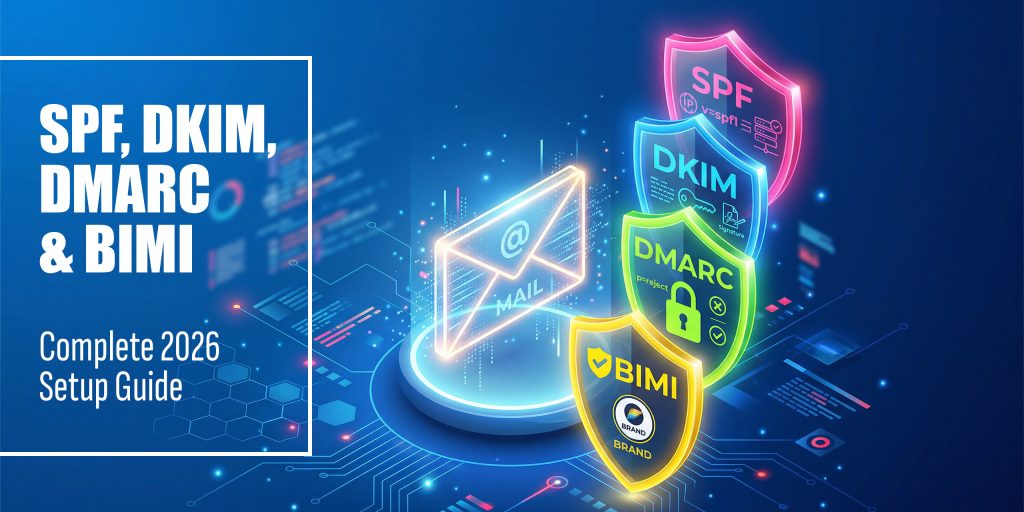
Google, Yahoo, and Microsoft now enforce email authentication for bulk senders. 83.9% of domains still have no DMARC record, making them prime targets for spoofing, phishing, and spam. This step-by-step guide covers every protocol you need: SPF, DKIM, DMARC, and BIMI.
What is Email Authentication?
Every time you send an email, receiving mail servers ask a simple question: Is this message really from who it claims to be? Without authentication, anyone can forge your domain in the From: field; this is how most phishing and business email compromise (BEC) attacks work.
Four DNS-based protocols work together to answer that question definitively:
| Protocol | What It Does | Where It Checks | Enforced By |
|---|---|---|---|
| SPF | Lists authorized sending IPs for your domain | Return-Path / envelope | Receiving mail server |
| DKIM | Cryptographically signs every outgoing message | DKIM-Signature header | Receiving mail server |
| DMARC | Ties SPF/DKIM to visible From: domain + reports | From: header alignment | Inbox providers (Gmail, etc.) |
| BIMI | Displays your brand logo in the inbox | BIMI DNS record + VMC | Gmail, Yahoo, Apple Mail |
Think of these as a security stack: SPF and DKIM authenticate the message, DMARC enforces a policy when they fail, and BIMI is the trust signal that rewards you for doing it right.
2026 Enforcement Update: Google & Yahoo require SPF + DKIM + DMARC for all senders of 5,000+ emails/day. Microsoft enforced similar rules from early 2025. Non-compliant messages are rejected at the SMTP level, not just filtered to spam.
SPF: Sender Policy Framework
What is SPF?
SPF is a DNS TXT record that publishes a list of IP addresses and servers authorized to send email on behalf of your domain. When a message arrives, the receiving server checks the sender’s IP against your SPF record. If the IP isn’t on the list, SPF fails.
Important limitation: SPF only checks the Return-Path / envelope sender, not the visible From: address your recipient sees. That’s why SPF alone doesn’t prevent spoofing. You need DMARC for full alignment.
How to Write an SPF Record
SPF records are DNS TXT records published on your root domain. Here’s the anatomy:
| DNS TXT record: @ (your root domain) |
| v=spf1 include:_spf.google.com include:sendgrid.net ip4:203.0.113.10 -all |
| Mechanism | Example | Meaning |
|---|---|---|
| v=spf1 | v=spf1 | Required, declares this is an SPF record |
| include: | include:_spf.google.com | Authorizes all IPs listed in that domain’s SPF record |
| ip4: | ip4:203.0.113.10 | Authorizes a specific IPv4 address or CIDR range |
| ip6: | ip6:2001:db8::/32 | Authorizes a specific IPv6 address or range |
| a | a:mail.example.com | Authorizes the A record IP of the given domain |
| mx | mx | Authorizes the MX record IPs of your domain |
| -all | -all | FAIL, reject all senders not listed (recommended) |
| ~all | ~all | SOFTFAIL, mark suspicious but deliver (use while testing) |
| ?all | ?all | NEUTRAL, no policy (avoid in production) |
SPF Setup Step-by-Step
- Log in to your DNS provider (Cloudflare, GoDaddy, Route 53, Namecheap, etc.)
- Create a new TXT record on your root domain (@)
- Set the value to: v=spf1 [your sending sources] -all
- List every service that sends email as your domain (your mail server, email marketing platform, CRM, support desk, etc.)
- Save and wait for DNS propagation (up to 48 hours)
- Verify using the HasheTools SPF Lookup tool
The 10-Lookup Limit: SPF records may not trigger more than 10 DNS lookups during evaluation. Each ‘include:’ counts as one lookup, and those includes often have their own includes. If you exceed 10, SPF fails with a PermError. Use SPF flattening tools to consolidate if needed.
Read Also: DNS Records for ns1.dns-parking.com
Common SPF Record Examples
Google Workspace users:
| DNS TXT: @ |
| v=spf1 include:_spf.google.com ~all |
Microsoft 365 users:
| DNS TXT: @ |
| v=spf1 include:spf.protection.outlook.com ~all |
Google Workspace + Mailchimp + custom mail server:
| DNS TXT: @ |
| v=spf1 include:_spf.google.com include:servers.mcsv.net ip4:203.0.113.10 -all |
DKIM: DomainKeys Identified Mail
What is DKIM?
DKIM adds a cryptographic digital signature to every outgoing email. The signature is added to the DKIM-Signature header and is verified by the receiving server using a public key stored in your DNS.
Unlike SPF, DKIM proves that the message content hasn’t been tampered with in transit. Even if an email passes through a mail relay or forwarding service, the DKIM signature remains valid, making it more resilient than SPF for complex mail flows.
How DKIM Works
- Your mail server signs each outgoing email using a private key stored on the server
- The signature is added to the DKIM-Signature email header
- The receiving server looks up your public key from a DNS TXT record at selector._domainkey.yourdomain.com
- The public key verifies the signature; if it matches, DKIM passes
- If the message was altered in transit, the signature won’t match, and DKIM fails
Your DKIM DNS Record
DKIM records follow this format:
| DNS TXT: selector._domainkey.yourdomain.com |
| v=DKIM1; k=rsa; p=MIIBIjANBgkqhkiG9w0BAQEFAAOCAQ8AMIIBCgKCAQEA… |
| Field | Meaning |
|---|---|
| v=DKIM1 | Version, always DKIM1 |
| k=rsa | Key type, RSA (default) or ed25519 for modern servers |
| p=… | The base64-encoded public key, generated by your mail server or email provider |
| selector | A name you choose (e.g, ‘google’, ‘mail’, ‘s1’). Allows multiple DKIM keys per domain. |
DKIM Setup Step-by-Step
- Generate your DKIM key pair in your email service’s dashboard (Google Workspace, Microsoft 365, SendGrid, Mailchimp, etc.). They provide the public key and the selector name.
- Create a DNS TXT record at selector._domainkey.yourdomain.com and paste in the public key value they provide.
- Use 2048-bit RSA keys (recommended over 1024-bit for security).
- Save the DNS record and wait for propagation.
- Verify using the HasheTools DKIM Lookup tool by entering your domain and selector.
Security Best Practice: Rotate Your DKIM Keys: DKIM keys should be rotated every 6–12 months. This limits the window of exposure if a private key is ever compromised. Your email provider’s dashboard usually has a key rotation option. After rotation, update the DNS TXT record with the new public key and retire the old selector.
Read Also: How to Run a Traceroute (tracert) Command
DMARC: Domain-based Message Authentication
What is DMARC?
DMARC (Domain-based Message Authentication, Reporting, and Conformance) is the protocol that ties SPF and DKIM together and actually checks the visible From: address your recipient sees.
SPF and DKIM authenticate the message, DMARC enforces alignment. It tells receiving servers: if this message fails authentication, here’s what to do with it. And it sends you reports about every email sent from your domain, so you can see who’s using it.
DMARC Alignment Explained
DMARC passes when at least one of these is true:
- SPF alignment: The domain in the Return-Path (envelope sender) matches the visible From: domain
- DKIM alignment: The domain in the DKIM signature (d= tag) matches the visible From: domain
DMARC Record Structure
| DNS TXT: _dmarc.yourdomain.com |
| v=DMARC1; p=reject; rua=mailto:dmarc-reports@yourdomain.com; ruf=mailto:forensic@yourdomain.com; pct=100; adkim=s; aspf=s |
| Tag | Example | Meaning |
|---|---|---|
| v=DMARC1 | v=DMARC1 | Required, declares this is a DMARC record |
| p= | p=none / quarantine / reject | Policy: what to do with messages that fail DMARC |
| rua= | rua=mailto:reports@domain.com | Address for aggregate XML reports (daily summaries) |
| ruf= | ruf=mailto:forensic@domain.com | Address for forensic/failure reports (per-message) |
| pct= | pct=100 | Percentage of failing mail the policy applies to (100 = all) |
| adkim= | adkim=r or adkim=s | DKIM alignment: r = relaxed (default), s = strict |
| aspf= | aspf=r or aspf=s | SPF alignment: r = relaxed (default), s = strict |
| sp= | sp=reject | Policy for subdomains (if different from main domain) |
DMARC Policy Escalation: The Right Path
Never jump straight to p=reject. Follow this phased approach:
| Phase | DMARC Record | What Happens / When to Move On |
| Phase 1 (Weeks 1–4) | p=none | Monitor mode. Emails are delivered normally. Collect aggregate reports. Identify all sending sources. Move on when you understand your mail flow. |
| Phase 2 (Weeks 5–8) | p=quarantine; pct=25 | 25% of failing mail goes to spam. Gradually increase pct to 50 → 100 over 2–4 weeks. Move on when legitimate mail passes consistently. |
| Phase 3 (Weeks 9–12) | p=quarantine; pct=100 | All failing mail goes to spam. Monitor for 1–2 weeks. If no legitimate mail is affected, escalate. |
| Phase 4 (Final) | p=reject; pct=100 | Full enforcement. Failing mail is rejected at the SMTP level. Add sp=reject for subdomain coverage. You’re protected. |
Reading DMARC Aggregate Reports: DMARC sends you daily XML reports (rua) showing every IP address that sent email as your domain, how many messages passed or failed SPF/DKIM, and from which countries. Tools like HasheTools DMARC Lookup, or dedicated platforms like Postmark, EasyDMARC, or dmarcian, parse these into readable dashboards.
Read Also: What Is a DNS PTR Record?
BIMI: Brand Indicators for Message Identification
What is BIMI?
BIMI is the reward for doing email authentication right. Once your domain reaches DMARC enforcement (p=quarantine or p=reject), you can publish a BIMI DNS record that tells supporting inbox providers to display your brand logo next to your emails.
Supported by Gmail, Yahoo Mail, Apple Mail, Fastmail, and Cloudmark, BIMI gives your emails a verified checkmark-style visual trust signal before the recipient even opens them.
BIMI Requirements
- DMARC enforcement: p=quarantine or p=reject with pct=100, p=none does not qualify
- SVG logo: Your brand logo in SVG Tiny PS format, hosted at a stable HTTPS URL
- VMC (Verified Mark Certificate): Required by Gmail and Apple Mail. Optional for Yahoo, Fastmail. A VMC is issued by DigiCert or Entrust and validates your logo against your trademarked brand.
BIMI Record Structure
| DNS TXT: default._bimi.yourdomain.com |
| v=BIMI1; l=https://yourdomain.com/logo.svg; a=https://yourdomain.com/vmc.pem |
| Tag | Meaning |
|---|---|
| v=BIMI1 | Required, version tag |
| l= | URL to your SVG Tiny PS logo (must be HTTPS, correct MIME type: image/svg+xml) |
| a= | URL to your Verified Mark Certificate (.pem file), required for Gmail/Apple Mail |
BIMI Setup Step-by-Step
- Reach DMARC p=reject with consistent pass rates above 98%, BIMI is the final reward, not a shortcut
- Prepare your SVG logo in SVG Tiny PS format (specific SVG subset, use tools like Adobe Illustrator or Inkscape with the SVG Tiny PS export profile)
- Host the SVG at a permanent HTTPS URL with Content-Type: image/svg+xml. Redirects and authentication will cause failures.
- Obtain a VMC from DigiCert (digicert.com) or Entrust if you want Gmail support. Requires a registered trademark.
- Publish the BIMI TXT record at default._bimi.yourdomain.com
- Verify using the HasheTools BIMI Lookup tool
No Trademark? No VMC? Start with Yahoo. Yahoo Mail supports BIMI without a Verified Mark Certificate, provided your domain has sufficient sending reputation. If you don’t have a registered trademark yet, you can still benefit from BIMI in Yahoo inboxes while pursuing VMC for Gmail support.
Complete DNS Records Cheat Sheet
Here is a complete summary of all DNS records you need to publish, with format and location for each:
| Record | Name / Host | Type | Value / Format |
| SPF | @ (root) | TXT | v=spf1 include:your-provider ~all |
| DKIM | selector._domainkey | TXT | v=DKIM1; k=rsa; p=YOUR_PUBLIC_KEY |
| DMARC | _dmarc | TXT | v=DMARC1; p=reject; rua=mailto:you@domain.com |
| BIMI | default._bimi | TXT | v=BIMI1; l=https://domain.com/logo.svg; a=https://domain.com/vmc.pem |
| MTA-STS | _mta-sts | TXT | v=STSv1; id=20260401 |
| TLS-RPT | _smtp._tls | TXT | v=TLSRPTv1; rua=mailto:tls-reports@domain.com |
Troubleshooting Common Errors
SPF Errors
PermError: too many DNS lookups
Cause: More than 10 include: directives (counting nested lookups). Fix: Use SPF flattening to replace include: with direct IP4: ranges. Or reduce the number of sending services you authorize.
SPF Fails for Forwarded Emails
Cause: Email forwarding changes the envelope sender, breaking SPF alignment. Fix: This is expected behavior. DKIM survives forwarding, make sure DKIM is configured, and DMARC allows DKIM-only alignment.
SPF Record Not Found
Cause: The TXT record hasn’t propagated yet, or was published on the wrong host. Fix: Wait up to 48 hours. Verify you published on @ (root domain), not a subdomain.
DKIM Errors
DKIM Signature Verification Failed
Cause: Message body was modified in transit (by a mailing list, forwarding service, or anti-virus scanner). Fix: Ensure your mail server doesn’t modify messages after signing. Consider using l= tag to sign only part of the body.
No DKIM Signature Found
Cause: Your mail server isn’t signing outgoing messages. Fix: Check your email provider’s settings and ensure the DKIM signing option is enabled for your domain.
DMARC Errors
DMARC Fails Despite SPF and DKIM Passing
Cause: Alignment failure. SPF or DKIM pass, but the authenticated domain doesn’t match the visible From: domain. Fix: Ensure the d= tag in your DKIM signature matches your From: domain exactly. Use relaxed alignment (adkim=r) if using subdomains.
Legitimate Email Going to Spam After p=reject
Cause: A sending service (newsletter tool, CRM, support desk) isn’t aligned. Fix: Go back to p=none, review your DMARC aggregate reports, find the unauthorized source, and add it to your SPF record and configure DKIM signing through that service.
BIMI Errors
Logo Not Displaying in Gmail
Cause: No VMC, DMARC not in enforcement, or SVG format issues. Fix: Ensure DMARC is p=quarantine or p=reject. Get a VMC from DigiCert or Entrust. Validate SVG is in SVG Tiny PS format and hosted at an HTTPS URL with the correct MIME type.
Frequently Asked Questions
Do I need all four protocols (SPF, DKIM, DMARC, BIMI)?
For basic email security, SPF + DKIM + DMARC are essential. BIMI is optional but increasingly valuable for brand trust. Google and Yahoo require at least SPF + DKIM + DMARC for bulk senders. We recommend implementing all four in sequence.
How long does DNS propagation take?
Changes typically propagate globally within 15 minutes to 48 hours, depending on your TTL settings. Use HasheTools DNS Lookup to check live propagation status from multiple global resolvers.
Will p=reject break legitimate email?
Only if some of your sending services aren’t properly authenticated. That’s why the phased approach (starting at p=none) is critical. Never jump to reject without reviewing your DMARC reports first.
Can I have multiple DKIM keys?
Yes. Each DKIM key is identified by a selector prefix (e.g., google._domainkey, sendgrid._domainkey). You can have as many selectors as needed, one per sending service.
Does SPF protect against spoofing?
SPF alone does not prevent display-name spoofing (the visible From: address). SPF only checks the envelope sender. You need DMARC to enforce alignment between the envelope sender and the visible From: domain.
What is the difference between rua and ruf DMARC tags?
rua receives daily aggregate reports (XML summaries of all mail sources). Ruf receives forensic/failure reports (copies of individual messages that failed DMARC). RUF reports are more privacy-sensitive and not supported by all receivers.
Do subdomains inherit DMARC policy?
By default, the parent domain policy applies to subdomains. Use the sp= tag to set a separate subdomain policy (e.g., sp=reject). Subdomains used for sending also need their own SPF and DKIM records.
Conclusion
Email authentication is no longer optional; it’s a requirement. With Google, Yahoo, and Microsoft enforcing strict rules, domains without proper authentication are not just at risk of landing in spam; they’re being rejected before they even reach the inbox.
The solution is clear:
- SPF verifies who can send emails for your domain
- DKIM ensures your messages haven’t been tampered with
- DMARC enforces rules and protects your domain from spoofing
- BIMI rewards your setup with visible brand trust in the inbox
Together, these protocols create a complete email security and trust framework.
But the real takeaway is this:
Start with SPF and DKIM, move to DMARC enforcement, and then unlock BIMI as the final step.
Most domains still haven’t completed this journey, which means implementing it now gives you a massive advantage in deliverability, security, and brand visibility.