
Blog
Insights, tutorials, and best practices for network administrators and developers.
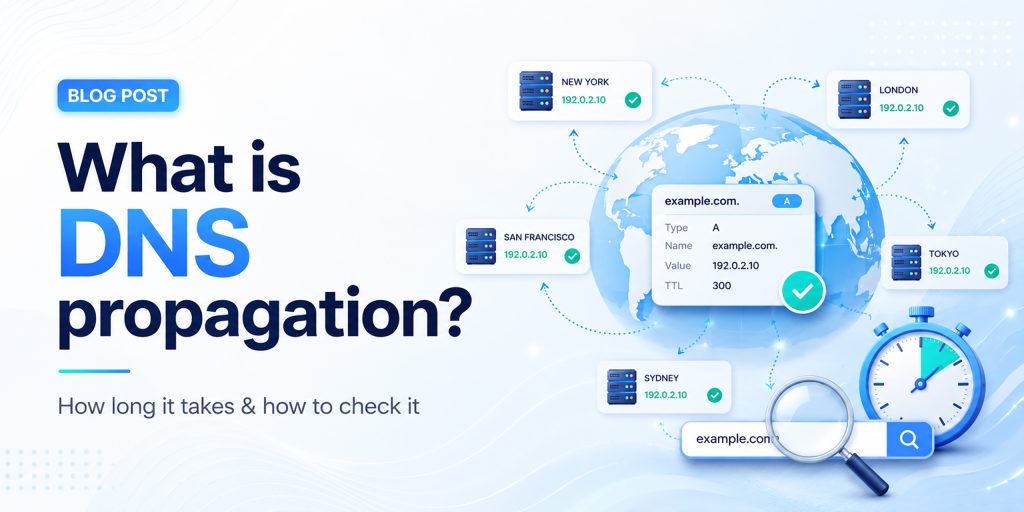
You’ve just updated your nameservers, pointed your domain to a new host, or changed a DNS record, and now you’re waiting. Your website might be showing the old version, or visitors in different countries see something different from you. This is DNS propagation in action. In this complete guide, we explain everything: what DNS propagation is, why it takes time, how long it takes worldwide, and the fastest ways to check and troubleshoot it.
What is DNS Propagation?
DNS propagation is the process by which updates to your domain’s DNS records spread across all DNS servers worldwide after you make a change. When you update your DNS settings, such as changing your nameservers, modifying an A record, or updating your MX records, those changes do not appear instantly for everyone on the internet. Instead, they travel gradually from server to server across the global DNS network. This global DNS propagation time can range from a few minutes to 72 hours.
Think of the internet as a massive phone book system. Your domain name (like example.com) is the name in the book, and the DNS record is the phone number. When you “change your number,” every phone operator (DNS server) around the world needs to update their local copy of the book. Until they do, some people will still be calling the old number.
DNS Propagation Flow
| Your Domain (DNS Updated) |
→ | Root DNS Server |
→ | TLD Server (.com/.net) |
→ | ISP Resolver (Cache) |
→ | End User (Sees New IP) |
How DNS Works (and Why Propagation Happens)
To understand DNS propagation, you first need to understand how the Domain Name System works. DNS translates human-readable domain names into machine-readable IP addresses that servers use to communicate. Here’s the step-by-step DNS lookup process:
- Step 1 – Browser checks its local cache: Your browser stores recently visited DNS records. If it has the record cached (and it hasn’t expired), it uses that directly without any external request.
- Step 2 – OS checks its DNS cache: If the browser has no cached entry, it asks your operating system, which maintains its own DNS cache.
- Step 3 – Query sent to ISP’s recursive resolver: Your Internet Service Provider operates DNS resolver servers. These receive your DNS query and check their cache. This is where most propagation delays occur. ISP resolvers cache records aggressively.
- Step 4 – Resolver contacts root and authoritative servers: If the resolver doesn’t have a cached answer, it queries the root DNS servers, then TLD servers, then the authoritative nameserver for your domain, which has the latest record.
- Step 5 – Answer is cached and returned: The resolver stores the answer based on the TTL value and sends it back to your browser. The next request within the TTL window is answered from cache, which is why DNS propagation takes time.
How Long Does DNS Propagation Take?
How long does DNS propagation take? It varies, but here’s a practical breakdown of global DNS propagation time:
| Scenario | Typical Propagation Time | Speed |
| Low TTL records (300s / 5 min) | 5 – 30 minutes | Fast |
| Standard TTL records (3600s) | 1 – 4 hours | Moderate |
| A record / CNAME changes | 1 – 24 hours | Variable |
| MX record (email) changes | 4 – 24 hours | Variable |
| Nameserver changes | 12 – 48 hours | Slow |
| Domain transfer | 24 – 72 hours | Slowest |
| Full global propagation | Up to 72 hours | Maximum |
Key Factors That Affect DNS Propagation Time
TTL (Time to Live) Value
The TTL is the most important factor in DNS propagation time. It tells resolvers how long they should cache a record before checking for a fresh copy. A TTL of 86400 means 24 hours; a TTL of 300 means 5 minutes. If your TTL was 24 hours before your change, resolvers will serve the old record for up to 24 hours after your update.
ISP DNS Cache Behavior
Different ISPs refresh their DNS caches at different rates. Some respect the TTL exactly; others refresh less frequently. This means users on different ISPs may see your new DNS records at different times, creating inconsistent propagation across the globe.
Type of DNS Record Changed
Not all DNS records propagate at the same speed. A and CNAME changes propagate faster, while MX and nameserver updates take longer because they involve more layers of the DNS hierarchy.
Domain Registrar and Hosting Provider
Some registrars push nameserver updates to root servers faster than others. DNS hosting providers like Cloudflare or AWS Route 53 have infrastructure optimized for faster propagation.
Geographic Location
DNS propagation speed varies by location. Major internet hubs in North America and Western Europe typically see changes faster, while some regions in Asia and Africa may experience longer delays.
How to Check DNS Propagation Status
Knowing how to check DNS propagation is essential after making any DNS change. The goal is to verify that your new DNS records are being returned by resolvers around the world, not just on your local network.
Method 1: Use an Online DNS Propagation Checker
The easiest method is to use a dedicated DNS propagation checker tool that queries multiple DNS servers from locations worldwide and shows you the current record values from each. HasheTools offers a free online DNS propagation checker at hashetools.com that checks your domain against dozens of global resolvers simultaneously.
Method 2: Use Command Line Tools
For developers and sysadmins, command-line tools offer precise DNS lookup results:
• Windows (nslookup): nslookup example.com 8.8.8.8
• Mac/Linux (dig): dig @8.8.8.8 example.com A
Query different resolvers (8.8.8.8 = Google, 1.1.1.1 = Cloudflare, 9.9.9.9 = Quad9) to check propagation across multiple providers.
Method 3: Use Multiple Devices and Networks
Try accessing your website from different devices, your phone on mobile data, a friend’s computer, or a VPN, to see if different networks are serving the new or old DNS records.
Method 4: Clear Your Local DNS Cache
Before checking anything, clear your local DNS cache so you’re not seeing an outdated cached result:
- Windows: ipconfig /flushdns
- Mac: sudo dscacheutil -flushcache; sudo killall -HUP mDNSResponder
- Linux: sudo systemd-resolve –flush-caches
- Chrome: Visit chrome://net-internals/#dns and click ‘Clear host cache.’
DNS Propagation Troubleshooting
If your DNS changes are not reflecting, here are the most common causes and solutions:
| Problem | Likely Cause | Fix |
| The website shows old content | Local DNS or browser cache | Flush DNS cache; clear browser cache |
| Some users see new, others don’t | Propagation is still in progress | Wait for the full TTL to expire |
| DNS is correct, but the site won’t load | Firewall, SSL, or server config | Check server logs and SSL certificate |
| Email not working after MX change | MX propagation is still in progress | Wait 24 hrs; verify MX with dig |
| Nameserver change not taking effect | Registrar delay or wrong NS records | Confirm NS at registrar; wait 48 hrs |
| DNS propagated, but SSL error | SSL cert not yet on new host | Provision SSL cert on new server |
COMMON MISTAKE
Many users assume that because their DNS change is correct in the registrar panel, it has already propagated. This is wrong. The registrar is only the authoritative source; all caching resolvers in between need to expire their old cache before picking up the new record. Always check propagation with an external tool like HasheTools DNS Checker.
How to Speed Up DNS Propagation
While you cannot force instant global propagation, these proven strategies minimize DNS propagation delay and help your changes go live as quickly as possible:
- Lower your TTL before making changes: 48 hours before your planned DNS change, reduce your TTL to 300 seconds (5 minutes). Resolvers worldwide will cache the old record for only 5 minutes, drastically reducing propagation wait time when you make the actual change.
- Use a premium DNS provider with global anycast: Providers like Cloudflare, AWS Route 53, and Google Cloud DNS use anycast networks with nodes in hundreds of cities. Their DNS infrastructure propagates changes much faster than traditional shared hosting DNS.
- Clear your local DNS cache immediately: Flush the DNS cache on your machine and browser right after making changes. This lets you verify the new records are live without waiting for your local cache to expire.
- Switch to Google or Cloudflare DNS resolvers: Change your network’s DNS servers to 8.8.8.8 (Google) or 1.1.1.1 (Cloudflare). These resolvers typically refresh their caches faster than ISP resolvers.
- Plan migrations during low-traffic periods: Schedule DNS changes during off-peak hours (nights or weekends) so fewer users are affected during the transition period when some see the old site and others see the new one.
DNS Record Types and Their Propagation Times
Different DNS records (A, CNAME, MX, and others) have different propagation characteristics. Understanding these helps you set realistic expectations for each type of change:
| Record Type | Purpose | Typical Propagation | Impact |
| A Record | Maps the domain to an IPv4 address | 1 – 24 hours | Website accessibility |
| AAAA Record | Maps the domain to an IPv6 address | 1 – 24 hours | IPv6 accessibility |
| CNAME | Alias from one domain to another | 1 – 8 hours | Subdomains, CDN pointing |
| MX Record | Email server routing | 4 – 24 hours | Email delivery |
| TXT Record | SPF, DKIM, domain verification | 1 – 12 hours | Email authentication |
| NS Record | Defines authoritative nameservers | 12 – 48 hours | Entire DNS authority |
| SOA Record | Zone authority information | 24 – 72 hours | Zone administration |
| PTR Record | Reverse DNS lookup | 24 – 48 hours | Email reputation, security |
Frequently Asked Questions
What is DNS propagation and why does it happen?
DNS propagation is the time it takes for updated DNS records to spread across the Internet. It happens because DNS servers cache old records and only update them after the TTL (time to live) expires.
How long does DNS propagation take?
DNS propagation usually takes 24–72 hours worldwide, but many users see updates within a few hours. Timing depends on TTL, ISP caching, and location.
How can I check DNS propagation?
You can use tools like HasheTools DNS Checker or commands like nslookup and dig to see how your domain resolves in different locations.
Can DNS propagation be instant?
No, it cannot be fully instant worldwide. However, lowering your TTL before making changes can make updates much faster.
Why is my website not updating after DNS changes?
Your ISP or browser may still be using cached DNS data. Try clearing your cache, switching networks, or waiting for propagation to complete.
Does DNS propagation affect email?
Yes. Changes to MX records can temporarily affect email delivery. Keep your old mail server active for 48-72 hours to avoid issues.
Does clearing the DNS cache speed up propagation?
No, it only updates DNS on your device. It does not affect global propagation.
How can I verify DNS changes are correct?
Check your domain’s authoritative nameserver using tools like dig. If it shows the updated record, the change is correct and propagating.
Conclusion
DNS propagation is one of those technical realities of the internet that affects everyone who manages a website, email system, or online service. It’s not a bug or a failure; it’s simply how the distributed, cached DNS system keeps billions of lookups fast and efficient worldwide.

Reverse IP Lookup: Find Domains Hosted on an IP Address Easily
If you want to know which websites are hosted on a specific IP address, a reverse IP lookup (also called reverse DNS lookup) is the tool you need. Unlike a regular DNS lookup, where you check the IP of a domain, a reverse IP lookup lets you find all domains associated with a particular IP address. This is useful for web security, network troubleshooting, and email verification.
Whether you’re a webmaster, IT professional, or just curious, this guide will show you how to do a reverse IP address lookup on Windows, Mac, and Linux.
What is a Reverse IP Lookup?
A reverse IP lookup queries an IP address to reveal its connected domain names. In technical terms, it checks the PTR record of an IP address in the Domain Name System (DNS). PTR (Pointer) records map an IP address back to a canonical hostname.
Why Use Reverse IP Lookup?
Performing a reverse DNS check is more than just a technical curiosity. It is vital for:
- Security Auditing: Detect if suspicious or malicious domains are linked to your server’s IP.
- Checking Shared Hosting: See which other websites share your server. Too many “spammy” neighbors can hurt your site’s reputation.
- Email Deliverability: Many mail servers block emails if the IP doesn’t have a valid reverse DNS (PTR) record.
- SEO & Competitor Research: Discover other websites owned by a competitor by seeing what else is hosted on their dedicated server.
How to Perform a Reverse IP Lookup
1: HasheTools Online Reverse IP Lookup (Recommended)
The easiest way for beginners and pros alike. No command line required.
- Go to the HasheTools Reverse IP Lookup Tool.
- Enter the IP address you wish to investigate.
- Instantly view a list of associated domains and PTR records.
Pro Tip: If you see “Cloudflare” or “Akamai” as the result, the website is behind a CDN. In this case, the reverse lookup shows the CDN’s info, not the private origin server.
Method 2: Command Line (Windows, Mac, & Linux)
If you prefer using built-in system tools, use these commands:
On Windows
- Open Command Prompt: Press Windows + R, type cmd, and hit Enter.
- Type the command: nslookup -q=PTR 1.1.1.1
- Replace 1.1.1.1 with the IP address you want to check.
- Look for the Non-authoritative answer section to see the reverse DNS record.
On Mac OS
- Open Terminal: Press Command + Space, type Terminal, and press Enter.
- Enter the command: dig -x 1.1.1.1
- Check the ANSWER SECTION for the domain linked to the IP.
On Linux
- Open your Terminal.
- Type the command: dig -x 1.1.1.1
- The PTR record appears in the ANSWER SECTION, showing the hostname.
Example of Reverse IP Lookup
For example, using the IP 91.198.174.192 in a reverse lookup may show domains like:
example.com
anotherdomain.org
This helps you identify websites hosted on the same server or IP.
Online Reverse IP Lookup Tools
If you don’t want to use terminal commands, online reverse IP lookup tools make it easy:
- Enter the IP address in the tool.
- Instantly get a list of domains hosted on that IP.
- Useful for beginners or quick checks without technical setup.
Key Terms Related to Reverse IP Lookup
- Reverse nslookup: Running nslookup in reverse to find domains from IPs.
- NSLookup IP: Using the nslookup command to check IP addresses.
- Reverse DNS lookup: Checking PTR records to map IPs to hostnames.
- IP address reverse lookup: The process of finding domain names from an IP address.
Benefits of Reverse IP Lookup
- Security monitoring: Identify malicious domains on shared servers.
- Email deliverability: Verify that your server IP matches your domain.
- SEO research: Discover competitors’ websites hosted on the same IP.
- Troubleshooting: Find misconfigured servers or network issues.
Common Myths vs. Reality
- Myth: Every IP will show a list of websites.
- Reality: Only IPs with configured PTR records or those indexed in global databases will show results. If a server is private, it may return no result.
- Myth: Reverse IP lookup is illegal.
- Reality: No. You are accessing public DNS records that are meant to be transparent.
FAQs
1. Can a reverse IP lookup find every website on a server?
It finds websites that are publicly indexed and have their DNS records pointed to that IP. Some “hidden” sites behind firewalls may not appear.
2. Why is my reverse IP showing a different name than my website?
This usually happens if your hosting provider has set a generic “internal” name for the PTR record, such as server123.hostingcompany.com.
3. Does a reverse IP lookup affect website speed?
No, this is a DNS-level query and has zero impact on the performance of the website being checked.
Try the HasheTools Free Reverse IP Lookup Tool
Uncover the hidden domains behind any IP. Whether you are auditing your hosting provider or investigating a security threat, HasheTools provides instant, high-accuracy results.
- Bulk Domain Discovery: Identify multiple domains on a single server.
- PTR Record Verification: Ensure your mail server is configured correctly.
- Security Audit Ready: Spot “bad neighbors” affecting your server’s reputation.

Website to IP Lookup: How to Find IP Address of Any Website
Finding a website’s IP address is more than just curiosity; it’s a critical step for DNS troubleshooting, cybersecurity audits, and server migrations. Whether you are a developer verifying a CDN setup or an SEO expert checking hosting neighbors, getting an accurate IP is essential.
In this 2026 updated guide, we cover the fastest ways to perform a domain to IP lookup using online tools and native system commands.
- What is a website’s IP address is
- Why IP lookup is important
- How to find the IP address of a website (Windows, Mac, Linux & online tools)
- Difference between a domain name and an IP address
- FAQs related to IP checker & domain IP lookup
What Is a Website IP Address?
Every website on the internet is hosted on a server, and every server has a unique identifier called an IP address (Internet Protocol address). When you type a domain like google.com, your browser communicates using IP addresses, not domain names.
Example:
- Domain: www.google.com
- IP Address: 142.250.190.14 (example)
The Domain Name System (DNS) translates domain names into IP addresses.
Why You May Need to Find a Website’s IP Address
Performing a domain IP lookup is useful for:
- Troubleshooting DNS or hosting issues
- Checking server location or hosting details
- Cybersecurity and firewall configuration
- SEO and website performance analysis
- Testing CDN or load balancer setups
Why Does a Website’s IP Address Matter?
- Server Location: The IP address reveals the physical location of the server, which impacts both Local SEO and latency.
- Shared vs. Dedicated Hosting: An IP lookup helps you see if thousands of other sites share the same address (which can be a security risk).
- Security & Firewalls: You need the IP to whitelist or blacklist traffic at the firewall level.
- CDN Verification: Check if your site is correctly routing through services like Cloudflare or Akamai.
How to Find the IP Address of a Website
There are several ways to perform a domain IP lookup, ranging from instant online tools
to advanced command-line methods.
1: HasheTools Online IP Lookup (Recommended)
The fastest and most accurate way is to use our dedicated tool.
- Step 1: Go to the HasheTools Website for IP Lookup.
- Step 2: Enter the URL (e.g., example.com) and hit “Check.”
Pro Tip: Our tool doesn’t just show the IP; it provides both IPv4 (the standard) and IPv6 (the future-proof version) in one click. This is essential for modern network troubleshooting.
2. Finding IP Address on Windows
- Open Command Prompt (Start → type cmd → Enter)
- Run: nslookup example.com
- Find the IP under the “Non-authoritative answer” section For IPv6: nslookup -q=AAAA example.com
3. Finding IP Address on macOS
- Open Terminal (Command + Space → type Terminal → Enter)
- Run: dig example.com A
- Check the ANSWER SECTION for the IP address For IPv6: dig example.com AAAA
4. Finding IP Address on Linux
- Open Terminal
- Run: dig example.com A
- IP appears in the ANSWER SECTION For IPv6: dig example.com AAAA
Quick Note: If you see multiple IP addresses in the results, the website likely uses a Load Balancer or a Content Delivery Network (CDN) like Cloudflare to handle high traffic and improve speed.
Domain Name vs IP Address
| Domain Name | IP Address |
| Easy to remember | Numeric identifier |
| Example: google.com | Example: 142.250.190.14 |
| Used by humans | Used by servers |
DNS links domain names to IP addresses.
IPv4 vs IPv6
- IPv4: Older format (e.g., 192.168.1.1)
- IPv6: Newer format with more addresses (e.g., 2001:db8::1)
Most modern websites use both IPv4 and IPv6.
Common Use Cases for Website IP Lookup
- Find the IP address of a website
- Domain to IP lookup
- URL to IP conversion
- Website IP checker for security audits
- Hosting and server verification
Beyond the Basics: Reverse IP & Global Checks
Finding the IP is just the start. You might also need:
- Reverse IP Lookup: Finding all domains hosted on a single IP address.
- Ping Test: Checking the latency ($ms$) between your location and the server.
- WHOIS Data: Identifying the owner of the IP block (e.g., AWS, DigitalOcean, or Google Cloud).
FAQs
1. How do I find the IP address of a website?
You can use HasheTools online IP lookup or command-line tools like nslookup and dig.
2. Can a website have multiple IP addresses?
Yes, websites using CDNs or load balancers often have multiple IPs.
3. Is website IP lookup safe and legal?
Yes, IP addresses are public information and safe to check.
4. What is the difference between IPv4 and IPv6?
IPv4 is an older numeric format; IPv6 is newer and supports more addresses.
5. What is a domain IP lookup?
It’s the process of finding the IP address associated with a domain name.
6. Can I find the IP address of a hidden website?
If a site uses a proxy (such as Cloudflare), a standard lookup will display the proxy’s IP address, not the IP address of the “origin” server.
7. Does a website’s IP ever change?
Yes. Static IPs stay the same, but many modern cloud hosts use dynamic IPs that can change during server restarts or migrations.
8. What is the difference between an A Record and a PTR Record?
An A Record maps a name to an IP (Forward). A PTR Record maps an IP back to a name (Reverse).
Try the HasheTools Free Website to IP Lookup Tool
Stop guessing and start analyzing. If you’re looking for a fast, accurate, and secure
way to find any website’s IP address, HasheTools is your go-to solution. Get a comprehensive report of any domain’s
infrastructure in seconds.
With HasheTools, you can instantly check:
- Domain IP Address: Get the exact server location.
- URL to IP Conversion: Works with any link or subdomain.
- Dual Records: View both IPv4 and IPv6 results.
- Live DNS Data: Real-time results directly from the source.

8.8.4.4 – Google Secondary DNS Explained: Everything You Need to Know
When it comes to DNS servers, most people are familiar with 8.8.8.8, Google’s primary public DNS server. But did you know that Google also provides a secondary DNS server, 8.8.4.4, to ensure redundancy, reliability, and faster internet connectivity?
In this guide, we’ll explain what 8.8.4.4 is, why it’s important, how to configure it on your devices, and how it can improve your browsing experience.
What is 8.8.4.4?
8.8.4.4 is Google’s secondary public DNS server. DNS (Domain Name System) translates human-readable domain names, like www.example.com, into IP addresses that computers can understand. While 8.8.8.8 serves as the primary resolver, 8.8.4.4 acts as a backup, ensuring uninterrupted service if the primary server is unavailable.
Key Points:
- Part of Google Public DNS (launched in 2009)
- Free and globally accessible
- Provides redundancy and reliability
- Helps prevent DNS-related errors and downtime
Why Use 8.8.4.4?
1. Redundancy
Even the most reliable DNS servers can experience outages or temporary connectivity issues. Using 8.8.4.4 as a secondary ensures that your internet queries continue without interruption if 8.8.8.8 fails.
2. Reliability and Speed
Google’s DNS network is globally distributed, providing fast query responses and minimizing delays in page loading. By pairing 8.8.4.4 with 8.8.8.8, you maximize uptime and reliability.
3. Security
Google Public DNS, including 8.8.4.4, protects against common DNS attacks like cache poisoning and spoofing, helping to keep your browsing safe.
4. Easy Troubleshooting
8.8.4.4 can be used to test network or DNS issues. If your primary DNS fails, the secondary will still respond, helping you identify connectivity problems faster.
How to Configure 8.8.4.4
You can set 8.8.4.4 as your secondary DNS on various devices, including Windows, macOS, Linux, routers, and mobile phones.
Windows Setup
- Open Network & Internet Settings → Change Adapter Options
- Right-click your connection → Properties
- Select IPv4 → Properties
- Check Use the following DNS server addresses
- Enter:
- Preferred DNS: 8.8.8.8
- Alternate DNS: 8.8.4.4
- Click OK and restart your connection
macOS Setup
- Go to System Preferences → Network → Advanced → DNS
- Click + and enter 8.8.8.8
- Click + again and enter 8.8.4.4
- Apply changes
Mobile Devices
- iOS: Wi-Fi → Tap network → Configure DNS → Manual → Add 8.8.8.8 and 8.8.4.4
- Android: Wi-Fi → Modify Network → Advanced → IP Settings → Static → DNS 1 & 2
8.8.4.4 vs 8.8.8.8
| Server | Role | Notes |
|---|---|---|
| 8.8.8.8 | Primary DNS | Handles main queries |
| 8.8.4.4 | Secondary DNS | Backup if primary fails |
Verdict: Always use both for fast, reliable, and resilient DNS resolution.
Testing 8.8.4.4
1. Ping Test
Open Command Prompt / Terminal and run:
ping 8.8.4.4
- If you get responses → server reachable
- If it fails → network/DNS problem
2. DNS Lookup Test
Run:
nslookup www.example.com 8.8.4.4
- Forces the query to Google’s secondary DNS
- Shows the resolved IP address
Common Problems and Solutions
1. DNS Not Changing
- Ensure DNS settings are saved correctly
- Flush cache:
ipconfig /flushdns(Windows) orsudo dscacheutil -flushcache(Mac)
2. Slow Internet Despite Google DNS
- Check if router or network hardware is limiting speed
- Sometimes local ISP DNS is faster due to proximity
3. DNS Blocking
- Some networks may block custom DNS; 8.8.4.4 may not work in such cases
Benefits of Using 8.8.4.4 Alongside 8.8.8.8
- Continuous uptime: Secondary DNS ensures uninterrupted browsing
- Faster query resolution: Google’s infrastructure is globally optimized
- Better troubleshooting: Helps isolate network or DNS issues
- Enhanced security: Protects against DNS attacks
- Easy to remember: Simple numbers make it user-friendly
Fun Facts About 8.8.4.4
- Google chose easy-to-remember numbers for 8.8.8.8 and 8.8.4.4
- Millions of devices worldwide rely on these DNS servers daily
- Using this pair ensures maximum reliability and minimal downtime
FAQs About 8.8.4.4
1. Can I use 8.8.4.4 as my primary DNS?
Yes, but it’s recommended to keep 8.8.8.8 as primary for consistency.
2. Is Google DNS secure?
Yes, it’s more secure than most ISP DNS servers and protects against cache poisoning and spoofing.
3. Will using 8.8.4.4 improve speed?
Often yes. Google DNS is faster than many ISP DNS servers, especially if local DNS is slow.
4. Is 8.8.4.4 free to use?
Absolutely. Google provides it free for personal and business use.
5. How do I know if 8.8.4.4 is working?
Run a ping test (ping 8.8.4.4) or DNS lookup (nslookup example.com 8.8.4.4) to check connectivity and query resolution.
6. Can 8.8.4.4 help in network troubleshooting?
Yes, it’s widely used to isolate network issues. If primary DNS fails but 8.8.4.4 responds, the problem is likely with the primary DNS or network device.
Conclusion
Google’s secondary public DNS, 8.8.4.4, is an essential tool for anyone seeking reliable, fast, and secure internet browsing. By pairing it with 8.8.8.8, you ensure uninterrupted DNS resolution, improved web performance, and protection against common DNS threats.
Whether you are a casual user, business owner, or network administrator, configuring 8.8.4.4 as a secondary DNS is a simple yet effective step to improve your internet reliability. Tools like HasheTools DNS Checker and Ping Test make it easy to test and verify your setup, ensuring your devices stay connected efficiently and securely.
Flush DNS: The Complete Guide to Clearing Your DNS Cache
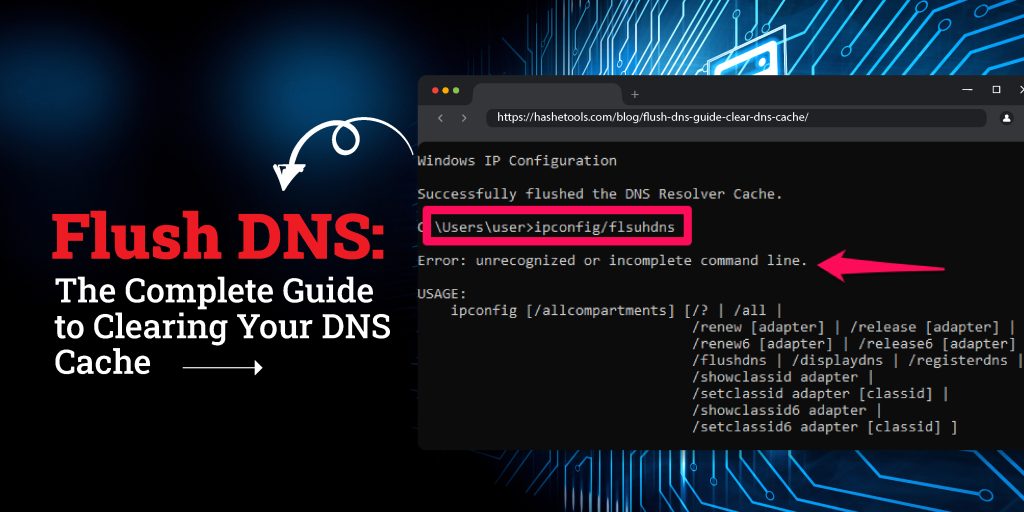
Flushing DNS is an essential network maintenance task that ensures your device accesses the most up-to-date domain information. Outdated DNS records in your cache can lead to issues such as slow website loading, connection errors, and the inability to reach recently updated websites. This guide covers how to flush DNS on Windows, macOS, Linux, and mobile devices, provides troubleshooting tips, discusses advanced methods, and explains public DNS cache clearing. We’ll also show you how HasheTools can simplify your DNS management.
What Is Flushing DNS?
When you visit a website, your computer performs a DNS lookup to translate a domain name (like example.com) into an IP address. Your system stores this information locally in a DNS cache to speed up subsequent visits. Over time, cached entries can become outdated, causing connectivity issues. Flushing DNS clears these cached records and forces your system to fetch fresh DNS information.
Key Terms:
- DNS Cache: Temporary storage of domain-to-IP mappings.
- TTL (Time-to-Live): Duration a DNS record remains in cache.
- Flush DNS / Clear DNS Cache / Reset DNS Cache: Different terms for the same process.
Why You Should Flush DNS
Flushing your DNS cache resolves several common network problems:
- Accessing Updated Websites: When a website changes servers or IP addresses, your cached DNS may point to the old location.
- Fixing Connection Errors: Outdated DNS records can cause 404 Not Found errors or failed connections.
- Speed & Performance: Connecting to a closer or updated server can improve load times.
- Security: Removing cached DNS entries helps prevent DNS spoofing or cache poisoning attacks.
- Network Troubleshooting: Clearing DNS is often the first step in diagnosing internet issues.
How to Flush DNS: Step-by-Step
Windows
Flushing DNS on Windows depends on your version. All commands require administrator privileges.
Windows 11 & 10
- Right-click the Start menu → select Windows Terminal (Admin) or Command Prompt (Admin).
- Type:
ipconfig /flushdns - Press Enter. You’ll see: “Successfully flushed the DNS Resolver Cache”
- Type
exitto close the terminal.
Additional commands for network reset:
ipconfig /release
ipconfig /renew
Windows 8 / 8.1
- Press Windows + X → select Command Prompt (Admin).
- Run
ipconfig /flushdns.
Windows 7 / Vista
- Start → All Programs → Accessories → Right-click Command Prompt → Run as Administrator.
- Run
ipconfig /flushdns.
Windows XP / 2000 / NT
- Start → Run → type
cmd.exe→ Enter. - Run
ipconfig /flushdns.
macOS and Mac OS X
Open Terminal from Applications > Utilities and run the appropriate command for your version:
| macOS Version | Command |
|---|---|
| macOS 12 (Monterey), 11 (Big Sur), 10.15 (Catalina) | sudo killall -HUP mDNSResponder |
| macOS 10.14 (Mojave) | sudo killall -HUP mDNSResponder |
| macOS 10.13 – 10.12 (High Sierra, Sierra) | sudo killall -HUP mDNSResponder |
| Mac OS X 10.11 (El Capitan) | sudo killall -HUP mDNSResponder |
| Mac OS X 10.10 (Yosemite) | sudo discoveryutil udnsflushcaches |
| Mac OS X 10.6 (Snow Leopard) | sudo dscacheutil -flushcache |
| Mac OS X 10.5 and below | sudo lookupd -flushcache |
Linux
Linux DNS cache commands depend on the service used:
- systemd-resolve (Ubuntu/Debian):
sudo systemd-resolve --flush-caches - NSCD:
sudo /etc/init.d/nscd restart - BIND:
sudo rndc flush
Mobile Devices
- iOS: Restart your device or toggle Airplane Mode.
- Android: Restart your device or use network reset options.
Alternative Ways to Flush DNS
- Restart Your Device: Easiest method if you lack admin privileges.
- Reset Network Connection: Reconnect WiFi or unplug/plug Ethernet.
- Change DNS Server: Switching to a public DNS like Google 8.8.8.8 or Cloudflare 1.1.1.1 automatically refreshes the cache.
- Modify Hosts File: Temporarily force specific domain resolution.
Clearing Public DNS Resolver Cache
- Cloudflare 1.1.1.1: Visit their Purge Cache tool → enter domain → select record type → clear.
- Google Public DNS 8.8.8.8: Visit Google DNS Flush Cache → enter domain → flush.
- OpenDNS: Use OpenDNS CacheCheck → enter domain → refresh cache.
Troubleshooting DNS Issues
- Page Not Found (404): Old cache points to deleted page; flush DNS.
- Unable to Connect: Cached IP may be wrong; flush DNS or reset network.
- Old Website Version: Cached data shows outdated content; flush DNS to see updates.
- Network Performance Issues: Cached DNS might point to a distant server; flushing can optimize routing.
Using HasheTools to Check and Flush DNS
HasheTools Flush DNS Tool makes clearing DNS simple:
- No command line needed
- Works on Windows, macOS, Linux
- Clears local cache instantly
- Links to DNS propagation checker and other network diagnostic tools
Other useful HasheTools DNS tools:
FAQs About Flushing DNS
Q1: Is it safe to flush DNS?
Yes. Flushing your DNS cache is safe and does not harm your system.
Q2: Does flushing DNS improve internet speed?
It doesn’t increase raw bandwidth, but it can resolve slow access due to outdated cached records.
Q3: How often should I flush DNS?
Only when you encounter connectivity issues, outdated content, or network changes.
Q4: Can I flush DNS without admin access?
Yes, by restarting your device or using the HasheTools online tool.
Q5: Why am I still seeing the old website after flushing DNS?
Your browser cache may still hold old content; clear the browser cache as well.
Pro Tips
- Combine flush DNS with
ipconfig /releaseandipconfig /renewfor a complete network reset. - Use public DNS servers for faster and more reliable resolution.
- Keep a regular maintenance schedule for servers and DNS settings to avoid cache issues.
Conclusion
Flushing DNS is a critical step in network maintenance, troubleshooting, and ensuring up-to-date website access. With step-by-step instructions for Windows, macOS, Linux, and mobile devices, along with HasheTools online tools, you can maintain optimal DNS performance and avoid connectivity problems.

8.8.8.8 – Google Public DNS Explained: Everything You Need to Know
The internet is all about connecting domain names to IP addresses. Every time you type a website like www.example.com, your device contacts a DNS server to find out where to send the request. One of the most famous DNS servers in the world is 8.8.8.8, offered by Google.
In this blog, we’ll explain what 8.8.8.8 is, why it’s important, how to use it, and how it can help improve your internet experience.
What is 8.8.8.8?
8.8.8.8 is a public DNS server provided by Google. DNS, or Domain Name System, is like the phonebook of the internet. It converts human-readable website names into IP addresses that computers understand.
- DNS Function: www.example.com → 93.184.216.34
- 8.8.8.8 Role: It is the server that performs this translation efficiently and reliably.
Google launched 8.8.8.8 in 2009 to provide a fast, secure, and free DNS service for everyone.
Why Use 8.8.8.8?
Using 8.8.8.8 comes with several benefits:
1. Faster Internet
Many ISPs’ default DNS servers are slow or overloaded. Using Google Public DNS can improve page load times and reduce latency.
2. Reliable and Always Online
Google’s DNS infrastructure is robust and globally distributed. Downtime is extremely rare, ensuring your DNS requests are always resolved.
3. Security Benefits
Google DNS helps prevent some common DNS attacks like DNS cache poisoning or hijacking, keeping your browsing safer.
4. Easy Troubleshooting
8.8.8.8 is widely used to check internet connectivity. If you can ping 8.8.8.8 but not a website, the problem is likely with your DNS or domain.
How to Use 8.8.8.8
You can configure 8.8.8.8 on:
- Windows
- MacOS
- Linux
- Routers
- Mobile Devices
Step-by-Step Example (Windows 10/11)
- Open Network & Internet Settings → Change Adapter Options
- Right-click your connection → Properties
- Select IPv4 → Properties
- Select Use the following DNS server addresses
- Enter:
- Preferred DNS: 8.8.8.8
- Alternate DNS: 8.8.4.4 (Google secondary server)
- Save settings and restart your connection
Step-by-Step Example (MacOS)
- Go to System Preferences → Network
- Select your active connection → Advanced → DNS
- Click + and enter 8.8.8.8
- Click + again and enter 8.8.4.4
- Apply changes
8.8.8.8 vs Other DNS Servers
There are several DNS options available. Let’s compare:
| DNS Server | Speed | Privacy | Reliability | Notes |
| 8.8.8.8 (Google) | Fast | Moderate | Excellent | Widely used, free |
| 1.1.1.1 (Cloudflare) | Very Fast | High | Excellent | Privacy-focused |
| 9.9.9.9 (Quad9) | Moderate | High | Very Good | Security-focused |
| ISP DNS | Variable | Low | Varies | Often slow, unreliable |
Verdict: Google DNS (8.8.8.8) is great for speed, reliability, and troubleshooting. For privacy, Cloudflare or Quad9 may be better.
Testing 8.8.8.8
You can test if 8.8.8.8 is working with simple commands:
Ping Test
Open Command Prompt / Terminal:
ping 8.8.8.8
- If you get responses → your internet is connected.
- If ping fails → check network or firewall settings.
DNS Lookup Test
nslookup www.example.com 8.8.8.8
- This forces your query to Google DNS and shows the resolved IP.
- Helps troubleshoot DNS-related issues.
Common Problems and Solutions
1. DNS Not Changing
- Ensure you saved the new DNS settings properly.
- Restart your computer or flush the DNS cache:
ipconfig /flushdns
2. Slow Internet Despite Google DNS
- Check if your network hardware (router/modem) is limiting speed.
- Sometimes, the nearby ISP DNS is faster due to proximity.
3. DNS Blocking
- Some ISPs or networks block custom DNS. In that case, 8.8.8.8 may not work.
Fun Facts About 8.8.8.8
- It’s easy to remember, which is why Google chose it.
- You can ping it to test connectivity even if websites are down.
- It’s used worldwide by millions for fast and reliable DNS resolution.
FAQs About 8.8.8.8
1. Can I use 8.8.8.8 on mobile devices?
Yes. Both iOS and Android allow custom DNS settings. Enter 8.8.8.8 and 8.8.4.4 in Wi-Fi settings.
2. Is Google DNS secure?
It’s more secure than most ISP DNS servers and protects against common attacks, but Google logs some queries for analytics and optimization.
3. Can 8.8.8.8 improve speed?
Often yes. Faster than many ISP servers, especially in regions with slow default DNS.
4. Is 8.8.8.8 free?
Absolutely. Google provides it completely free for personal and business use.
5. Should I use 8.8.8.8 as my only DNS?
It’s recommended to also use the secondary server, 8.8.4.4, in case the primary fails.
Conclusion
Google Public DNS (8.8.8.8) is one of the most reliable, fast, and globally trusted DNS servers. It ensures your domain lookups happen quickly, improves reliability, protects against some DNS attacks, and helps troubleshoot network issues effectively.
By configuring 8.8.8.8 as your primary DNS, you can enjoy faster internet browsing, stable connections, and peace of mind knowing your DNS resolution is handled by one of the most robust infrastructures in the world.
Whether you’re a casual internet user, a business owner, or a network admin, 8.8.8.8 is an essential tool in your networking toolkit.
Reverse DNS Does Not Match SMTP Banner: What This Warning Really Means
Email deliverability depends heavily on your DNS configuration. If your mail server is even slightly misconfigured, you may run into warnings that directly affect inbox placement. One of the most common alerts seen during SMTP tests is:
“Reverse DNS does not match SMTP banner.”
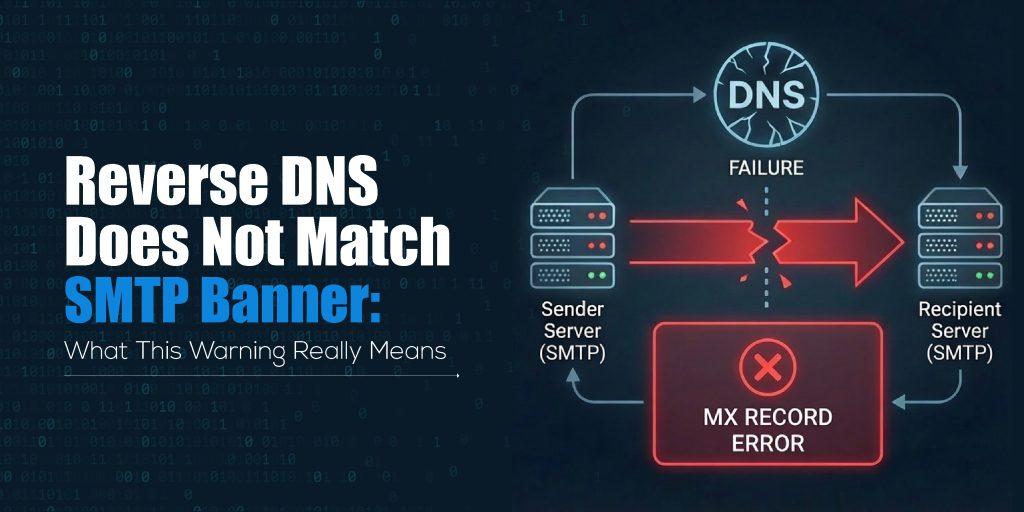
This warning appears on platforms like MXToolbox, HasheTools SMTP tests, and other email diagnostics tools. Although it may look technical or confusing, the issue is simple: Your mail server is identifying itself using a hostname that does not match its reverse DNS record.
This mismatch does not always break your email service, but it can affect your sender reputation and may cause your messages to land in spam.
Let’s break it down in an easy, clear, and actionable way.
What Is Reverse DNS (rDNS)?
Reverse DNS, also called PTR record lookup, is a DNS mechanism that maps an IP address back to a hostname.
While a normal DNS (A record) converts hostname → IP,
reverse DNS converts IP → hostname.
Simple Example
- A record: mail.example.com → 192.0.2.10
- PTR record (rDNS): 192.0.2.10 → mail.example.com
Mail servers rely on this reverse lookup to verify the identity of the server trying to send email. If a mail server cannot verify the reverse DNS or finds mismatching information, it becomes suspicious.
This forms the basis of the warning.
What Is an SMTP Banner?
When your mail server connects to another server to send an email, it introduces itself using a greeting message called the SMTP banner.
Example SMTP banner:
220 mail.example.com ESMTP Postfix
The most important part here is the hostname:
mail.example.com
Receiving servers expect this hostname to match your reverse DNS and forward DNS.
If it does not match, the server flags it as a potential spam indicator.
Why Does the “Reverse DNS Does Not Match SMTP Banner” Warning Appear?
This warning appears when:
SMTP banner hostname ≠ PTR record hostname
Common reasons include:
1. Incorrect SMTP hostname
Your mail server might be configured with a default hostname like:
- localhost
- server.yourhostprovider.com
- ip-123-45-67-89.hostingprovider.net
Instead of your actual mailing domain.
2. Wrong PTR record
The PTR record may point to:
- an old hostname
- your hosting provider’s hostname
- a generic IP-based hostname
Instead of your mail server hostname.
3. Missing forward DNS
Even if the PTR is correct, if the matching A record is missing, it still triggers a warning.
4. Using an ISP mail server or shared hosting
Cloud providers like AWS, DigitalOcean, Vultr, and shared hosts often use generic reverse DNS names.
5. Misconfigured mail server during setup
During Postfix, Exim, or cPanel setup, if the SMTP banner was not updated properly.
Why Is This Mismatch a Problem?
While this warning is not always fatal, it strongly impacts:
1. Email Deliverability
Gmail, Outlook, Yahoo, and most corporate mail servers check for DNS consistency. A mismatch raises suspicion and lowers trust.
2. Spam Filtering
Spam engines score your server based on:
- reverse DNS consistency
- proper SMTP banner
- matching hostname
A mismatch increases your spam score.
3. Email Reputation
Long-term sending with mismatches can reduce IP reputation, causing:
- delays
- soft bounces
- junk folder placement
4. MXToolbox / HasheTools Warnings
When you test using HasheTools SMTP Test or MXToolbox, you’ll see:
“Reverse DNS does not match SMTP Banner”
This is a direct indication that your DNS identity is not aligned.
How to Check This Warning Using HasheTools or MXToolbox
You can verify the issue quickly:
Step 1: Run HasheTools SMTP Test
Go to: https://www.hashetools.com/tools/smtp-test
Enter your mail server address and run the scan.
Look for this line:
Reverse DNS does not match SMTP Banner
Step 2: Run Reverse DNS Lookup
Use HasheTools Reverse DNS Lookup: https://www.hashetools.com/tools/reverse-dns-lookup
Check if the hostname matches your SMTP banner.
Step 3: Check your forward DNS
Look for the A record pointing to your IP.
When these three don’t align, the mismatch appears.
How to Fix “Reverse DNS Does Not Match SMTP Banner”
The fix is simple:
All three must match:
A record = PTR record = SMTP banner
Follow these exact steps:
1. Fix Your SMTP Banner (HELO/EHLO)
Set the correct hostname in your mail server settings:
Example: mail.yourdomain.com
How to update:
- Postfix → /etc/postfix/main.cf → myhostname = mail.yourdomain.com
- Exim → cPanel → Exim Configuration → SMTP Banner
- Plesk → Mail Settings → Outbound Mail Mode
- Windows SMTP → Server properties → Identification
2. Fix Your PTR Record (Reverse DNS)
PTR records can only be updated by your:
- hosting provider
- ISP
- VPS/cloud provider
Request them to set:
Your IP → mail.yourdomain.com
Example request: Please update the PTR record for IP 192.0.2.10 to: mail.example.com
3. Make Sure Forward DNS Exists
For the hostname: mail.yourdomain.com
Create an A record: mail → your IP
4. Match All Three Correctly
Final correct structure must be:
| Component | Should Be |
| SMTP Banner | mail.yourdomain.com |
| A Record | mail.yourdomain.com → IP |
| PTR Record | IP → mail.yourdomain.com |
If even one differs → a warning appears.
5. Test Again
Use HasheTools SMTP Test again: https://www.hashetools.com/tools/smtp-test
If all matches: Warning disappears.
Correct Example of DNS + SMTP Setup
Forward DNS (A Record): mail.example.com → 192.0.2.10
Reverse DNS (PTR Record): 192.0.2.10 → mail.example.com
SMTP Banner: 220 mail.example.com ESMTP Postfix
This is the ideal setup.
What Happens If You Ignore This Warning?
If you ignore this mismatch, your email server may:
- land in spam (especially in Gmail & Outlook)
- face slow delivery
- get domain reputation issues
- fail verification checks
- get flagged by corporate mail filters
- lose email trust score
For businesses and transactional emails, ignoring this warning is never recommended.
FAQs
1. Why does the “Reverse DNS does not match SMTP banner” warning appear?
This warning appears when your mail server’s hostname (SMTP banner) does not match the hostname returned by its reverse DNS (PTR record). Both must point to the same FQDN for proper authentication.
2. Does this mismatch affect email delivery?
Yes. Most spam filters, including Gmail, Outlook, and corporate mail gateways, treat DNS inconsistencies as a sign of an untrustworthy mail server. This can push emails into spam or cause delivery delays.
3. How do I fix a reverse DNS mismatch?
You must update:
- SMTP banner hostname
- A record of your mail server
- PTR record for your IP
All three should match the same domain name, such as mail.yourdomain.com.
4. Can I update the PTR record myself?
No. PTR records are controlled by the IP address owner, usually your hosting provider, VPS provider, or ISP. You must request that they update the reverse DNS.
5. How long do DNS and PTR updates take to propagate?
A record updates within minutes. PTR record changes may take 15 minutes to 24 hours, depending on the provider.
6. If everything else is correct, is this warning still serious?
Even if SPF, DKIM, and DMARC are perfect, a hostname mismatch still affects server trust. It won’t always block your emails, but it does reduce inbox performance, especially for bulk or transactional emails.
Conclusion
A “Reverse DNS does not match SMTP banner” warning simply means your mail server is presenting an identity that does not match the hostname returned by its reverse DNS record. While this issue doesn’t break email sending, it directly influences deliverability, trust, and your overall sender reputation. Modern mail providers rely heavily on hostname alignment to verify whether a server is genuine or potentially harmful.
By ensuring your SMTP banner, A record, and PTR record all match the same hostname, you create a clean and trustworthy DNS configuration. This small fix helps your emails reach inboxes faster, reduces spam flags, and strengthens your server’s credibility.
Tools like HasheTools SMTP Test and DNS utilities make it easy to detect and resolve these issues quickly, ensuring your mail server stays optimized and reliable at all times.
Stay Updated
Get the latest articles and tutorials delivered to your inbox