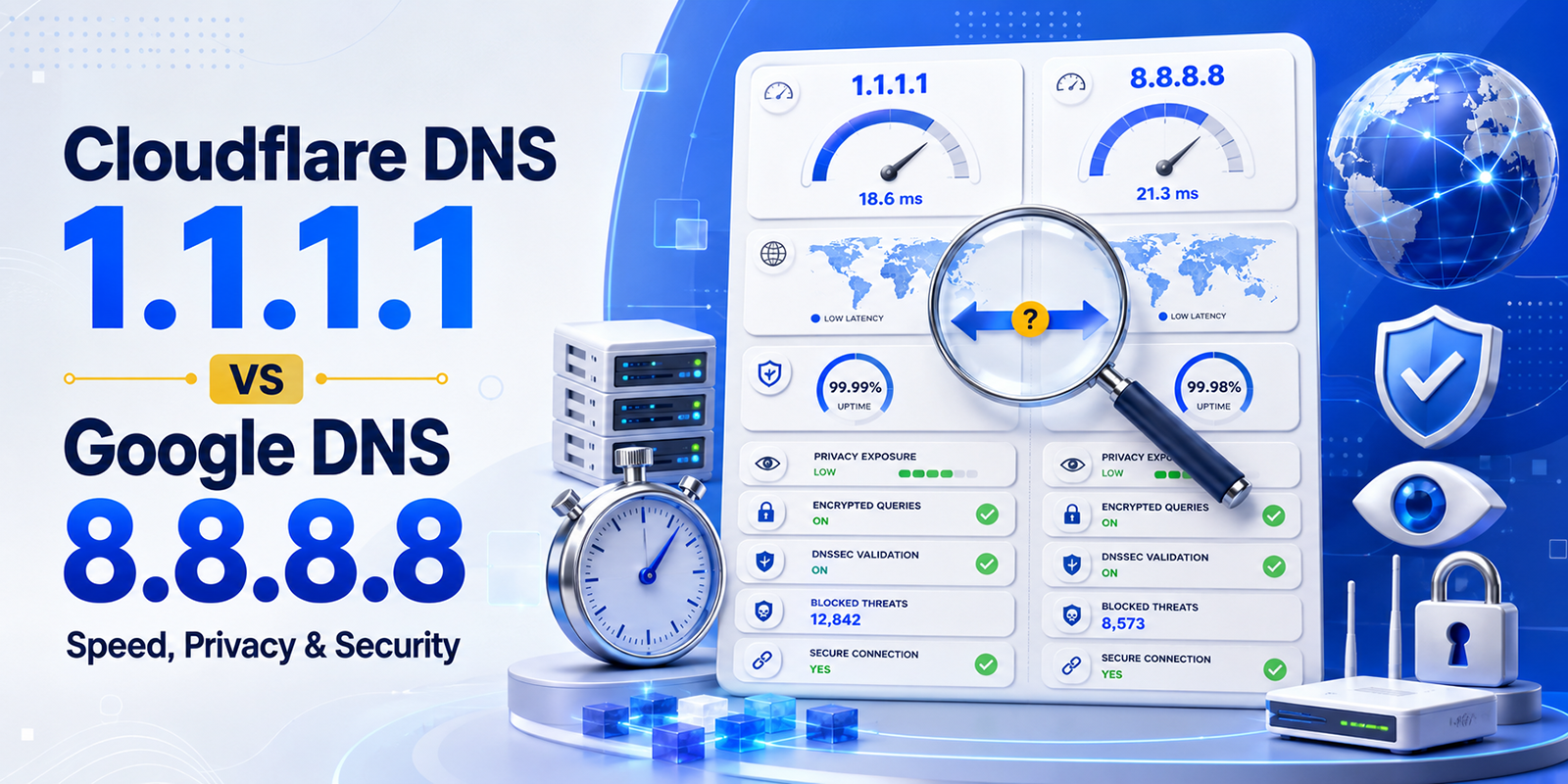

When it comes to DNS servers, most people are familiar with 8.8.8.8, Google’s primary public DNS server. But did you know that Google also provides a secondary DNS server, 8.8.4.4, to ensure redundancy, reliability, and faster internet connectivity?
In this guide, we’ll explain what 8.8.4.4 is, why it’s important, how to configure it on your devices, and how it can improve your browsing experience.
What is 8.8.4.4?
8.8.4.4 is Google’s secondary public DNS server. DNS (Domain Name System) translates human-readable domain names, like www.example.com, into IP addresses that computers can understand. While 8.8.8.8 serves as the primary resolver, 8.8.4.4 acts as a backup, ensuring uninterrupted service if the primary server is unavailable.
Key Points:
- Part of Google Public DNS (launched in 2009)
- Free and globally accessible
- Provides redundancy and reliability
- Helps prevent DNS-related errors and downtime
Why Use 8.8.4.4?
1. Redundancy
Even the most reliable DNS servers can experience outages or temporary connectivity issues. Using 8.8.4.4 as a secondary ensures that your internet queries continue without interruption if 8.8.8.8 fails.
2. Reliability and Speed
Google’s DNS network is globally distributed, providing fast query responses and minimizing delays in page loading. By pairing 8.8.4.4 with 8.8.8.8, you maximize uptime and reliability.
3. Security
Google Public DNS, including 8.8.4.4, protects against common DNS attacks like cache poisoning and spoofing, helping to keep your browsing safe.
4. Easy Troubleshooting
8.8.4.4 can be used to test network or DNS issues. If your primary DNS fails, the secondary will still respond, helping you identify connectivity problems faster.
How to Configure 8.8.4.4
You can set 8.8.4.4 as your secondary DNS on various devices, including Windows, macOS, Linux, routers, and mobile phones.
Windows Setup
- Open Network & Internet Settings → Change Adapter Options
- Right-click your connection → Properties
- Select IPv4 → Properties
- Check Use the following DNS server addresses
- Enter:
- Preferred DNS: 8.8.8.8
- Alternate DNS: 8.8.4.4
- Click OK and restart your connection
macOS Setup
- Go to System Preferences → Network → Advanced → DNS
- Click + and enter 8.8.8.8
- Click + again and enter 8.8.4.4
- Apply changes
Mobile Devices
- iOS: Wi-Fi → Tap network → Configure DNS → Manual → Add 8.8.8.8 and 8.8.4.4
- Android: Wi-Fi → Modify Network → Advanced → IP Settings → Static → DNS 1 & 2
8.8.4.4 vs 8.8.8.8
| Server | Role | Notes |
|---|---|---|
| 8.8.8.8 | Primary DNS | Handles main queries |
| 8.8.4.4 | Secondary DNS | Backup if primary fails |
Verdict: Always use both for fast, reliable, and resilient DNS resolution.
Testing 8.8.4.4
1. Ping Test
Open Command Prompt / Terminal and run:
ping 8.8.4.4
- If you get responses → server reachable
- If it fails → network/DNS problem
2. DNS Lookup Test
Run:
nslookup www.example.com 8.8.4.4
- Forces the query to Google’s secondary DNS
- Shows the resolved IP address
Common Problems and Solutions
1. DNS Not Changing
- Ensure DNS settings are saved correctly
- Flush cache:
ipconfig /flushdns(Windows) orsudo dscacheutil -flushcache(Mac)
2. Slow Internet Despite Google DNS
- Check if router or network hardware is limiting speed
- Sometimes local ISP DNS is faster due to proximity
3. DNS Blocking
- Some networks may block custom DNS; 8.8.4.4 may not work in such cases
Benefits of Using 8.8.4.4 Alongside 8.8.8.8
- Continuous uptime: Secondary DNS ensures uninterrupted browsing
- Faster query resolution: Google’s infrastructure is globally optimized
- Better troubleshooting: Helps isolate network or DNS issues
- Enhanced security: Protects against DNS attacks
- Easy to remember: Simple numbers make it user-friendly
Fun Facts About 8.8.4.4
- Google chose easy-to-remember numbers for 8.8.8.8 and 8.8.4.4
- Millions of devices worldwide rely on these DNS servers daily
- Using this pair ensures maximum reliability and minimal downtime
FAQs About 8.8.4.4
1. Can I use 8.8.4.4 as my primary DNS?
Yes, but it’s recommended to keep 8.8.8.8 as primary for consistency.
2. Is Google DNS secure?
Yes, it’s more secure than most ISP DNS servers and protects against cache poisoning and spoofing.
3. Will using 8.8.4.4 improve speed?
Often yes. Google DNS is faster than many ISP DNS servers, especially if local DNS is slow.
4. Is 8.8.4.4 free to use?
Absolutely. Google provides it free for personal and business use.
5. How do I know if 8.8.4.4 is working?
Run a ping test (ping 8.8.4.4) or DNS lookup (nslookup example.com 8.8.4.4) to check connectivity and query resolution.
6. Can 8.8.4.4 help in network troubleshooting?
Yes, it’s widely used to isolate network issues. If primary DNS fails but 8.8.4.4 responds, the problem is likely with the primary DNS or network device.
Conclusion
Google’s secondary public DNS, 8.8.4.4, is an essential tool for anyone seeking reliable, fast, and secure internet browsing. By pairing it with 8.8.8.8, you ensure uninterrupted DNS resolution, improved web performance, and protection against common DNS threats.
Whether you are a casual user, business owner, or network administrator, configuring 8.8.4.4 as a secondary DNS is a simple yet effective step to improve your internet reliability. Tools like HasheTools DNS Checker and Ping Test make it easy to test and verify your setup, ensuring your devices stay connected efficiently and securely.