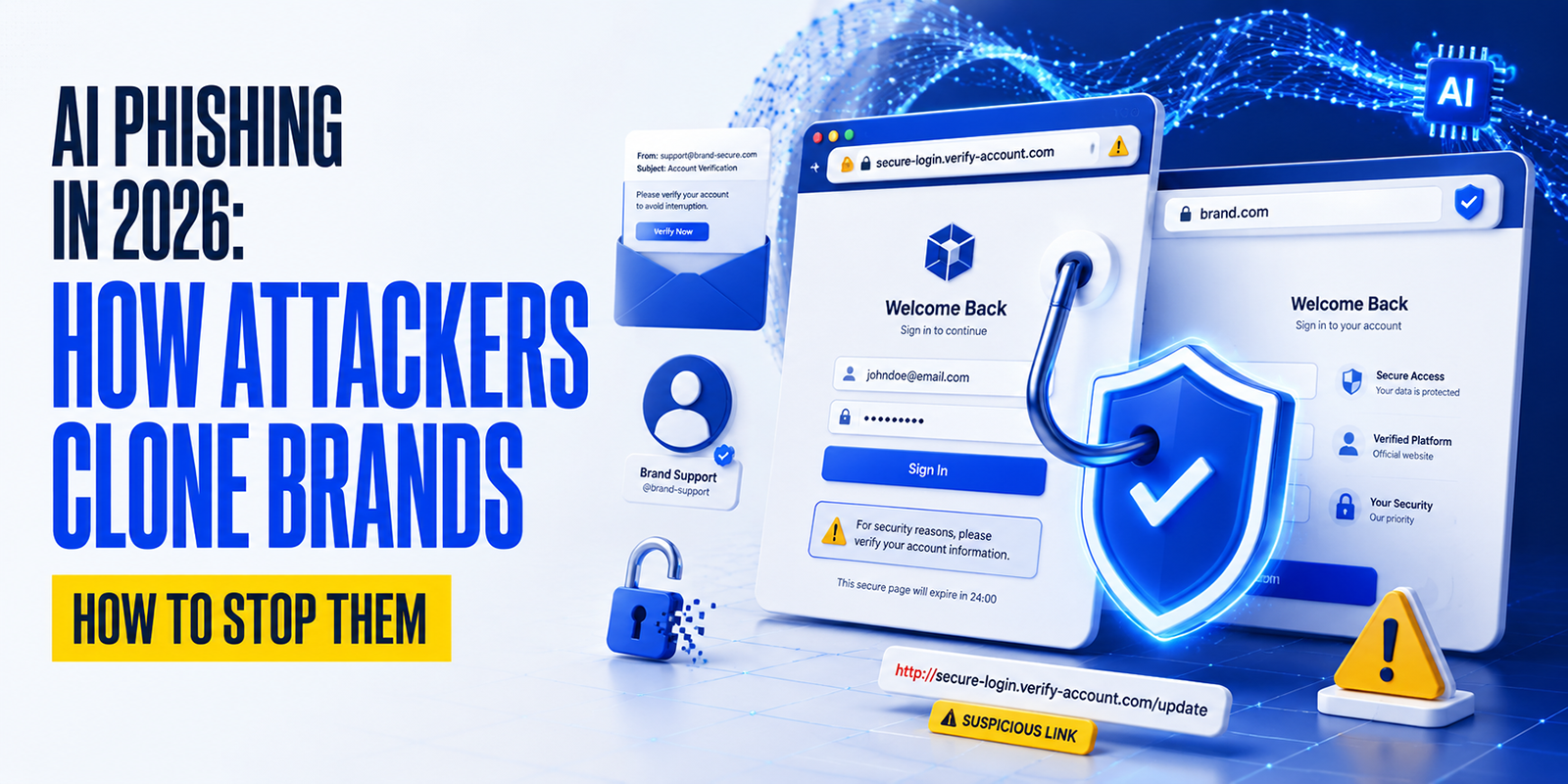
A website can look completely legitimate and still be dangerous. In 2026, phishing sites use valid HTTPS certificates, AI-generated designs, cloned login pages, and lookalike domains that are often impossible to spot at first glance.
That’s why checking whether a domain is safe before visiting is more important than ever. A quick safety check can help you avoid phishing attacks, malware downloads, fake online stores, and credential theft.
In this guide, you’ll learn how to verify a domain using practical checks like:
- URL and domain inspection
- WHOIS and domain age lookup
- SSL certificate verification
- DNS and DMARC analysis
- Blacklist and reputation checks
You’ll also discover how to use free tools from HasheTools.com to investigate suspicious domains, detect phishing websites, and verify website legitimacy before clicking any link.
Why Checking a Domain’s Safety Matters in 2026
Every link you click, every URL you type, and every domain you visit involves a trust decision. In 2026, that trust decision is more consequential than ever. Cybercriminals have access to AI-powered phishing tools that generate convincing lookalike websites at scale, buy aged domains with established reputations, and obtain valid SSL certificates for malicious sites within minutes of registering them.
The old indicators of safety no longer work in isolation. A website can have a padlock (HTTPS), look exactly like your bank, use a domain name that’s only one character different from the real one, and still be a sophisticated phishing site designed to steal your credentials, install malware, or hijack your session.
The solution: a systematic, multi-layer domain safety check that goes beyond the padlock icon and looks at DNS records, registration details, blacklist status, certificate details, and behavioural signals together. This guide walks you through every layer.
How Attackers Use Malicious Domains in 2026
Understanding the attack types helps you know what to look for during a safety check:
Typosquatting
Registering domains with common misspellings of legitimate brands: paypa1.com, arnazon.com, micros0ft.com. Victims type or click slightly wrong and land on a fake site that looks identical to the real one.
Lookalike Domains
Domains that use different TLDs or subdomains to appear legitimate: paypal.com.verify-account.net (the real domain here is verify-account.net, not paypal.com), or support.apple.com.phish.xyz.
Homoglyph Attacks
Using characters that look visually identical to legitimate letters, Cyrillic ‘a’ instead of Latin ‘a’, or Unicode lookalikes. The domain appears correct even on close inspection, but it is a completely different domain.
Aged Domain Abuse
Buying domains with years of legitimate history, then repurposing them for malware or phishing. These domains pass age-based reputation checks because they were genuinely used for something benign previously.
HTTPS Abuse
Obtaining a valid SSL certificate for a phishing domain. The padlock is real, the site is encrypted, but the certificate only proves identity to that domain name, not that the site is legitimate.
AI-Generated Phishing Sites
In 2026, AI tools can clone a website’s appearance in seconds. Attackers scrape a legitimate site’s HTML, CSS, and images, then serve a perfect copy from a malicious domain to harvest credentials.
Step 1: Check the URL Carefully
The domain name itself is the first and most important thing to inspect. This sounds obvious, but it is surprisingly easy to get wrong, especially on mobile devices where the full URL is often hidden or truncated.
Anatomy of a URL
| URL structure: know what each part means |
| https://secure.paypal.com/signin/confirm?token=abc123
^ ^ ^ ^ | | | | Protocol | Domain Path/Query Subdomain | TLD (.com) # The REAL domain is always the part immediately before the first single / # after the protocol in this case: paypal.com # # DANGER EXAMPLES: # paypal.com.login.verify-now.net <- real domain is verify-now.net # http://192.168.1.1/paypal/login <- IP address, not a domain # paypa1.com <- digit 1 replacing letter l # pаypal.com <- Cyrillic ‘a’ (looks identical) |
What to Check in the URL
- Identify the real domain: Find the part just before the first lone slash (/) that is the actual domain you’re visiting. Everything before it (subdomains) does not change who owns the domain.
- Check the TLD: Legitimate businesses use .com, .org, .net, .gov, .edu, and country TLDs. Be wary of unusual TLDs (.xyz, .click, .loan, .top, .gq) on sites claiming to be major brands, though note many legitimate sites also use modern TLDs.
- Look for character substitution: Check for 0 (zero) instead of O, 1 (one) instead of l or I, rn instead of m, vv instead of w.
- Copy to a text editor: Paste the URL into Notepad or a similar text editor to see it in a plain font where homoglyphs are easier to spot.
- Check for extra subdomains: apple.com.account.verify.ru is NOT apple.com. The domain is verify.ru.
- Hover before clicking: On desktop, hover over a link to see the real URL in the browser status bar before clicking.
Step 2: Check HTTPS and the SSL Certificate
HTTPS and a padlock icon are necessary but not sufficient for safety. A padlock only means the connection between your browser and the server is encrypted; it says nothing about whether the server belongs to a legitimate organisation or is run by an attacker.
Let’s Encrypt and other free SSL providers issue certificates automatically to any domain, including phishing sites. In 2026, over 80% of phishing sites have valid HTTPS certificates. The padlock is not a safety badge.
What to Check in the SSL Certificate
- Click the padlock icon (or the information icon on Chrome) in your browser’s address bar.
- View the certificate details (look for ‘Certificate’ or ‘More information’)
- Check the ‘Issued to’ or ‘Common Name’ field; it should match the exact domain you’re visiting.
- Check the Certificate Authority (CA): recognised CAs: DigiCert, Sectigo, GlobalSign, Let’s Encrypt, Amazon, Microsoft. Unknown or self-signed CAs are red flags.
- Check the certificate type: DV (Domain Validated) only proves domain control. OV (Organisation Validated) and EV (Extended Validation) verify the organisation’s legal identity and provide higher trust for banking and financial sites.
| Certificate Type | What It Proves | When to Expect It |
|---|---|---|
| DV: Domain Validated | Domain owner controls the domain | Free; any site, including phishing sites, can get this |
| OV: Organisation Validated | Legal organisation identity verified | Small to mid-size businesses, SaaS companies |
| EV: Extended Validation | Rigorous legal entity verification | Banks, financial institutions, e-commerce leaders |
| Self-Signed | Nothing anyone can create these | Internal tools only, never on a public website; you should trust it |
Step 3: Look Up the Domain Age and WHOIS Data
Domain registration data is publicly available through WHOIS, a database that records when a domain was registered, who registered it, through which registrar, and when it expires. This information is one of the most reliable indicators of domain legitimacy.
How to Run a WHOIS Lookup
Use HasheTools WHOIS Lookup at hashetools.com, enter the domain, and instantly see registration details, registrar, creation date, expiry date, and nameservers.
| WHOIS lookup via command line |
| # macOS / Linux
whois yourdomain.com # Look for these key fields: # Creation Date: 2024-03-15T08:00:00Z <- when domain was registered # Expiry Date: 2025-03-15T08:00:00Z <- when domain expires # Registrar: NameCheap, Inc. <- who it was registered through # Registrant: [REDACTED] <- owner (often privacy-protected) # Name Server: ns1.example.com <- where DNS is hosted |
What to Look for in WHOIS Data
- Registration date: A domain registered within the last 30 days claiming to be a major brand or financial institution is an immediate red flag. Legitimate brands register domains years or decades before you encounter them.
- Expiry date: A domain set to expire very soon (days or weeks away) may be a throwaway attack domain. Legitimate businesses renew for years in advance.
- Registrar: Phishing domains frequently use budget registrars (Namecheap, GoDaddy, Porkbun, all legitimate registrars but also popular with attackers due to low cost and easy registration). Note: Using these registrars doesn’t make a domain malicious, but combined with other signals, it contributes to a risk profile.
- Registrant details: Most legitimate businesses have organisation details in WHOIS (or use registrar privacy protection). Be wary of domains with obviously fake registrant information (gibberish names, fake addresses).
- Nameservers: Check if the nameservers are consistent with what you’d expect from the claimed organisation’s hosting infrastructure.
| WHOIS Signal | Suspicious | Legitimate |
|---|---|---|
| Domain age | Registered < 30 days ago | Registered years ago, matching brand history |
| Expiry date | Expiring soon or < 1 year registration | Renewed for multiple years |
| Registrant name | Privacy-protected + brand claim | Organisation name matches brand |
| Registrar | Offshore/unknown registrar | Well-known registrar |
| Name servers | Free DNS provider or unknown NS | NS matching claimed organisation’s infrastructure |
Step 4: Run a Blacklist Check
DNS-based blacklists (DNSBLs) and web reputation databases maintain constantly updated lists of domains and IP addresses known to be involved in spam, malware distribution, phishing, and other malicious activity. Checking a domain against these lists is one of the fastest safety signals you can get.
How Blacklists Work
Security researchers, ISPs, and automated honeypot systems continuously report malicious domains and IPs to blacklist operators. When a domain is reported for phishing, it is added to the blacklist, and email servers, DNS resolvers, and security tools worldwide query these lists to block or flag traffic from blacklisted sources.
How to Check a Blacklist with HasheTools
- Go to hashetools.com and open the Blacklist Check tool
- Enter the domain name or IP address you want to check
- HasheTools queries dozens of major blacklists simultaneously and shows which ones flag the domain
- A domain listed on any spam/malware blacklist should be treated as dangerous until investigated further
| Blacklist Type | What It Flags | Examples |
|---|---|---|
| Email spam blacklists | IPs/domains that send spam | Spamhaus SBL, SURBL, Barracuda |
| Malware/phishing | Sites distributing malware or harvesting credentials | Google Safe Browsing, PhishTank, OpenPhish |
| DNS-based blocklists | Domains/IPs flagged by DNS resolvers | Quad9, Cloudflare RADAR, Comodo |
| Botnet/C2 lists | Command-and-control infrastructure for malware | Feodo Tracker, Abuse.ch URLHaus |
| Reputation scores | Composite trust score across multiple signals | Cisco Talos, Fortinet FortiGuard |
Step 5: Inspect DNS Records
DNS records reveal a significant amount of information about a domain’s infrastructure, purpose, and configuration. Inspecting them is a layer of safety analysis that most users skip, but it’s one of the most revealing steps for technical users.
What DNS Records to Check
- A record: The IP address the domain resolves to. Check it against known cloud/hosting providers. A domain claiming to be a UK bank but resolving to an IP in a country with no connection to that bank is suspicious.
- MX records: Mail server records. Legitimate organisations have MX records matching their email provider (Google, Microsoft, etc.). A domain with no MX records but claiming to be a business that would send email is odd.
- TXT records: Check for SPF, DKIM, and DMARC records. Legitimate organisations sending emails have these configured. A domain with no SPF or DMARC claiming to be a major brand is likely a spoofing domain.
- NS records: Nameservers. Check whether the nameservers match what you’d expect from the organisation’s hosting. A ‘bank’ using free DNS hosting is a red flag.
- WHOIS nameservers vs. DNS NS records: These should match. A mismatch can indicate a hijacking attempt or misconfiguration.
| Inspect DNS records using dig key safety checks |
| # Check what IP the domain resolves to
dig suspicious-domain.com A +short # Then search the IP: is it in a country consistent with the claimed org? # Check MX records: Does a ‘business’ have professional mail setup? dig suspicious-domain.com MX +short # Check TXT records legitimate senders have SPF/DMARC dig suspicious-domain.com TXT +short # Red flag: no SPF record for a domain claiming to be a major brand # Red flag: no DMARC for a domain that sends email to customers # Check nameservers dig suspicious-domain.com NS +short # Red flag: free DNS provider (freedns.afraid.org, etc.) for a ‘bank’ |
Step 6: Check Website Reputation
Multiple free tools and databases aggregate reputation signals for domains, combining blacklist data, user reports, scan results, and historical behaviour into a reputation score. Use these as an additional layer of verification:
| Tool / Service | What It Checks | How to Use |
|---|---|---|
| Google Safe Browsing | Malware and phishing detection (Google’s database) | transparencyreport.google.com/safe-browsing/search |
| VirusTotal | 70+ antivirus and URL scanners simultaneously | virustotal.com paste URL, instant multi-scanner result |
| URLScan.io | Full page screenshot, DNS, network, and behaviour scan | urlscan.io scans any URL without visiting it |
| Cisco Talos | Email and web reputation based on threat intelligence | talosintelligence.com/reputation_center |
| Sucuri SiteCheck | Malware, blacklist status, and security config | sitecheck.sucuri.net |
| MXToolbox | Blacklist check, DNS health, and MX analysis | mxtoolbox.com/blacklists.aspx |
| Whois.domaintools.com | Domain age, registrant, and reputation scoring | whois.domaintools.com |
| HasheTools | DNS Lookup, WHOIS, Blacklist Check, DMARC, CNAME | hashetools.com all DNS-based checks in one place |
URLScan.io is particularly useful because it visits the suspicious URL in a sandboxed environment and returns a screenshot, letting you see what the site looks like without exposing your own browser or device. If you’re unsure about a link, scan it with URLScan.io before clicking it yourself.
Step 7: Analyse the Page Content and Behaviour
If you’ve decided to visit the domain (ideally in a sandboxed browser or after completing all prior checks), the page itself provides additional safety signals:
Content Red Flags
- Immediate login prompt: A page that shows nothing but a login form before providing any context is a common phishing pattern, especially if it pre-populates your email address (scraped from the link)
- Urgency language: “Your account has been suspended”, “Verify within 24 hours or lose access”, “Unusual activity detected,” high-pressure language designed to bypass critical thinking
- Broken links and images: Cloned phishing sites often have broken internal links, missing images, or non-functional navigation. The attacker only built the login page.
- Mismatched branding: Slightly wrong fonts, colours, logos, or layout compared to the real brand’s website
- Unusual form fields: Asking for information a legitimate site would never request at login, Social Security Number, full credit card details on a non-payment page, mother’s maiden name
- Immediate download prompts: Being asked to download a file immediately upon visiting is a major malware distribution signal
Browser Behaviour Red Flags
- Browser warning: If Chrome, Firefox, Safari, or Edge displays a red ‘Dangerous Site’ or ‘Deceptive Site Ahead’ warning, leave immediately. These warnings are based on Google Safe Browsing and are accurate the vast majority of the time
- Redirect chains: Being redirected through multiple domains before landing on a page can indicate a malicious redirect chain designed to obscure the final malicious destination
- Pop-ups demanding action: Fake virus warnings, fake browser update prompts, fake captchas that ask you to download something
- Console errors: Opening browser dev tools (F12) and seeing JavaScript errors or requests to suspicious third-party domains can reveal malicious infrastructure
Red Flags: Signs a Domain Is Almost Certainly Dangerous
If you observe any combination of the following signals, treat the domain as malicious until proven otherwise:
| Registered < 30 days ago | Claiming to be an established brand or financial institution. Legitimate companies don’t appear overnight. |
| The domain appears on any blacklist. | Security researchers have specifically flagged this domain for phishing, malware, or spam. Treat as confirmed dangerous. |
| The browser shows a security warning. | Google Safe Browsing or equivalent has already flagged the site. Leave immediately; the warning is rarely wrong. |
| URL contains brand name as subdomain | paypal.com.verify.net ‘paypal.com’ is the subdomain, ‘verify.net’ is the real domain. Classic phishing structure. |
| No DMARC / no email auth records. | A domain claiming to be a major brand but with no SPF, DKIM, or DMARC configured is likely a spoofing domain, not the real brand. |
| SSL certificate issued the same day as registration | A domain registered today with a same-day SSL certificate is almost certainly a phishing site. Attackers automate this process. |
| Homoglyph characters in a domain name | Any Unicode or non-ASCII characters in a domain claiming to be a well-known brand, such as paypał.com, for example, is an impersonation attack. |
| Domain resolves to an IP in an unexpected country. | Your bank’s domain resolving to an IP in Eastern Europe or Southeast Asia, with no established presence there, is a hijacking indicator. |
| Asks for credentials not appropriate to the context | Requesting your bank password on a page reached via a text message link, or asking for full card details to ‘verify identity’. |
Green Flags: Signs a Domain Is Likely Safe
No single signal guarantees safety, but the following signals in combination provide strong evidence of legitimacy:
| Domain registered years ago | A domain with 5+ years of registration history matching the claimed brand’s founding date is a strong legitimacy signal. |
| Consistent WHOIS organisation details | Registrant organisation name matches the claimed brand, with a business address consistent with their known headquarters. |
| OV or EV SSL certificate | An organisation-validated or Extended Validation certificate confirms that the Certificate Authority verified a legal entity. |
| DMARC at p=reject | A strict DMARC policy indicates that the organisation actively manages its email authentication in a manner consistent with legitimate business operations. |
| Clean blacklist status | No appearance on any major spam, malware, or phishing blacklist across dozens of databases. |
| MX records matching the claimed email provider | A business using Google Workspace, Microsoft 365, or a professional email provider and MX records to match. |
| Nameservers from the enterprise DNS provider | DNS hosted on Cloudflare, AWS Route 53, Google Cloud DNS, or an enterprise provider, consistent with a properly managed organisation. |
| Domain matches official brand communications. | URL matches exactly what appears in the company’s official printed materials, social media profiles, and app store listings. |
| No security warnings from the browser | Google Safe Browsing, Mozilla, and Microsoft SmartScreen all have clean records for this domain. |
How to Check Specific Domain Types
Email Links
| 1
Check sender domain Does From: match the brand? |
2
DMARC Lookup Is email auth enforced? |
3
Hover link Does URL match claim? |
4
Blacklist Check Any malicious history? |
5
VirusTotal Scan the link before clicking |
Email is the primary delivery mechanism for malicious domains. Before clicking any link in an email: verify the sender’s domain matches the claimed brand exactly, run a DMARC lookup to confirm the brand has email authentication enforced (and therefore this email was authenticated), hover the link to inspect the URL, and scan it with VirusTotal if you’re still unsure.
Social Media Links
- URL shorteners: Links shared on Twitter/X, Instagram, and other platforms are often shortened (bit.ly, t.co, etc.). Use a URL expander to reveal the final destination before visiting.
- Verify official accounts: Check the blue verification badge and account age before trusting links shared by accounts claiming to be official brands.
- Cryptocurrency and giveaway scams: Any post promising cryptocurrency rewards, giveaways, or investment returns from a link is almost always a scam, regardless of how legitimate the account appears.
E-Commerce Domains
- Check for secure checkout: Payment pages must be on the same domain you browsed to, not redirected to a different domain.
- Verify with company registration: For unknown online stores, search the company name + ‘scam’ or check Companies House (UK), BBB (US), or ASIC (Australia)
- Unrealistic pricing: Products priced 80-90% below retail are almost always either counterfeit, non-existent, or a payment credential harvesting operation
File Download Links
- Domain must match the software vendor: Software downloads must come from the official vendor’s domain, not a ‘mirror’ site you’ve never heard of
- Scan with VirusTotal: For any downloadable file, scan the URL with VirusTotal before downloading, and scan the file itself after
- Check the file extension: A file named ‘document.pdf.exe’ or ‘invoice.zip’ contains an executable disguised as a document.
Frequently Asked Questions
Does HTTPS mean a website is safe?
No. HTTPS only encrypts the connection between your browser and the website. It does not guarantee the website itself is legitimate. Many phishing sites use valid HTTPS certificates, so always verify the domain name, WHOIS age, and blacklist status before trusting a site.
How can I check a link without clicking it?
On desktop, hover over the link to preview the real URL in your browser’s status bar. On mobile, press and hold the link to view the full destination. You can also paste the URL into tools like VirusTotal or URLScan.io to analyse it safely without visiting the site.
What should I do if I accidentally click a suspicious link?
Do not enter any information or download files. Close the tab immediately and run a malware scan on your device. If you entered credentials, change your password immediately from the official website and enable two-factor authentication where possible.
Can a domain that is 10 years old still be dangerous?
Yes. Attackers often purchase aged domains because they already have a reputation history and may bypass basic trust checks. Always combine domain age with blacklist checks, DNS analysis, and website behaviour before trusting a site.
How do I check if a shortened URL is safe?
Avoid clicking shortened URLs directly. Use a URL expander tool to reveal the final destination first, then check the full URL using blacklist, WHOIS, and reputation tools before visiting.
Is it safe to visit a site that fails one safety check?
Not always. A blacklist warning is a major red flag, even if other checks appear normal. If multiple checks raise concerns, such as a new domain, suspicious DNS setup, or a phishing-style URL, avoid visiting the site until verified.
How do I report a phishing or malicious domain?
You can report suspicious domains to Google Safe Browsing, Microsoft Defender SmartScreen, PhishTank, ICANN, or your national cybersecurity authority. Reporting helps security providers block malicious websites faster.
Is it safe to visit a website without HTTPS?
Generally, no. Websites without HTTPS do not encrypt data between your browser and the server. Never enter passwords, payment details, or sensitive information on a non-HTTPS website.
Can scammers create fake websites that look real?
Yes. Modern phishing websites can closely imitate legitimate brands using copied layouts, logos, and even valid SSL certificates. This is why checking the domain name, WHOIS data, and blacklist status is critical before trusting a site.
Conclusion
Checking whether a domain is safe before visiting is no longer optional in 2026. Modern phishing websites can look almost identical to legitimate brands, use valid HTTPS certificates, and even operate from aged domains with existing reputations. A glance at the padlock icon is not enough to determine whether a website can be trusted.
The safest approach is to combine multiple checks, inspect the URL carefully, verify WHOIS and domain age data, review SSL certificate details, check blacklist and reputation databases, and analyse DNS records such as SPF, DKIM, and DMARC. Even a few seconds of verification can help prevent credential theft, malware infections, financial fraud, and phishing attacks.
Whether you are checking an email link, verifying an online store, analysing a vendor website, or investigating a suspicious domain, following a structured safety-check process dramatically reduces your risk.
With free tools from HasheTools.com, you can quickly perform DNS lookups, blacklist checks, WHOIS analysis, DMARC verification, and other essential domain security checks, all from one place, without creating an account.
Before clicking any unfamiliar link, remember: if a domain feels suspicious, investigate first and trust later.