Flushing DNS is an essential network maintenance task that ensures your device accesses the most up-to-date domain information. Outdated DNS records in your cache can lead to issues such as slow website loading, connection errors, and the inability to reach recently updated websites. This guide covers how to flush DNS on Windows, macOS, Linux, and mobile devices, provides troubleshooting tips, discusses advanced methods, and explains public DNS cache clearing. We’ll also show you how HasheTools can simplify your DNS management.
What Is Flushing DNS?
When you visit a website, your computer performs a DNS lookup to translate a domain name (like example.com) into an IP address. Your system stores this information locally in a DNS cache to speed up subsequent visits. Over time, cached entries can become outdated, causing connectivity issues. Flushing DNS clears these cached records and forces your system to fetch fresh DNS information.
Key Terms:
- DNS Cache: Temporary storage of domain-to-IP mappings.
- TTL (Time-to-Live): Duration a DNS record remains in cache.
- Flush DNS / Clear DNS Cache / Reset DNS Cache: Different terms for the same process.
Why You Should Flush DNS
Flushing your DNS cache resolves several common network problems:
- Accessing Updated Websites: When a website changes servers or IP addresses, your cached DNS may point to the old location.
- Fixing Connection Errors: Outdated DNS records can cause 404 Not Found errors or failed connections.
- Speed & Performance: Connecting to a closer or updated server can improve load times.
- Security: Removing cached DNS entries helps prevent DNS spoofing or cache poisoning attacks.
- Network Troubleshooting: Clearing DNS is often the first step in diagnosing internet issues.
How to Flush DNS: Step-by-Step
Windows
Flushing DNS on Windows depends on your version. All commands require administrator privileges.
Windows 11 & 10
- Right-click the Start menu → select Windows Terminal (Admin) or Command Prompt (Admin).
- Type:
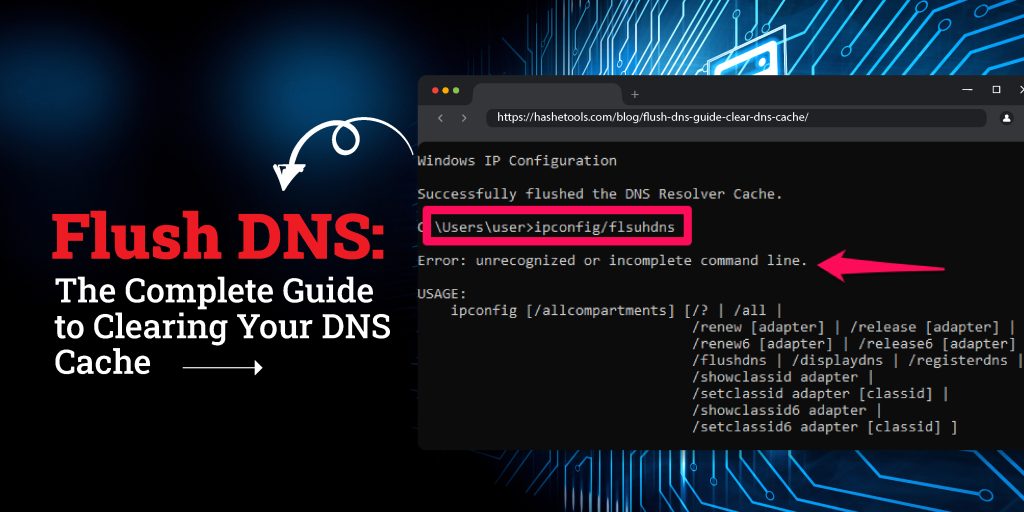
ipconfig /flushdns - Press Enter. You’ll see: “Successfully flushed the DNS Resolver Cache”
- Type
exitto close the terminal.
Additional commands for network reset:
ipconfig /release
ipconfig /renew
Windows 8 / 8.1
- Press Windows + X → select Command Prompt (Admin).
- Run
ipconfig /flushdns.
Windows 7 / Vista
- Start → All Programs → Accessories → Right-click Command Prompt → Run as Administrator.
- Run
ipconfig /flushdns.
Windows XP / 2000 / NT
- Start → Run → type
cmd.exe→ Enter. - Run
ipconfig /flushdns.
macOS and Mac OS X
Open Terminal from Applications > Utilities and run the appropriate command for your version:
| macOS Version | Command |
|---|---|
| macOS 12 (Monterey), 11 (Big Sur), 10.15 (Catalina) | sudo killall -HUP mDNSResponder |
| macOS 10.14 (Mojave) | sudo killall -HUP mDNSResponder |
| macOS 10.13 – 10.12 (High Sierra, Sierra) | sudo killall -HUP mDNSResponder |
| Mac OS X 10.11 (El Capitan) | sudo killall -HUP mDNSResponder |
| Mac OS X 10.10 (Yosemite) | sudo discoveryutil udnsflushcaches |
| Mac OS X 10.6 (Snow Leopard) | sudo dscacheutil -flushcache |
| Mac OS X 10.5 and below | sudo lookupd -flushcache |
Linux
Linux DNS cache commands depend on the service used:
- systemd-resolve (Ubuntu/Debian):
sudo systemd-resolve --flush-caches - NSCD:
sudo /etc/init.d/nscd restart - BIND:
sudo rndc flush
Mobile Devices
- iOS: Restart your device or toggle Airplane Mode.
- Android: Restart your device or use network reset options.
Alternative Ways to Flush DNS
- Restart Your Device: Easiest method if you lack admin privileges.
- Reset Network Connection: Reconnect WiFi or unplug/plug Ethernet.
- Change DNS Server: Switching to a public DNS like Google 8.8.8.8 or Cloudflare 1.1.1.1 automatically refreshes the cache.
- Modify Hosts File: Temporarily force specific domain resolution.
Clearing Public DNS Resolver Cache
- Cloudflare 1.1.1.1: Visit their Purge Cache tool → enter domain → select record type → clear.
- Google Public DNS 8.8.8.8: Visit Google DNS Flush Cache → enter domain → flush.
- OpenDNS: Use OpenDNS CacheCheck → enter domain → refresh cache.
Troubleshooting DNS Issues
- Page Not Found (404): Old cache points to deleted page; flush DNS.
- Unable to Connect: Cached IP may be wrong; flush DNS or reset network.
- Old Website Version: Cached data shows outdated content; flush DNS to see updates.
- Network Performance Issues: Cached DNS might point to a distant server; flushing can optimize routing.
Using HasheTools to Check and Flush DNS
HasheTools Flush DNS Tool makes clearing DNS simple:
- No command line needed
- Works on Windows, macOS, Linux
- Clears local cache instantly
- Links to DNS propagation checker and other network diagnostic tools
Other useful HasheTools DNS tools:
FAQs About Flushing DNS
Q1: Is it safe to flush DNS?
Yes. Flushing your DNS cache is safe and does not harm your system.
Q2: Does flushing DNS improve internet speed?
It doesn’t increase raw bandwidth, but it can resolve slow access due to outdated cached records.
Q3: How often should I flush DNS?
Only when you encounter connectivity issues, outdated content, or network changes.
Q4: Can I flush DNS without admin access?
Yes, by restarting your device or using the HasheTools online tool.
Q5: Why am I still seeing the old website after flushing DNS?
Your browser cache may still hold old content; clear the browser cache as well.
Pro Tips
- Combine flush DNS with
ipconfig /releaseandipconfig /renewfor a complete network reset. - Use public DNS servers for faster and more reliable resolution.
- Keep a regular maintenance schedule for servers and DNS settings to avoid cache issues.
Conclusion
Flushing DNS is a critical step in network maintenance, troubleshooting, and ensuring up-to-date website access. With step-by-step instructions for Windows, macOS, Linux, and mobile devices, along with HasheTools online tools, you can maintain optimal DNS performance and avoid connectivity problems.